
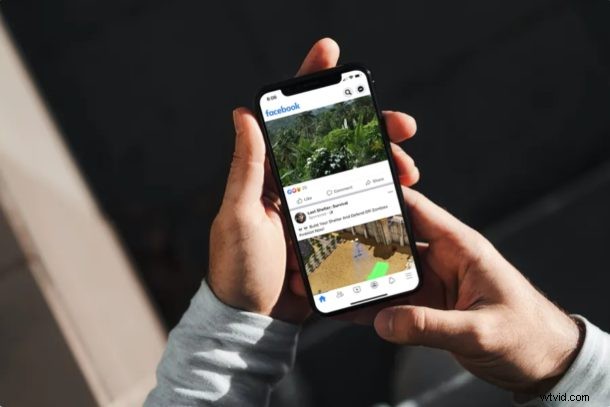
Facebook, the world’s biggest social network, offers a convenient way to make video calls and group video calls for free. With multi-platform support, you can make or join these calls directly from your iPhone, iPad, Android, Mac, or your Windows computer using a web browser. This is similar to the equally handy capability of making video calls in Facebook Messenger, and it offers yet another solution to connect with people remotely.
Video calling services have always been handy and useful, but they’re perhaps more relevant than ever right now as many people are not as social as they’d like to be, either because of work, school, quarantine, working from home, or even just distances. And of course the COVID-19 situation has made video calling services more relevant than ever before. Facebook offers another option to video calling with Zoom Meeting from iPhone and iPad, group FaceTime video chat with iPhone and iPad, Skype, Facebook Messenger, Instagram, WebEx, and more.
Looking to stay connected with your friends and colleagues from home? In this article, we’ll cover how you can make video calls and group video chats with Facebook from an iPhone, iPad and a computer using a web browser.
How to Video Chat from Facebook App for iPhone & iPad
Before you get started with the procedure, you’ll need to install the latest version of Facebook and Messenger app from the Apple App Store. As long as you have a Facebook account, you should be able to use it right away. If you don’t, sign up for a Facebook account and then simply follow the steps below.
- Open the Facebook app on your iPhone or iPad.

- Once you’ve logged in to your Facebook account, you’ll be taken to the News Feed. Here, tap on the “Messenger” icon located at the top-right corner of your screen.
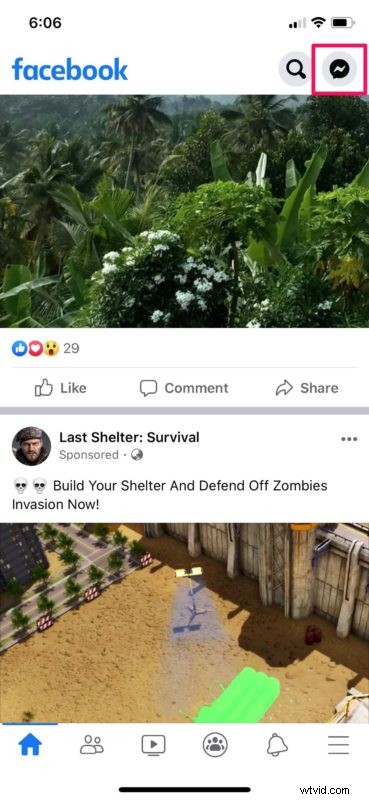
- This will open up Messenger if you already have it installed. If you don’t, Facebook will prompt you to download it from the App Store. Once you’re in the Messenger app, tap on the “compose” icon at the top-right corner to start a new conversation.

- Now, you can use the search bar or scroll through the list to find the Facebook friend you want to video call with. If you want a one-on-one video call, you just need to select one contact. However, if you’re looking to start a group video call, you can select multiple contacts as shown below and tap on “Done”.
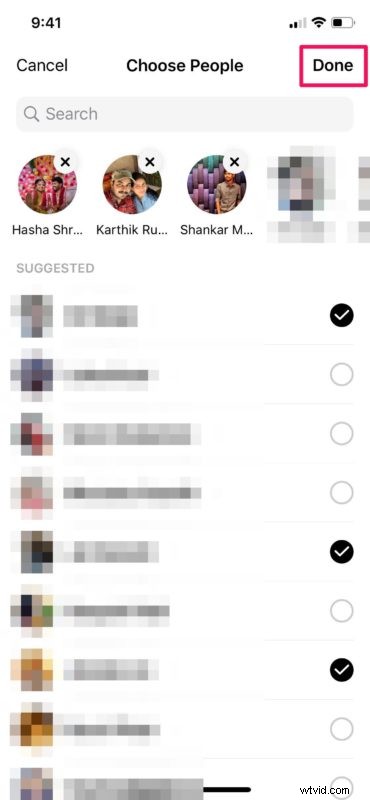
- If you selected multiple people, Facebook will create a group for you. If not, it will just open a conversation with the contact you selected. Regardless, in order to initiate a video call, simply tap on the “video” icon located at the top-right corner of your screen.

There you go. Now you know how to make video calls and group video calls using the Facebook app on an iPhone or iPad.
You can use the same procedure for video calling from an Android device too.
How to Video Chat from Facebook on a Computer (Mac & Windows PC)
If you’re using a Mac or Windows PC, you can easily use Facebook’s video calling feature with your web browser. There’s no need to download any additional apps. Simply follow the steps below to get started.
- Head over to facebook.com and sign in with your Facebook account. Once you’ve logged in, you’ll see all of your online contacts on the sidebar. Here, you can use the search bar to find the Facebook friend you want to video call with. Click on their name to open a conversation and then click on the “video” icon to initiate the video call.
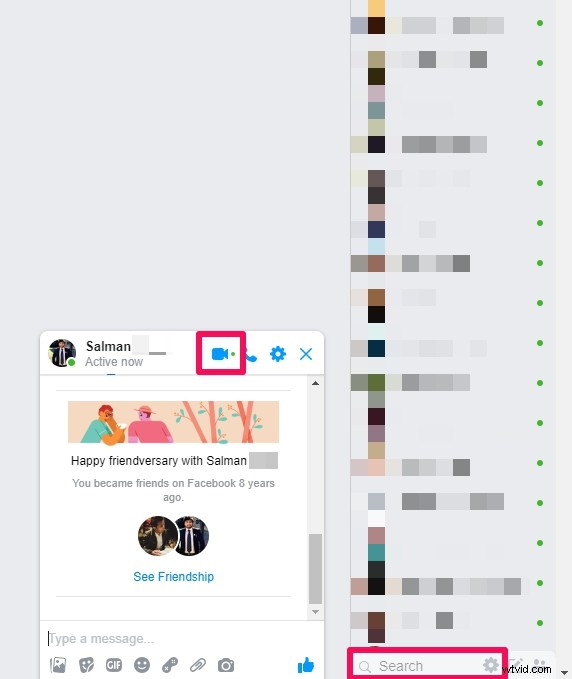
- Now, if you want to start a group video chat, scroll through the chat sidebar and click on “Create new group”.
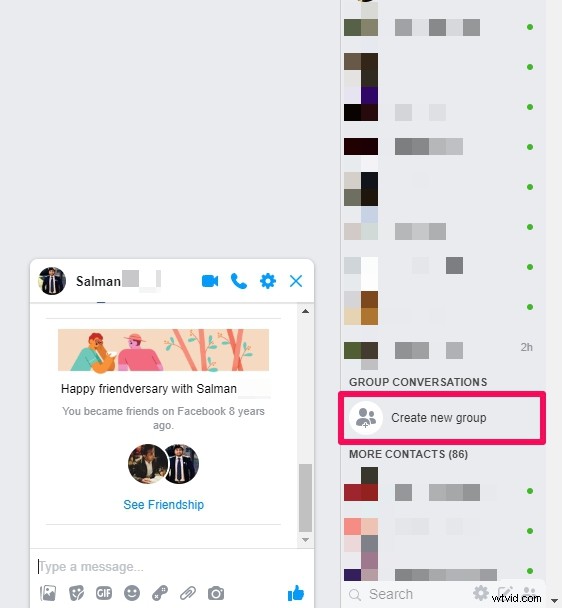
- Now, you’ll get a pop-up on your screen. Give the group a preferred name and select the contacts you want to add to the group. When you’re done, click on “Create”.

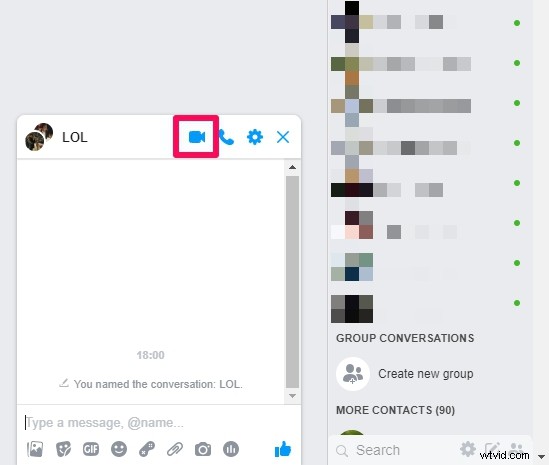
- Now, simply click on the “video” icon to begin the group video chat session.
That’s pretty much all there is to it. Pretty easy, right?
Facebook allows users to create group video calls with up to 50 people. This is on par with Microsoft’s Skype, but falls short of Zoom’s 100-participant meetings that have gained huge popularity recently among businesses and educational institutions.
In a move to compete against Zoom, Facebook is currently testing Messenger Rooms in certain countries, which makes it easy to set up online meetings and classrooms. Once it’s available, we’ll be covering that too.
Looking for alternative solutions to make video calls? There are so many competing services you can try out, like Skype, Google Duo, Hangouts and WhatsApp to name a few of the many video chat options. All of these services are multi-platform and can be used to stay connected with your loved ones while you’re away. Or, if the people you’re trying to contact own Apple devices, you could use FaceTime to group video call up to 32 users.
We hope you managed to get in touch with your friends, family, and relatives with Facebook. What other video calling services have you tried before and how do they stack up to Facebook’s offering? Do share your thoughts and experience in the comments section down below.