
Take a clip from a video
However, sometimes you need just one simple function and do not want to install yet another application or trudge through a manual.
And we have the right tool that works online and is for you even if you have never edited a single file on your own. Clideo has a set of video editing tools and one of them will help you take a video clip from a video or another recording stored on your device or cloud storage.
All you need is your favorite browser and access to the internet. The service is free if your file is up to 500 MB and designed to handle various video formats. What is more, you don’t even have to register to do the job.
Let’s see how you can easily trim your clip.
Upload your recording
First, head over to the Clideo’s Video Cutter. If your content is stored on your device, then click the “Choose file” button or simply drag and drop it.
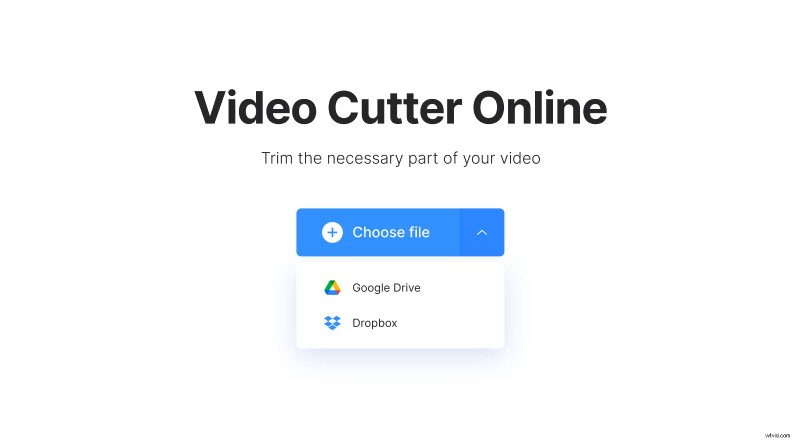
In case you would like to upload from Dropbox or Google Drive, then hover over the dropdown arrow.
Take a clip
Once the upload is over, you will see the preview and its timeline with the frames. First, select whether you want to extract or delete the selected part of the recording.
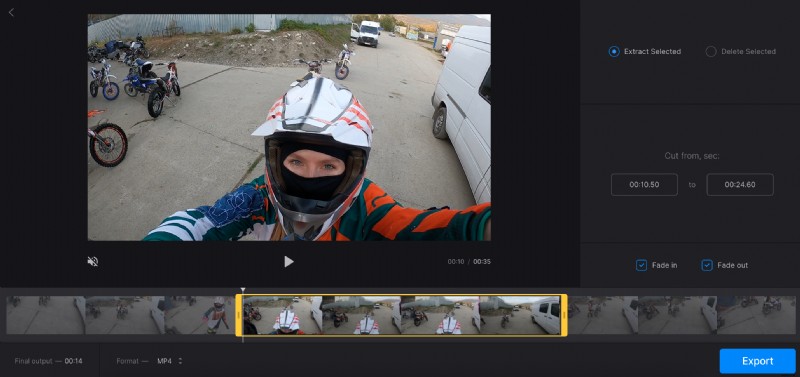
Then, use the yellow handles to decide which part of the clip you need. Alternatively, you can manually specify the start and the end of the new video on the right.
Additionally, you can add a fade-in/fade-out or crossfade effect to make the transitions smoother. It is also possible to change the output format if required.
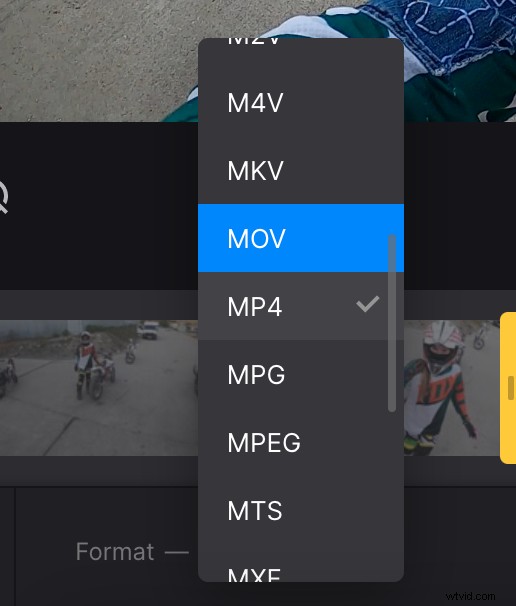
When done with the adjustments, hit the “Export” button.
Download the result
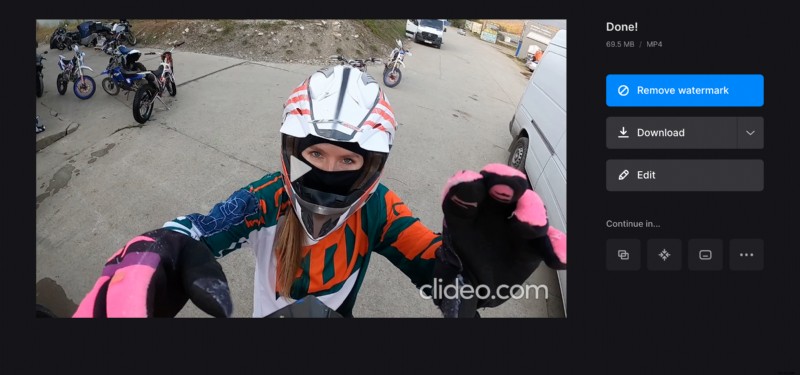
The processing will take a moment or two. Finally, you can have a look at the resulting video to decide whether you like it or not. If all looks perfect, then save it to the device or right to your Google Drive or Dropbox storage. Otherwise, click “Edit” to get back and make changes.
By the way, if you would like to remove the sound from your clip, consider using our online audio remover. Being a Pro subscriber will let you use one tool after another without downloading intermediate results.