
You may want to capture a still image from a video to make a meme, to set as your background, or to share to Instagram, etc. How to take a picture from a video with high quality? In this post, I will show you 3 different ways to take a screenshot from a video.
If you are looking for some ways to capture a still image from a video, then you’ve come to the right place. This post is going to talk about how to take a screenshot from a video on computers and mobile phones. To capture a GIF from a video, you can use MiniTool MovieMaker.
Take a Picture from a Video on Computer
There are 2 ways on how to take a picture from a video on computers.
Print Screen
To take a picture from online streaming videos on Windows, the quickest way is to use the Print Screen key.
Here’s how:
Step 1. Play a video in full-screen mode and pause the video at the frame you want to save.
Step 2. Then find the Print Screen (or PrtSc SysRq) button and press it to capture a still image from the video.
Step 3. Open Word and press “Ctrl + V” keys to paste the screenshot in Word.
Step 4. Right-click on the screenshot and save it on your computer.
VLC
Another way of capturing still images from a video is to use VLC. VLC, compatible with Windows, macOS, iOS, and Android, supports almost all video formats. It also allows you to take a picture from a 4K video with high quality.
Let’s see how to take a picture from a video with VLC.
Step 1. Find the video you want to take a picture from and open it with VLC.
Step 2. Click the Stop button at the frame you want to capture, click on Video, and select Take Snapshot from the drop-down menu. Or click the camera icon next to the red Record button to take a snapshot.
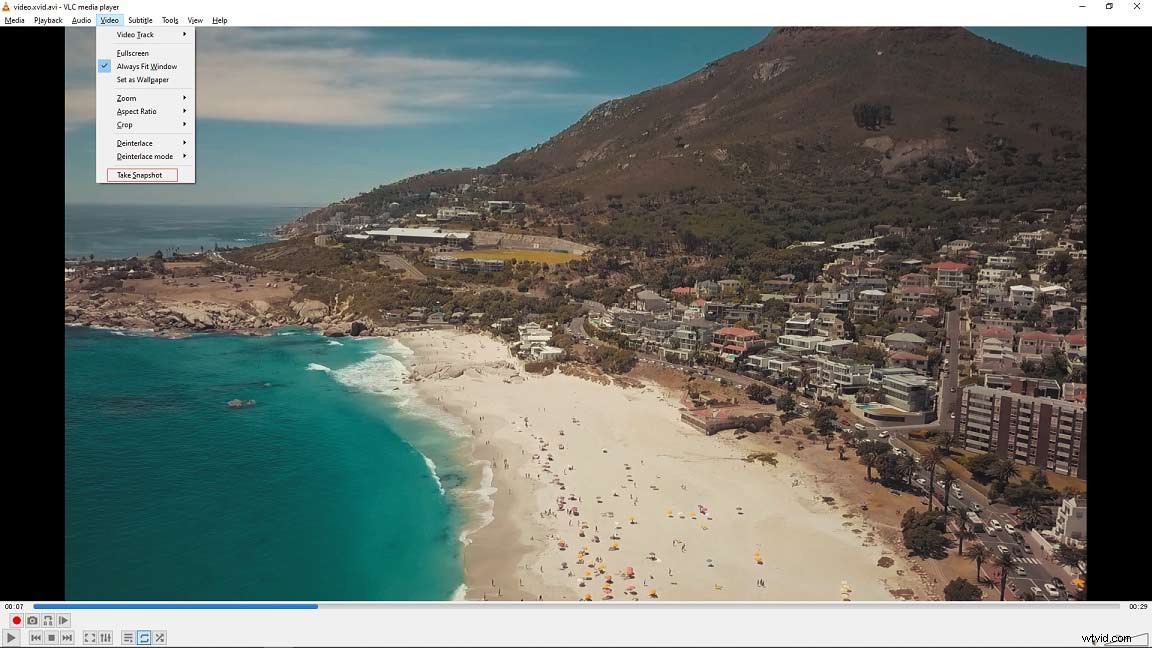
Step 3. Then the save path (where the screenshot was saved) will display at the top of the window. Go to the save folder and you will find the screenshot.
Take a Picture from a Video on Mobile Phone
If you want to quickly get a still image from a video on mobile phones, here’s a guide:
How to take a picture from a video on Android:
- Play the video that you want to extract still images from.
- Pause the video when you want to take a screenshot.
- Press the Power and Volume down button simultaneously.
- Then the screenshot will be automatically saved on your phone.
How to take a picture from a video on iPhone:
- Play the video on your iPhone.
- Pause the video at the frame you’d like to save.
- iPhone X or later: Press the Side and Volume up button at the same time. iPhone 8 or earlier: Press the Side button and the Home button at the same time.
Conclusion
It’s so easy to take a picture from a video on computers and mobile phones. Try the above methods and get your favorite images from a video.