
Do you want to loop your favorite videos or music files? In this post, you’ll learn how to loop videos on computer, phone and online. If you’d like to edit your videos, you should try MiniTool MovieMaker developed by MiniTool.
Have you ever watched a video you love again and again? If yes, you just need the video loop tool to automatically make a video loop. Here introduces three ways to teach you how to loop a video.
How to Loop a Video on Computer
If you want to repeat a video on the computer without pressing the Playback button, here recommend VLC Media Player. It’s a multifunctional media player. With it, you can loop videos you like, stream videos from websites, record video clips and so on.
Here’s how to make a video loop on computer.
Step 1. Download and install VLC Media Player.
Step 2. Launch this software.
Step 3. Drag and drop the target video into the playback window. Or navigate to Media > Open File… to open the video.
Step 4. Then click A to set the start point of the loop video and click B to set the endpoint of the loop video.
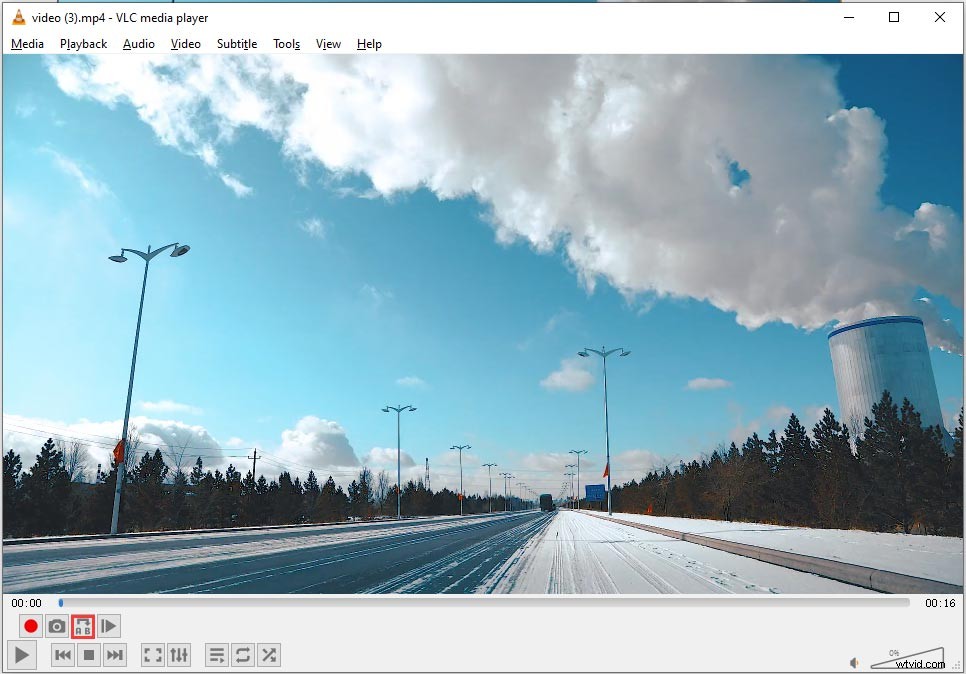
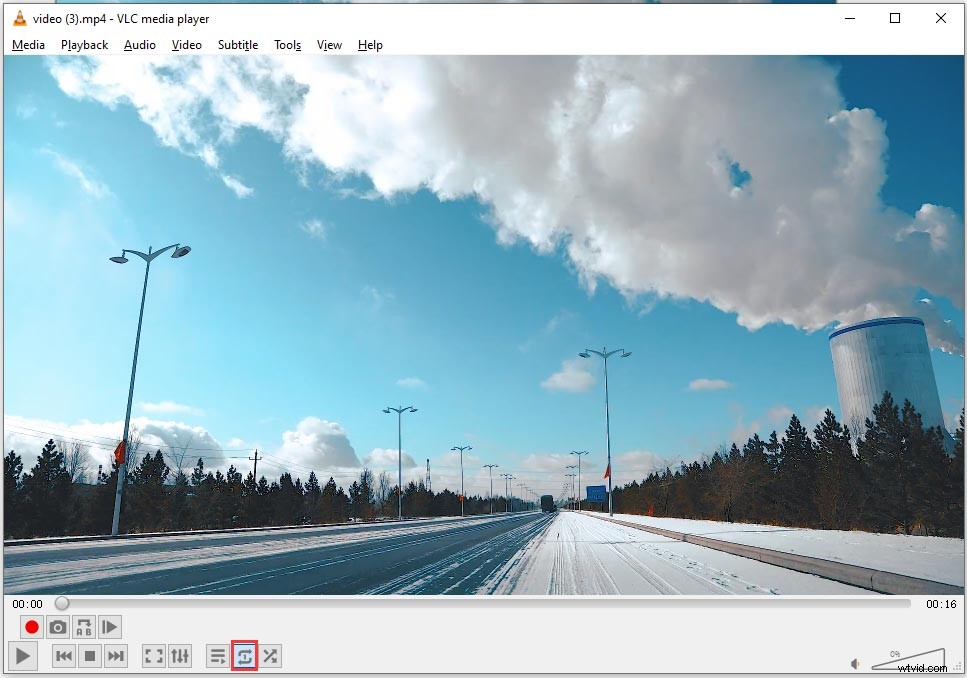
Step 5. If you want to loop the whole video, click the loop icon twice. If you want to loop all videos in the playlist, click the loop icon once.
Related article: 4 Hacks You Need to Know about VLC Media Player.
How to Loop a Video on Phone
If you think of looping video on your phone, try MX player. This video player allows you to play videos in various formats such as AVI, MP4, etc. Also, you can use it to add subtitles to your videos and play videos in the background.
It has all the needed features that players have, of course, it can help you loop videos on the phone.
Take the steps below to make a loop video.
Step 1. Download and install MX Player from Google Play.
Step 2. Open the app and find the video you want to loop.
Step 3. Play the video and tap on the screen.
Step 4. Then the three dots button appears, click on it and choose Loop one or Loop all to play the video in loop.
How to Loop a Video Online
If you wish to repeat videos without any third-party software, an online video loop tool is the best choice for you. Unfortunately, you can’t loop video without internet connections.
Follow the steps to learn how to loop video online.
Step 1. Go to Clideo and click on Choose file to import the video from your device.
Step 2. After the uploading process finishing, you will be taken to the loop video page. Here are six loop options for you. You can loop the video 2 times or infinitely.
Step 3. Choose the option you want and click on the playback button to get started.
Conclusion
After reading this post, you must have learned all the tips about how to loop videos. Now, it’s your turn!
If you have any questions about this post, please leave a comment and let us know.