
TikTok is the most popular short-form video platform around the world. You want to share videos on TikTok but some of them need to be trimmed. This post introduces 2 ways of how to trim TikTok videos and how to trim videos on Windows with MiniTool MovieMaker.
TikTok enables you to adjust the length of a TikTok video that exceeds the length limit or contains unwanted parts. Let’s see how to trim TikTok videos.
How to Trim TikTok Videos After Recording
Trimming a TikTok video you just recorded can be done easily by using the Adjust Clips feature.
Here’s how to adjust clips on TikTok.
Step 1. Open the TikTok app on your phone and click the + icon at the bottom of your screen.
Step 2. Press and hold the Record button to record a video. Once done, click the checkmark icon to proceed to the next step.
Step 3. In the right sidebar, click the Adjust clips button. Then you can trim the TikTok video by moving the either edge of the slider to the left or the right.
Step 4. Click the Save button in the top right corner and post the video on TikTok.
How to Trim TikTok Videos After Uploading
You can also adjust the length of uploaded clips on TikTok. Here’s a step-by-step guide on how to trim uploaded videos on TikTok.
Step 1. Open TikTok and press the + icon to load a video from your library.
Step 2. Click Upload in the lower right corner of the screen. Browse the videos stored on your phone and select the video you want to trim. After that, tap on Next.
Step 3. You can use the slider to trim the unwanted beginning and end parts of the video.
Step 4. If you are satisfied with the result, click Next and share the trimmed TikTok video.
How to Trim Videos on Windows
TikTok has a web app that allows you to browse and upload videos on your computer. If you need to trim videos on Windows, MiniTool MovieMaker might be a good choice. It’s an easy-to-use video editor but comes with many features. You can trim, split, merge, reverse videos, add animated texts, stickers, and effects to videos, make GIFs and change video format.
Follow the steps below to learn how to trim TikTok videos on Windows.
Step 1. Download and install MiniTool MovieMaker. Launch MiniTool MovieMaker and close the popup window.
Step 2. Import the video that you wish to remove unwanted portions from. Drag and drop it to the timeline.
Step 3. Drag the edges of the video in the timeline to the center of the video. To trim the video at a specific time, click the scissor icon above the timeline and choose Full Split. Then go to the Trim tab and trim the video precisely.
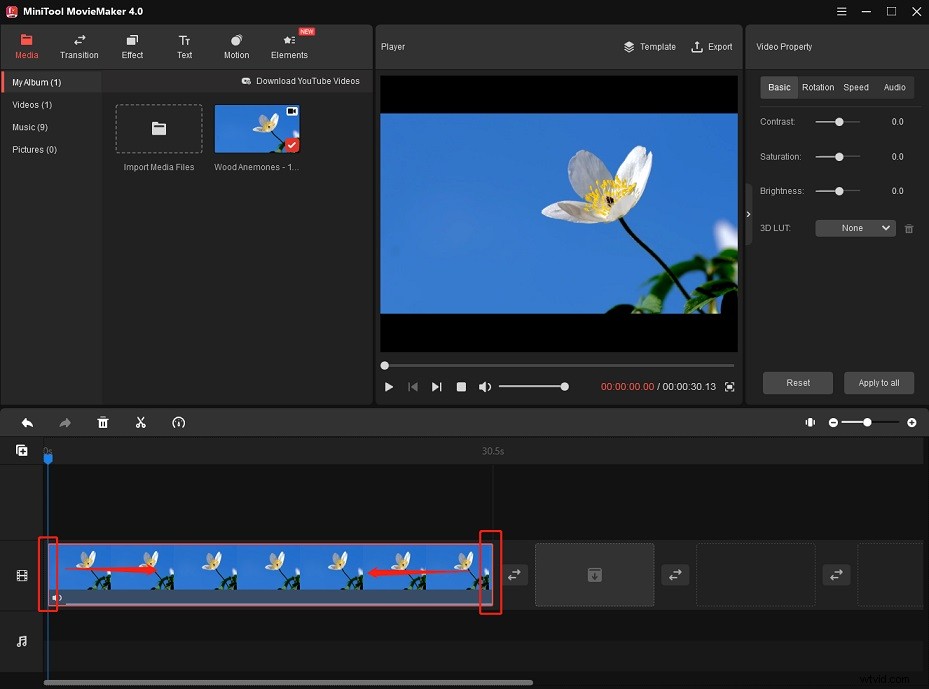
Step 4. Click on Export and adjust the output settings. Finally, export the trimmed video.
Conclusion
With TikTok’s built-in video trimmer, you can trim TikTok videos without installing any video editing app. It’s very fast and convenient. Now, follow this guide to trim videos on TikTok.