
Zoom is a cloud-based video conferencing app that provides videotelephony and online chat services. This app allows you to share your screen, videos, photos, or documents. In this post, I will show you how to share a video on Zoom.
How to Share a Video on Zoom
Follow this guide to learn how to share a video during the Zoom meeting.
If you want to edit your zoom recordings, you can use MiniTool MovieMaker!
How to Share a Video File on Zoom
Zoom lets you send video files to other participants during the meeting.
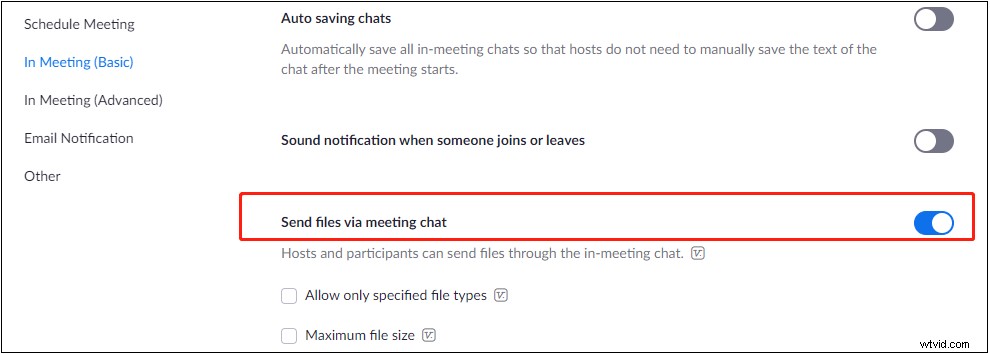
Step 1. Go to Settings > In Meetings (Basic), and make sure that the option Send files via meeting chat is enabled.
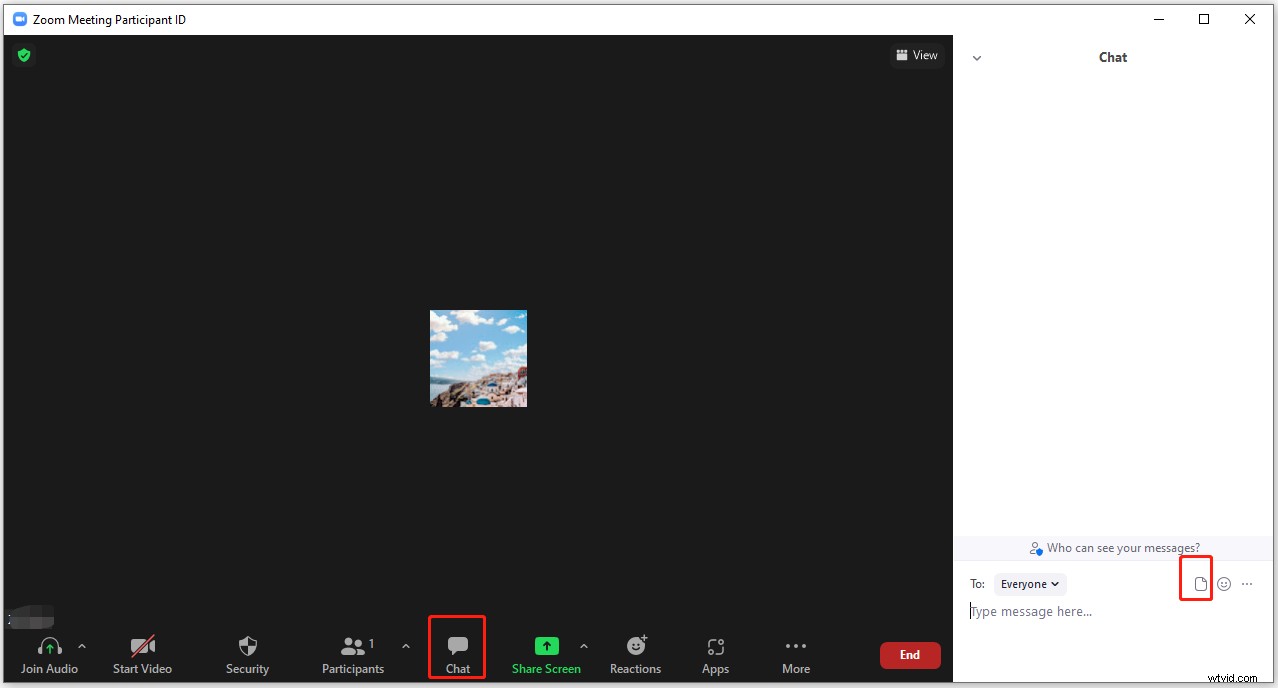
Step 2. Open Zoom and join or host a Zoom meeting. Then click Chat at the bottom. Tap on this icon and choose Your Computer to open the video that you want to share with other participants.
Step 3. After uploading the video, other participants can download and play the video.
How to Play a Video File on Zoom
Zoom has a built-in player that can be used to play videos during a meeting. Here’s how to play a video on Zoom.
Step 1. Launch the Zoom app and start or join a meeting.
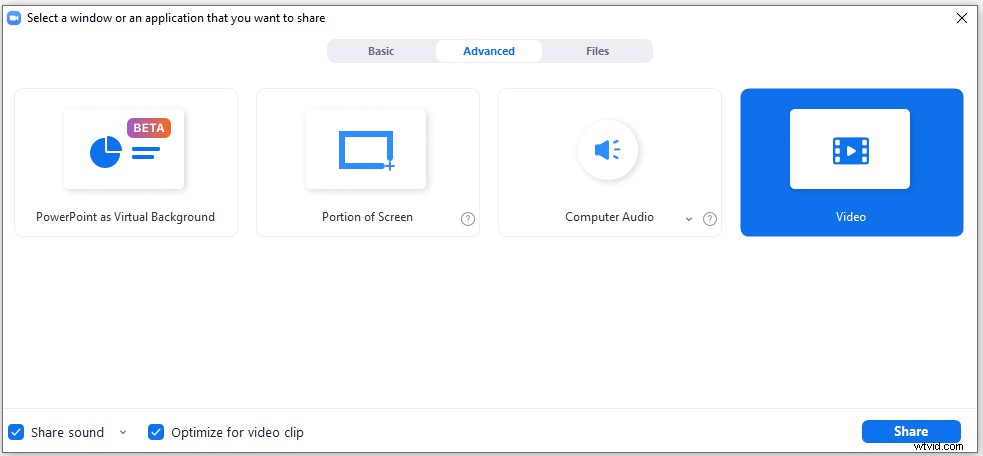
Step 2. Click on Share Screen. In the pop-up window, switch to the Advanced tab and tap on Video. Click Share.
Step 3. Then you will get a prompt asking you to download a plugin. Click Install.
Step 4. Once the installation is finished, select the desired video file from your computer and click Open.
How to Share a YouTube Video on Zoom
In addition to sharing local video files, Zoom also allows you to share YouTube videos and videos stored in Google Drive, Dropbox, etc.
Take the steps below to share a YouTube video on Zoom.
Step 1. Go to the YouTube website and find the video that you want to share on Zoom. Pause the YouTube video.
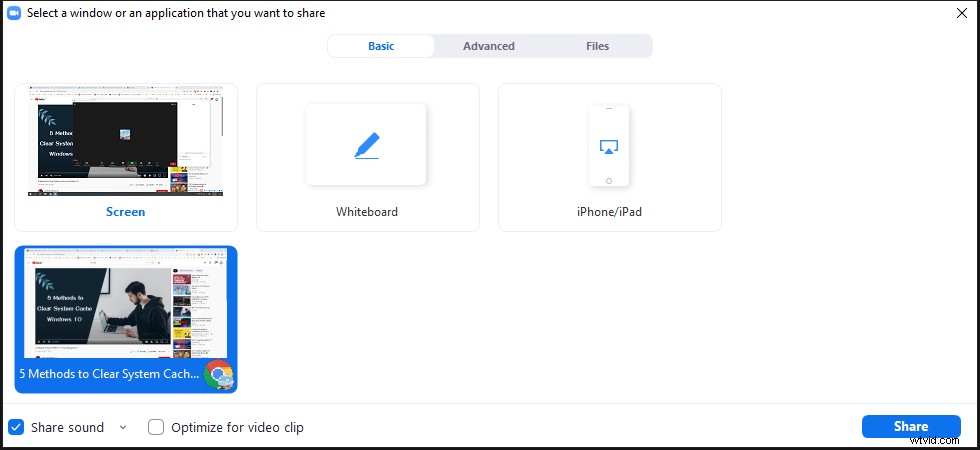
Step 2. Click on Share Screen. In the Basic tab, select the browser tab with the YouTube video and check the Share sound box.
Step 3. Open the browser tab and play the YouTube video on full screen.
Step 4. To stop screen sharing, click the Stop Share button at the top of the screen.
How to Fix No Audio on Zoom
If there’s no audio in the Zoom meeting, try the following fixes:
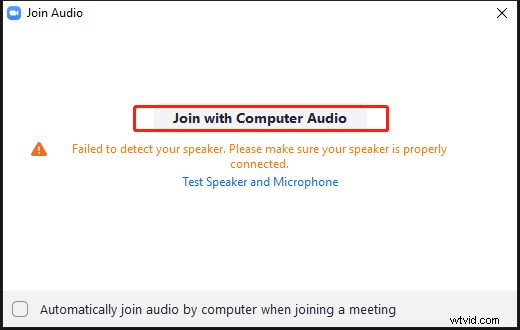
Fix 1. Enable the Join Audio option
During the Zoom meeting, click on Join Audio in the lower-left corner of the screen. Then tap on Join with Computer Audio.
Fix 2. Unmute the Audio
Check whether your Zoom audio is muted. If it gets muted, turn on the audio.
Fix 3. Update Audio Driver
The last solution to fix no audio on Zoom is to update your audio driver. Go to Device Manager > Sound, video and game controllers. Right-click the audio driver and choose Update driver.
Follow the on-screen wizard to update the audio driver. Once done, restart your computer and see if the Zoom no audio issue is fixed.
Conclusion
That’s all about how to share a video on Zoom. Follow this guide and have a try!