
YouTube is a great video-sharing platform. Before you upload a video to YouTube, you may want to put multiple songs to it especially if your video is long. This might make your video more impressive and attractive.
How to add multiple songs to a YouTube video? Here’re 2 ways.
The following part will explain steps to add more than one song to YouTube video MiniTool MovieMaker and YouTube’s built-in video editor.
How to Add Multiple Songs to a YouTube Video with MiniTool MovieMaker
It’s easy to add multiple audio tracks to a video. Now, let’s get started.
Before you upload a video to YouTube, you can try MiniTool MovieMaker to add more than one song to it. MiniTool MovieMaker offers some audio tracks for you to choose from, and it also lets you upload music from your PC.
MiniTool MovieMaker also allows you to trim, split, rotate, flip, reverse, speed up/down videos, add text to video, add stickers, apply filters and transitions, and more.
Here’s how to add multiple songs to a YouTube video with MiniTool MovieMaker.
Step 1. Open MiniTool MovieMaker and close the pop-up window.
Step 2. Click the Import Media Files to add your video and audio files. Then, drag the video to the timeline.
Step 3. Go to the Music tab, find your music, and click + to add the first song.
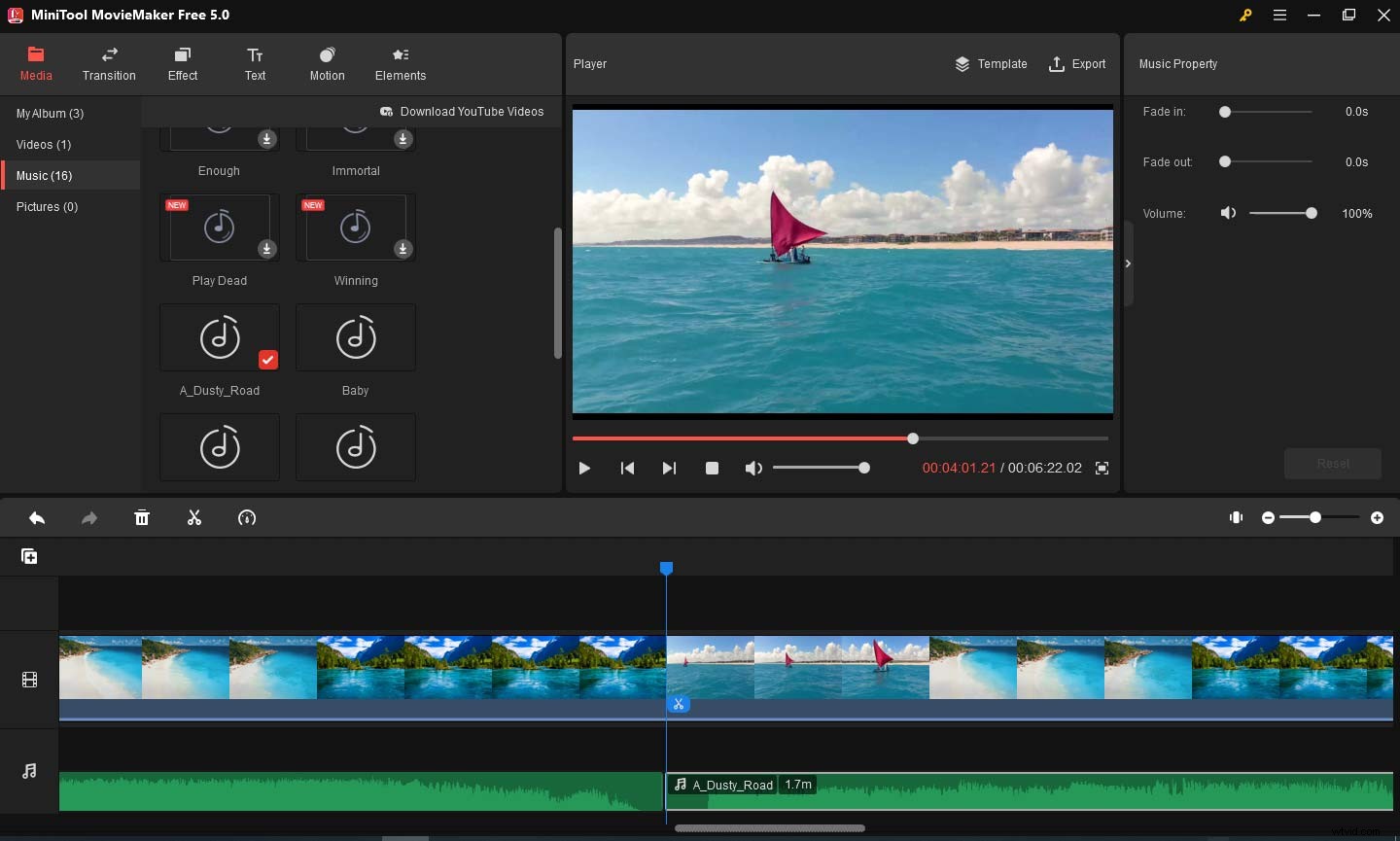
If the video is longer than the song, drag the slider under the audio track to find the end of this song. Next, choose the desired place and add the second song.
If the video is shorter than the first song, you should trim it to add other songs.
Step 4. Drag the start point or endpoint of this track to trim it.
Step 5. Choose the second song and click + to add it. You can repeat these steps to add multiple audio tracks to a video.
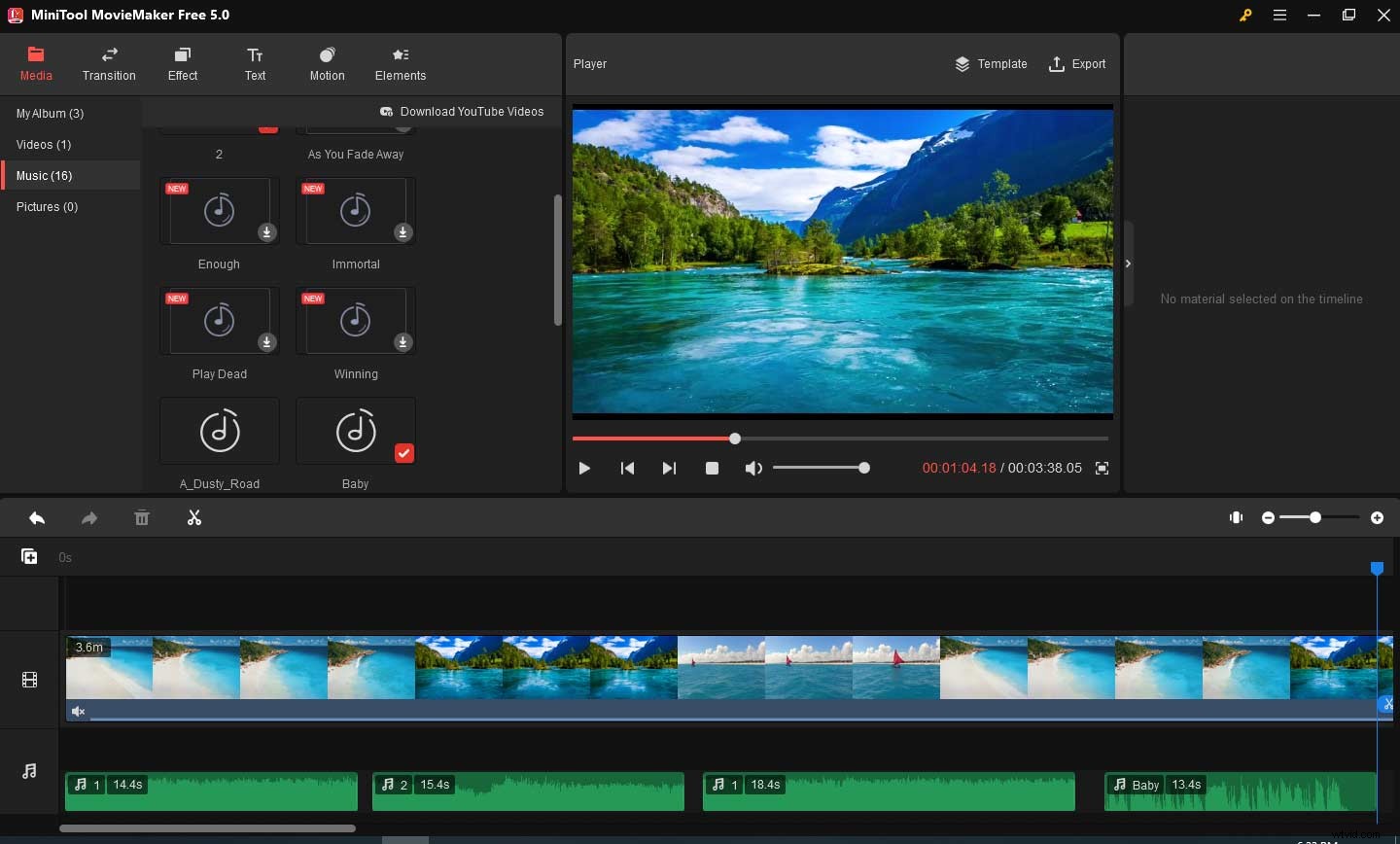
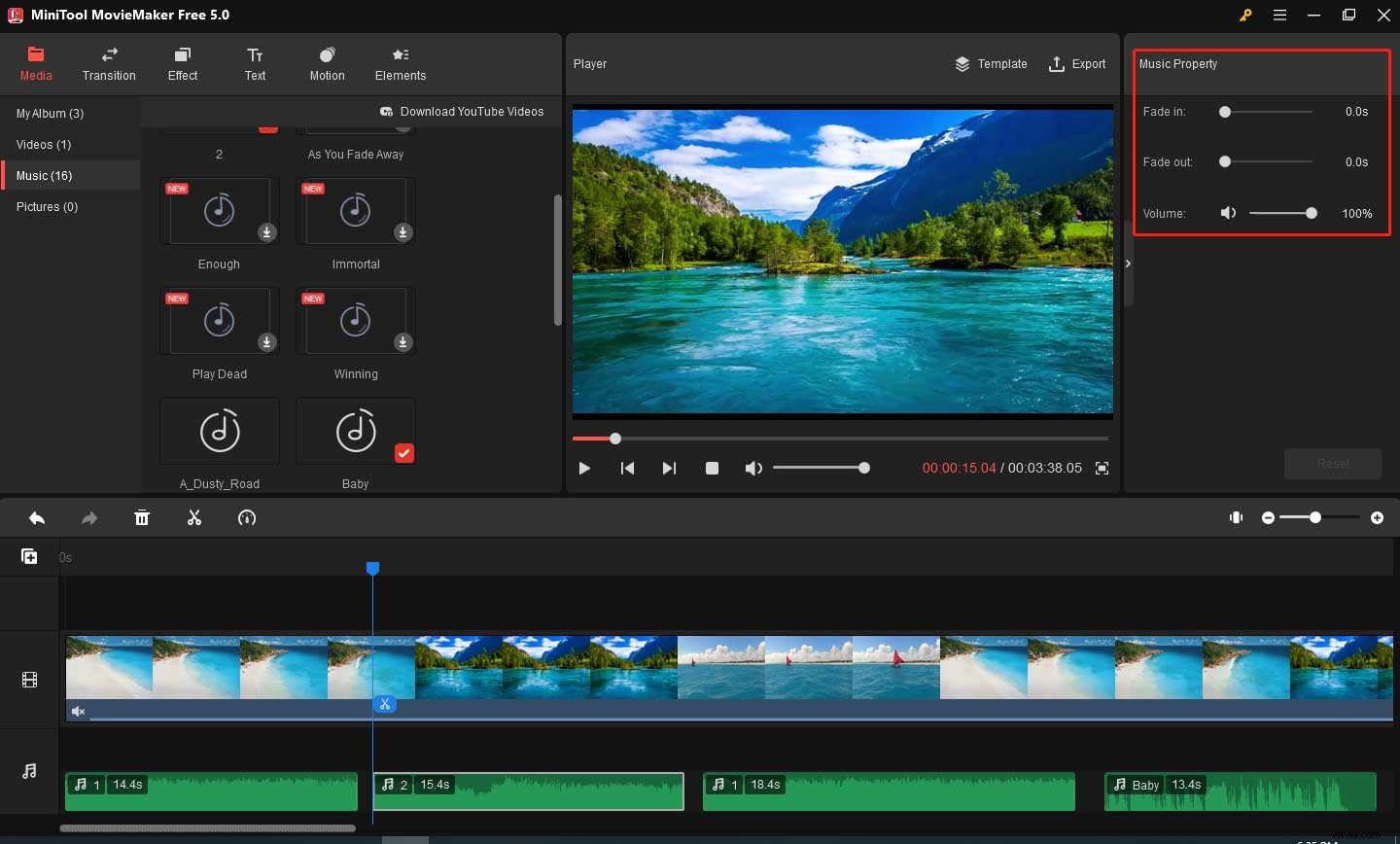
Step 6. To edit these songs, firstly, you should choose one track on the timeline.
Next, you can adjust its volume and add a fade-in or fade-out effect in the Music Property section.
Step 7. Click Export to export the edited video and then upload it to YouTube.
How to Add Multiple Songs to a YouTube Video with YouTube Video Editor
If you want to add multiple songs to the video you uploaded on YouTube, you can try YouTube’s built-in video editor. It allows you to trim videos, blur videos, and add audio to the video.
Here’s how to put 2 or more songs together in a YouTube video.
Step 1. Go to YouTube Studio and click Content from the left side.
Step 2. Click the title or thumbnail of the video you’d like to edit and select Editor from the left menu.
Step 3. To add the first song, click Audio, and you can go to the YouTube audio library to find a song.
You can click the Play button before the song name to play that track. Click Add to add this song.
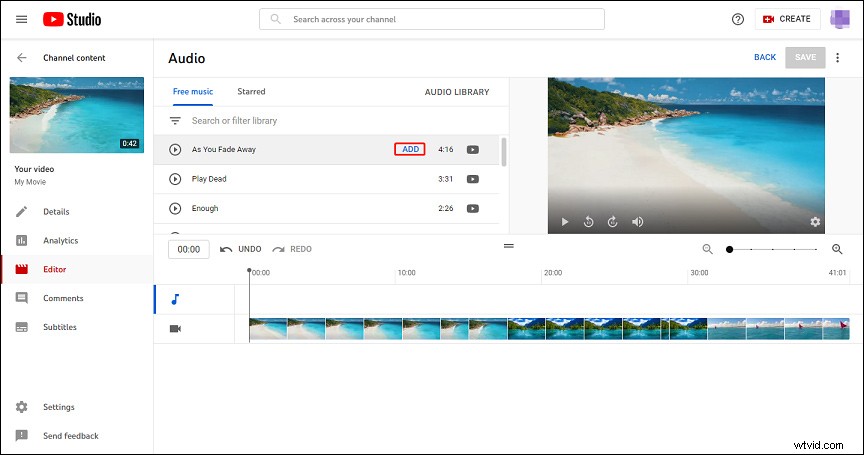
If your video is shorter than the audio length, you should trim this song to add another one.
Step 4. Drag either edge of this audio track to trim it.
Step 5. Drag the playhead to the desired place where you want to add the second song. Then go to the audio library to find a song and add it.
Next, trim this song as you like. You can repeat steps 4 and 5 to add another song.
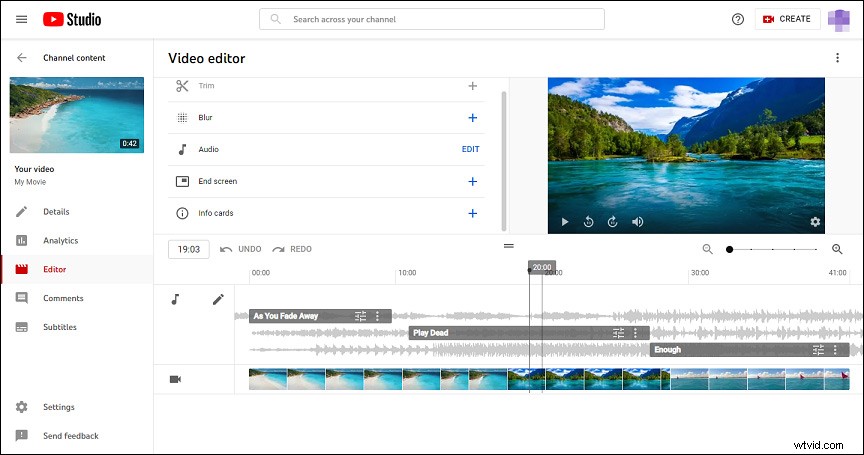
Step 6. Once done, preview your video and save changes.
Conclusion
With the 2 methods, you can easily add multiple audio tracks to a video. Now, it’s your turn. Follow the above steps to add your favorite songs to your stories.