
Are you looking for a tool to help you overlay GIFs on your video or image? In this post, we will teach you how to add GIF overlay to your video and image quickly and easily! If you need to combine GIFs into video, try MiniTool Moviemaker developed MiniTool.
What is a GIF overlay? GIF overlay is a GIF file that is placed over another file such as video, GIF, or image. If you are going to overlay video with a funny GIF and have no idea about it, continue to read this post to get the answer!
How to Add GIF Overlay
There are plenty of video editors or photo editors that allow you to add GIF overlay to video or image, such as VSDC video editor and GIMP. After installing a GIF overlay app on your device, you may find it’s too complicated and you don’t know where to start. In this case, an online GIF overlay tool might be a good choice.
Here gives you 2 simple ways to overlay GIFs on your video and image.
Way 1. Add GIF Overlay to Video
Kapwing is an online video editor that can overlay GIF and image on your video. Besides, it comes with a set of video editing tools such as video resizer, video cropper, video clipper, video looper, video trimmer, video speed changer, etc. It also can be used as an image editor that can remove the background from an image.
The only one drawback of this GIF overlay maker is it watermarks your video.
Here are the detailed steps on how to add GIF overlay to video online.
Step 1. Open the browser and go to the Kapwing website.
Step 2. Click on Start editing to launch this GIF overlay tool.
Step 3. Drag and drop your video file to Kapwing or tap on Click to upload to import the target video file.
Step 4. After uploading the video, click the Images button in the menu bar.
Step 5. Then you can search GIF you like under the Image Search tab or upload the GIF you created under the Upload tab.
Step 6. Adjust the GIF overlay size and move it to the right place.
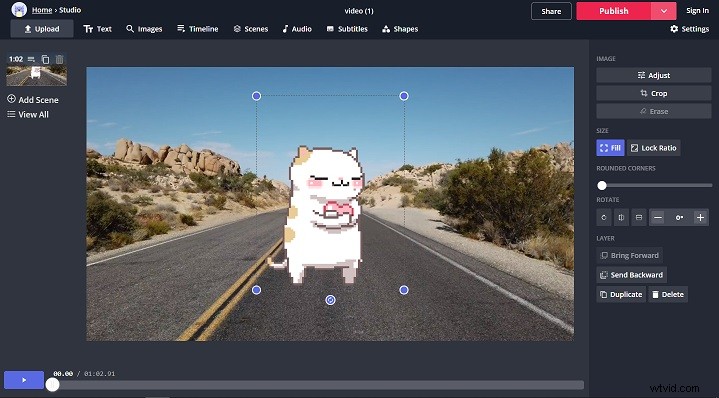
Step 7. When you are done, click the Publish button to start processing your video.
Step 8. After the process is complete, you can choose to download the video file or share it to Facebook or other social networks.
Way 2. Add GIF Overlay to Image
If you want to overlay GIF online, then you can’t miss this image editing tool – Free Online Image Editor that supports all image formats including GIF. As its name suggests, it’s an online image editor that lets you edit images online. In addition to adding GIF overlay to image, this image editor also allow you to resize, crop, merge images and add text on it.
Here’s how to overlay GIF on image.
Step 1. Open the Free Online Image Editor website.
Step 2. Choose the image from your computer and upload it.
Step 3. Switch to the Advanced tab and click on Overlay image to upload the target GIF.
Step 4. Adjust the GIF overlay size by moving the Resize frame slider and move the GIF overlay to the suitable place. Then apply this change.
Step 5. Lastly, press the Save button to download the image with GIF overlay.
Conclusion
With the two simple GIF overlay makers, it’s easy to add GIF overlay to your video or image, right? Now, pick a GIF overlay maker and have a try!