
You are watching a YouTube video but find it’s upside down. How to fix an upside-down video on YouTube? You can download the YouTube video and use a video rotator to rotate it or use a video rotator extension to change the orientation of the video on YouTube. Read this post to learn more.
In this post, you will learn 4 ways to rotate YouTube videos. Let’s have a look!
Rotate Downloaded YouTube Videos
This part offers you two video rotators to rotate YouTube video: MiniTool MovieMaker and Kapwing.
MiniTool MovieMaker
MiniTool MovieMaker is a video rotator that can rotate YouTube videos at 90 degrees clockwise or anticlockwise. Also, it offers the option to flip YouTube videos. MiniTool MovieMaker is free to use, without ads, viruses and watermarks.
Take the following steps to learn how to rotate a YouTube video.
Step 1. Download and install MiniTool MovieMaker. Then launch it.
Step 2. Click Import Media Files to import the YouTube video you want to rotate.
Step 3. Add the video to the timeline and right-click on it. Then choose the Edit option.
Step 4. In the right panel, choose the Rotation option you like: Flip Horizontal, Flip Vertical, Rotate 90° Clockwise and Rotate 90° Anticlockwise. Click OK to apply the change.
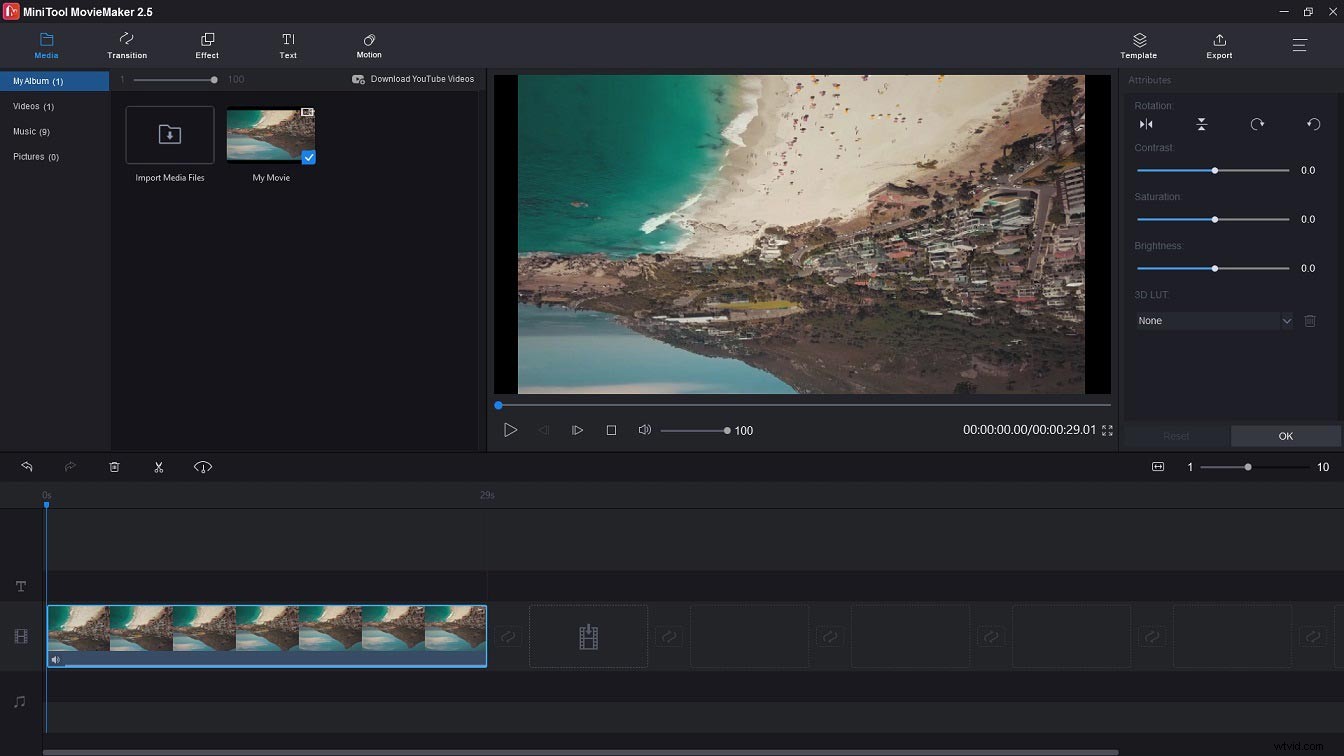
Step 5. Click on Export to adjust the output settings. After that, hit the Export button to export the video.
Features:
- Free to use.
- Supports the most popular video formats.
- Offers various transitions, effects, titles, text templates, and movie templates.
- Can split, trim, cut, and merge videos.
- Able to change video speed and reverse videos.
Kapwing
Kapwing is an online video rotator to adjust the orientation of the video effortlessly. This tool lets you upload a YouTube video from your computer or URL. And it has a set of editing tools for video production.
Here’s how to rotate a YouTube video online.
Step 1. Go to the Kapwing website and sign in to Kapwing.
Step 2. Click New Content > Click to upload to load the upside-down YouTube video.
Step 3. Go to the EDIT section and scroll down to find the ROTATE options.

Step 4. Select the rotate option you want to apply to the video.
Step 5. Click on Export Video to process the file. Then download the video.
Also like: How to Easily and Quickly Download YouTube Videos for Free
Rotate Videos on YouTube
If you want to rotate videos on YouTube, here are two video rotating extensions for you: Smuuvr and Rotate YouTube Video.
Smuuvr (Chrome)
Smuuvr is an extension for Chrome, which can rotate YouTube videos when you watch them, skip any video ads, grab images from Instagram, etc.
Below are the steps on how to rotate a video on YouTube.
Step 1. Go to the Chrome web store and install the Smuuvr extension.
Step 2. Find the video you want to rotate on YouTube and play it.
Step 3. Click the Smuuvr icon next to your profile picture and click on Rotate to rotate the YouTube video.
Rotate YouTube Video (Firefox)
Rotate YouTube Video is a Firefox extension. It can rotate videos on YouTube at 90 degrees, 180 degrees, and 270 degrees. It also allows you to zoom in, zoom out YouTube videos.
Follow the steps below to rotate a video on YouTube.
Step 1. Open Firefox and search for the Rotate YouTube Video (+ Zoom / Mirror) extension. Then install the extension.
Step 2. Enter the YouTube website and find the upside-down video you want to fix.
Step 3. Click the Rotate option on the video to adjust its orientation.
Conclusion
That’s all about how to rotate YouTube videos. Now, find the method you like and fix the upside-down video you want to watch.