
What do you do when your video has been recorded upside down? Don’t worry, we’ve all been there before. Instagram doesn’t have a rotate video feature. But there’s no need to re-record your Instagram video or pull your neck out trying to watch the upside-down video.
Instead, easily rotate Instagram video with Clipchamp’s free online video editor. Add special effects, captions, and save your new rotated video directly to your smartphone for easy Instagram uploads.
Keep reading to learn how to rotate video for Instagram with our in-browser online video editor.
Rotate videos for Instagram with Clipchamp
So how can you efficiently rotate video for Instagram? Let’s dive into our easy step-by-step tutorial on how to rotate video in Instagram.
Step 1. Log in, then select the video you wish to rotate
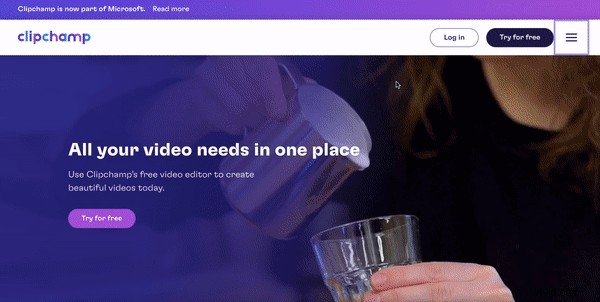
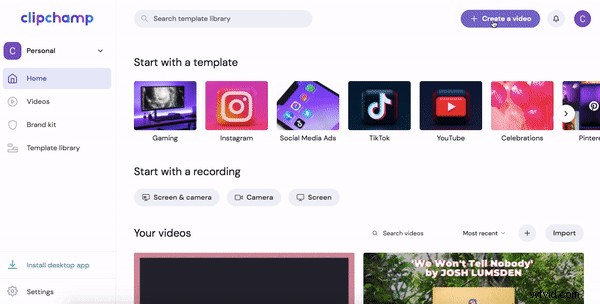
Log in to your Clipchamp account, or sign up for free. To rotate video for Instagram, you will first need to create a new video. Click the Create a video button at the top right corner of the editor homepage.
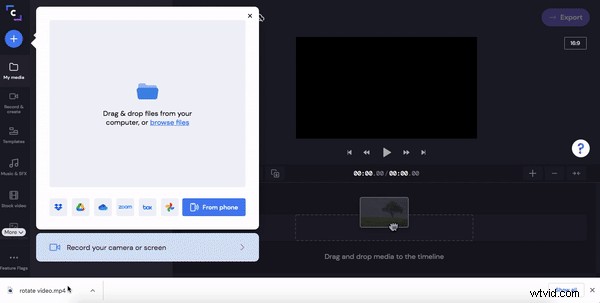
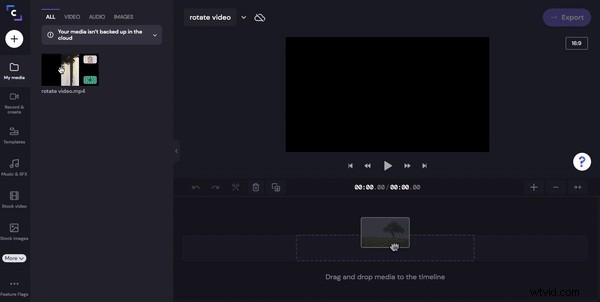
Click on the + symbol on the left sidebar. Drag and drop your Instagram video, select from your computer files or upload directly from one of our integrations like Google Drive or OneDrive.
Once uploaded, your Instagram video will appear under the My media tab. Drag and drop your Instagram video that you would like to rotate onto the timeline.
Step 2. Click edit video
By clicking on the Instagram video on your timeline, you will be able to access a range of editing tools under the Transform tab such as trim, crop, rotate, flip and adjust.
Step 3. Rotate your video
Click on the Transform tab above the video preview. Click the rotation arrows under Rotate.
Step 4. Click save
The final step is to save your Instagram rotated video. Click on the purple Export button at the top right corner of your screen. A pop-out tab will appear with saving options. For fast Instagram video uploads, we recommend saving your video in 480p or 720p. Click Continue when ready to save.
Once your video has finished processing, save it to your smartphone and post it on Instagram.


 Free in-browser video editor
Make professional videos in minutes
Try for freeFrequently asked questions
Here are some frequently asked questions with answers about rotating Instagram video.
Why does Instagram flip my video?
We understand that it's quite frustrating when Instagram automatically rotates your videos. Instagram stores an orientation code and automatically rotates an image or video if they think it is not the correct orientation. Unfortunately, their programming is not always correct.
How to rotate a video on Instagram?
Instagram users can’t rotate their videos in the uploading process. You can however add filters, mute or trim your video, and change the cover photo.
How to rotate Instagram live video?
Once you have finished recording your Instagram live video, save your Instagram live. Upload the saved video to Clipchamp’s free online video editor and rotate the Instagram live with the same steps as explained above.
What are the dimensions of Instagram videos?
Users can upload Instagram videos in the following sizes:
4:5 - 1080 x 1350px
1:1 - 1080 x 1080px
1.91:1 - 1080 x 608px
IGTV dimensions are 1:1.55 - 420 x 654px
To find out more, check out our Ultimate guide to Instagram videos.
What is Instagram’s video file size and format?
All Instagram videos must be in MP4 or MOV file format and maximum file size of 4GB.
Rotate Instagram video in no time with Clipchamp
Not only can you easily rotate Instagram video with Clipchamp’s in-browser video editor, but you can also make effortless video ads, Reels and Stories for Instagram as well. Start editing your Instagram video content with Clipchamp’s drag-and-drop online video editor.