
What do you do when you’ve taken a killer Boomerang selfie on Instagram, only to realise that you need to flip it? Normally, having a flipped video wouldn’t really matter. But any writing will be in reverse, making it hard to read for your Instagram fans. And sometimes we just seem to look better on the flipside ¯\_(ツ)_/¯.
For example:
It’s hard to believe we live in a world with no flip function for Instagram Boomerang video (*sigh* first world problems) but nevertheless, there is a way to flip Instagram Boomerang videos without having to redo the whole thing using the front camera.
Flip Instagram Boomerang Videos with Clipchamp
To start with, you’ll have to flick your video over to your desktop. Then jump onto our online video editor.
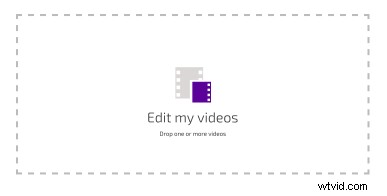
1. Drop your video into the editor.
Drag and drop or select your video from your computer.
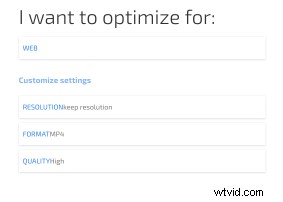
2. Select your settings
Then select your custom settings. WEB settings will work the best, keeping the resolution and format the same but selecting high quality.
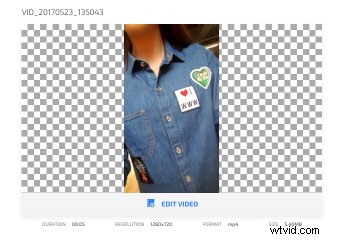
3. Click Edit Video
Here you can edit your video by flipping, rotating, cropping adjusting and trimming.
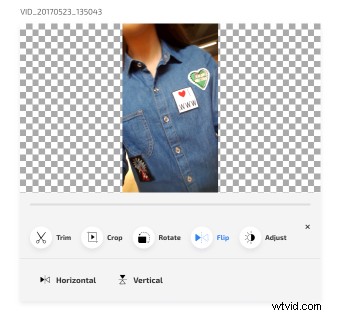
4. Click Flip
You’ll want to select Horizontal in order to flip Instagram Boomerang videos.
5. Transform your video
Hit the Start button to start transforming your video. This should only take a few seconds.

6. Save and Share
And voila! Your Instagram Boomerang video is flipped. Now save and flick it back over to your phone, and you’re ready to post it on Instagram.
The great part about using Clipchamp to edit your video is that you can automatically post it onto other platforms once it has been transformed. By clicking the Share button you can post your Instagram Boomerang video to YouTube, Facebook, Vimeo, and Google Drive, without ever having to leave Clipchamp. This can come in handy if you don’t have the luxury of airdropping your video between mobile and desktop.
Hope this has helped you to easily flip Instagram Boomerang videos. Stay groovy 💃🏽.