Sony Vegas Pro cares about all your video editing needs and that is why it helps users with easy rotation, flipping and invert options. You can apply these tools on specific parts of the video clip or the whole video at once. The article below contains complete information about how to rotate videos in Vegas Pro in two ways so that beginners as well as professionals can use this software tool in an effective manner without any trouble.
Recommendation:
If you are new to Vegas Pro and are not able to use it due to so many advanced and complicated features, then it is good to start your editing on an interactive platform that is named as Wondershare Filmora. You will be glad to know that it is available for free with its trial version whereas in order to access Vegas Pro you need to make a payment of $599. For beginners it is good to learn video editing skills with Wondershare Filmora that can be used on Mac as well as Windows environment without any trouble. The video below shows you how to rotate your video clip in Filmora. Just have a look.
Learn the detailed steps about how to rotate video in Filmora
Two ways to Rotate Clips in Sony Vegas Pro:
Method 1: Rotate Whole Video Clip Quickly
In this method you will learn a fast video rotation trick that can be applied to the whole video with ease. This technique becomes extremely useful when you have recorded any video with upside down orientation and now you want to bring it to right motion.
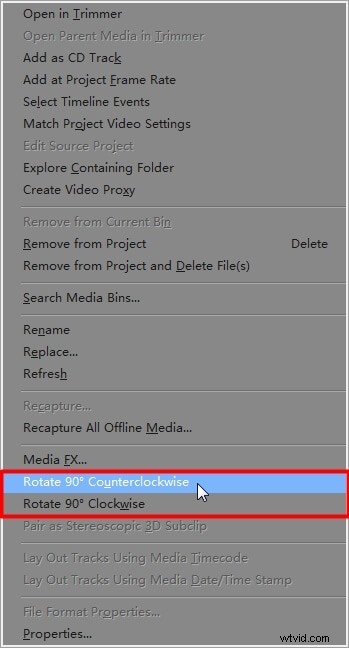
In Sony Vegas, this rotation task can be achieved using Project Media Window: Simply select your desired video file that you wish to rotate and then right click it, you will be able to select the rotation direction from drop down menu as 'Rotate 90° Clockwise' or 'Rotate 90° Counterclockwise'. Note that if you wish to rotate any video by 180 degrees then you have to apply 90° rotation twice.
Method 2: Advanced Rotation
This option is highly useful for professionals as it allows them to rotate videos to any orientation and the effects can be applied to specific parts of clip also. The steps below help to rotate video clips in Sony Vegas:
Step 1: Use Event Pan/Crop Window:
Open Sony Vegas and then drag your desired video file to the timeline. Now click the Event Pan/Crop option that is available in form of a square box at the end of video. On the left side of your pop up window four major options are located: Source, Keyframe Interpolation, Rotation and Position.
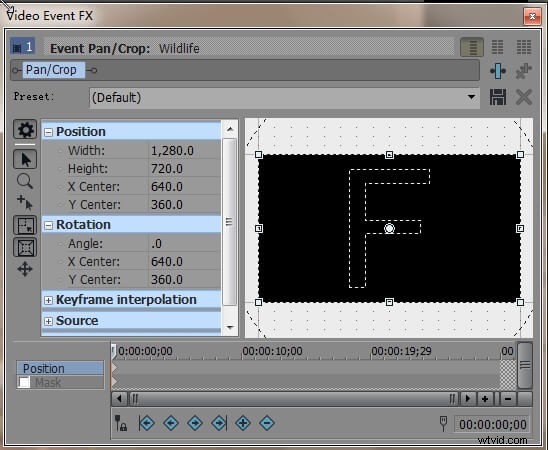
On the right side of the screen you will find the F with a white dot at the center position and the bottom side of the window contains timeline.
Step 2: Rotate
Now as you want to rotate your video so go to the word “Angle” that is a sub-section below Rotation on left side of pop up window. As you select it, the number automatically turns into a red highlighted box; here you can set desired angle with manual editing. For example write 90.0 in front of Angle to rotate video by 90 degree and then hit enter.
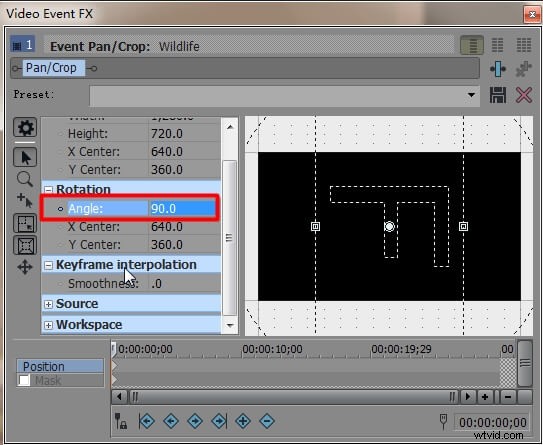
Note that if you need to rotate complete video clip then your slider must appear at the initial position of clip but in case if you wish to apply this effect on specific portion of video then you need to place slider on that part.

Step 3: End Rotation
Once your rotation effect is complete then simply click the cross “X” on upper right corner of the pop up screen and your project will be saved and closed.
Learn more about how to use Vegas Pro
An easier way to rotate a video in Filmora
Filmora Video Editor is a free video editor for Windows. It is one of the most effective Windows movie producers on the market. Filmora employs the MPEG-4 AVC codec for video editing and supports a variety of output formats, including MP4, AVI, FLV, and others. It also has a video stabilization technique, a picture-in-picture editor, and many more capabilities.
It is a free Windows movie creator that can be downloaded and used by anybody with a Windows computer. To rotate a video, follow these:
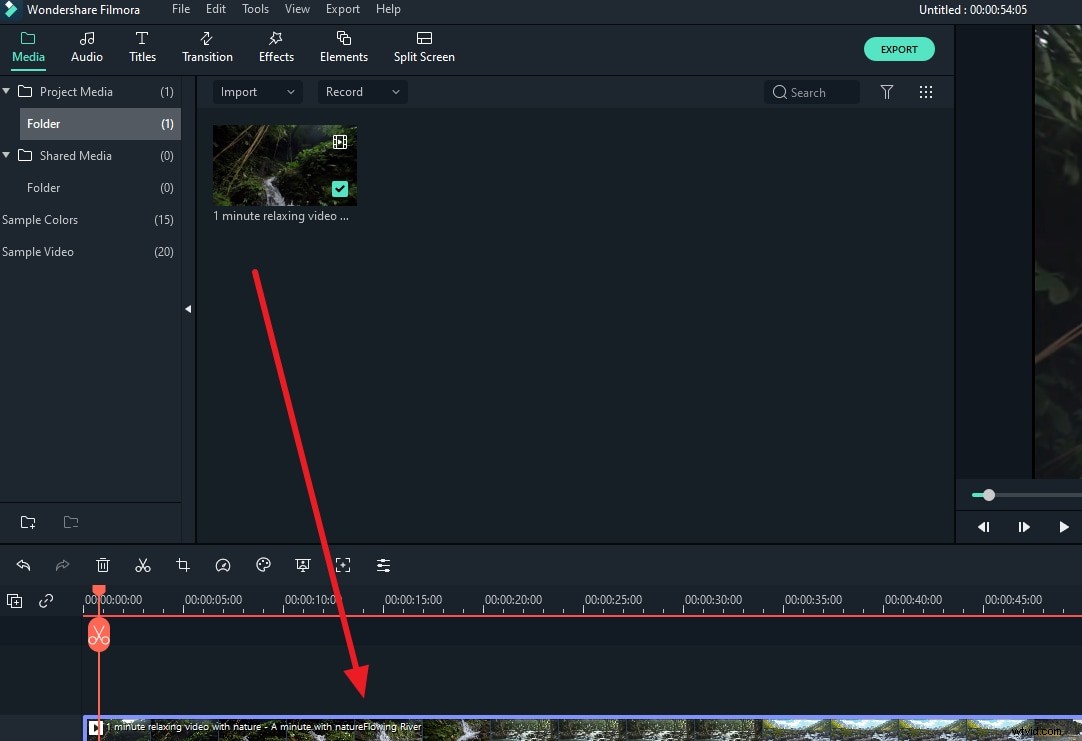
Step 1: Open Filmora and drag & drop the video file onto the timeline. Choose the file from your computer files that you will use for the edit.
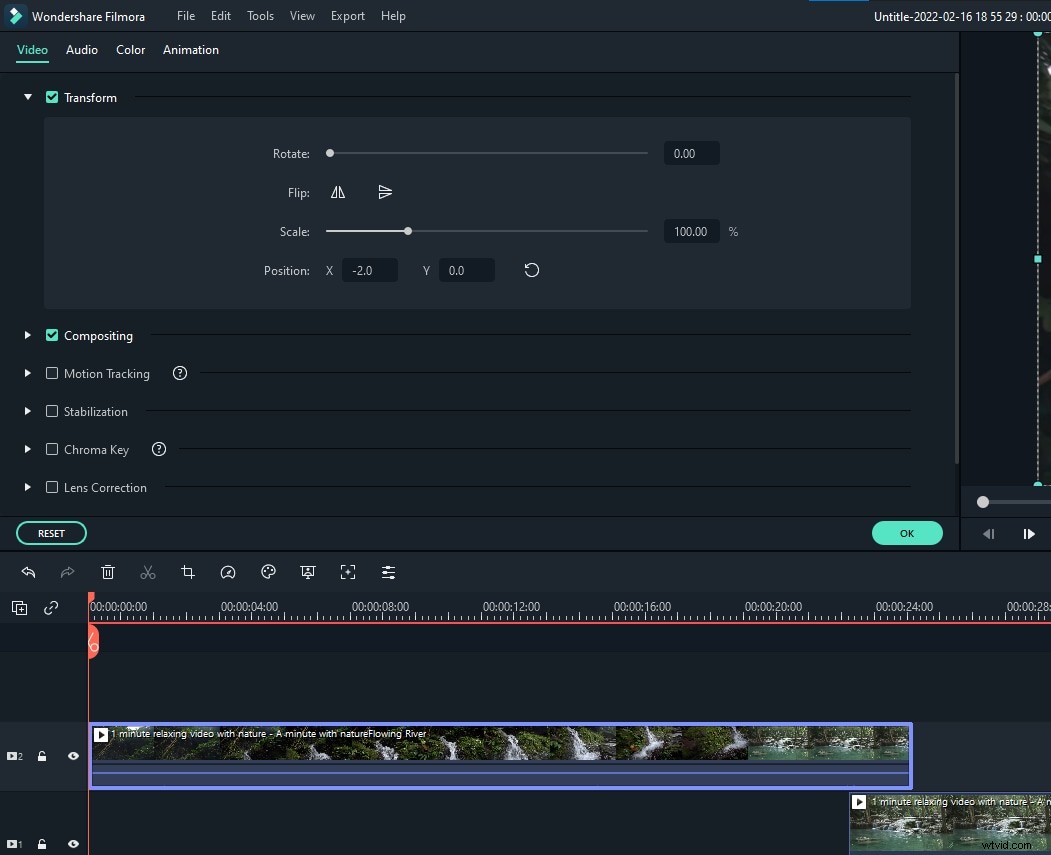
Step 2: To access the video editing window, double-click on the video clip in the timeline. Locate the "Rotate" option under the "Transform" menu. You may alter the rotation value by dragging the slider or entering a particular amount. Up to 360 degrees of rotation is possible. If you wish to rotate this clip 90 degrees, for example, type "90" in the box, and the video clip will be turned.
Step 3: When you're happy, click export. You may alter the format of your work right here, or you can upload it to YouTube.