
Although shooting videos in the streets is a lot of fun, you must pay attention not to reveal anyone's identity without their permission. Concealing the true identity of people in your videos is important since it can protect their lives or keep them away from the public eye. What's more displaying publicly someone else's license plates is considered illegal and you can get in trouble if you use the footage that contains such information without the car owner's permission.
Fortunately, you don't have to give up on your footage because if you have Magix Movie Edit Pro video editing software, you can track objects easily and protect the identity of the people featured in your videos.
Tracking an Object in Magix Movie Edit Pro
Creating an image you intend to use to conceal unwanted information in your video before importing it into the video editing software can help you speed up the process because if you choose to add a different background for each object you intend to cover, you will waste a lot of time.
1.Import and place the footage on the timeline
Place the video clip you need to edit onto the Magix Movie Edit Pro's timeline, by dragging it from the 'Import' tab and place a photo you would like to use to cover the faces or any other objects in the video on a track directly below the video.
Before proceeding any further, split the video clips at the places where the person's face you need to cover first appears in the shot and where it goes out of the shot to ensure that the picture you used to cover the face, doesn't appear in other parts of the video.
As an alternative to using a photo of your own creation, you can also use a background offered by Magix Movie Edit Pro. In order to do so, click on the 'Effects' menu, select the 'Design elements' option and then choose the 'Image object' option where you can pick a background you would like to use.
2.Applying the effect
Once you've selected an image or a fully customizable background, you should head over to 'Effects' panel and scroll down to 'View/Animation section. Selecting the Size/Position option will enable you to adjust the size and position of the image you are using to cover a person's face.
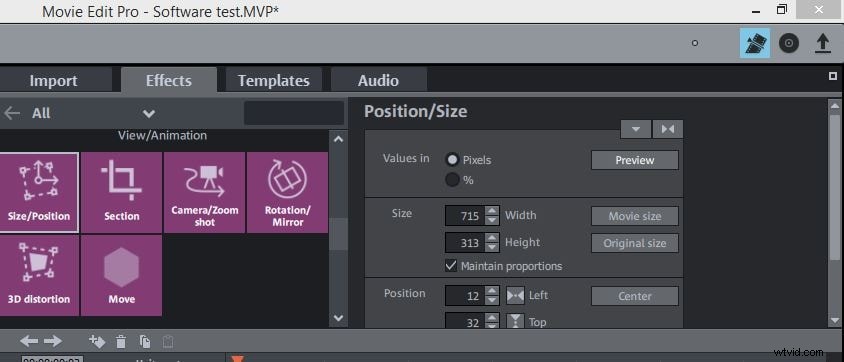
After placing the image at the desired location in the preview window, right-click on the file on the timeline and select the 'Attach to picture position in the video' option. The software will then ask you to designate the on-screen area that contains the moving object.
Afterwards, the software will analyze the footage and the animation will be created and saved and the process of tracking moving objects with Magix Movie Edit Pro is completed. However, if you are not pleased with the results you can repeat this process by following all the steps mentioned in the article.
An alternative way of tracking objects in your videos
Although tracking objects in Magix Movie Edit Pro isn't a very complicated procedure, it is still time-consuming and editors who would like to cover moving objects without having to spend an extensive amount of time trying to create this effect should consider using Wondershare Filmora. The Wondershare Filmora will allow you to cover faces in your videos with its 'Face Off' tool that tracks and follows the movement of the objects in your video. You can also apply a number of different audio and visual effects that will enable you to create an amazing video that grabs the viewer's attention. Exporting videos in a number of different video file formats is easy and if you want, you can share your videos to Vimeo or YouTube directly from Filmora.