
Still images from videos can be repurposed to create captivating cover images, funny memes, and engaging posts for social media. Screenshots, however, can reduce the original image quality, and it can be difficult to remove visual obstacles from a video screenshot. The best way to take a still image from a video is to save the frame as a separate image file.
In this article, I'll show you how to take a picture from a video and save it as a JPEG image to your device.
I’m going to be using a free online video editor called Kapwing to capture my screenshot. Kapwing is compatible with mobile devices, tablets, and computers, and gives you the editing functionality of a high-powered software.
To capture a photo from a video, follow these four steps:
- Upload your video to Kapwing.
- Take a picture from your video.
- Export and download.
Step 1: Upload your video to Kapwing.
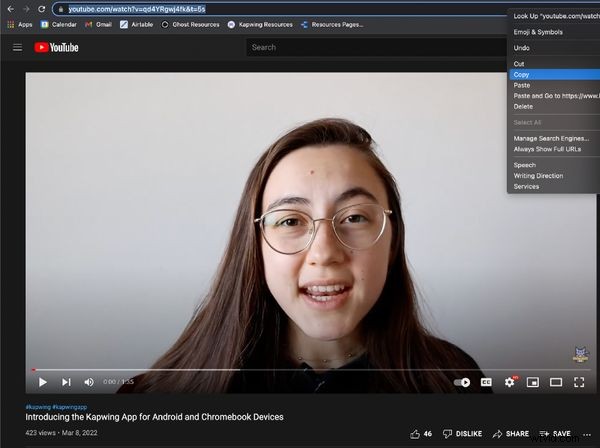
Head over to Kapwing in your browser to upload your video. You can either click "Get Started," "Upload File,” or simply paste the URL link to the video you want a snapshot from. If you want to take a snapshot from a video you found online, all you have to do is copy the link. As you can see below, I copied a link to a video on our YouTube channel to use as my example for this article.
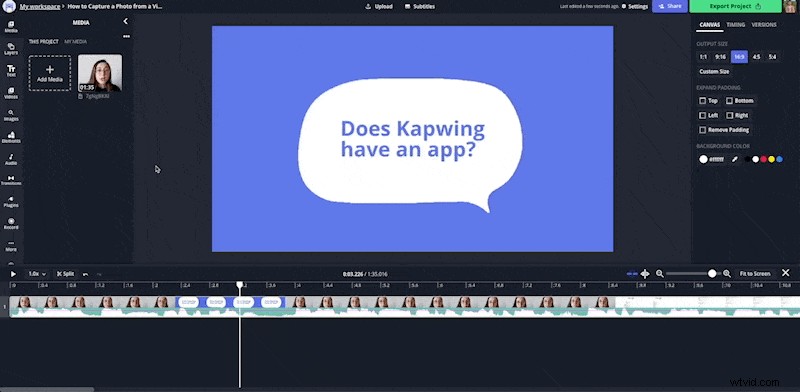
Once you upload your video, you'll automatically be taken to Kapwing's video editing studio.
Step 2: Take a picture from your video.
Capturing a photo from a video is fairly simple in Kapwing. In fact, there are two ways you can get a picture out of a video:
Option 1: Use Kapwing's video converter tool.
Using Kapwing's video converter tool while in the video editor allows you to create a GIF, MP4, MP3, or JPEG file from any video source. Today we’re only focusing on creating a JPEG.
To begin capturing a picture from your video, click "Export Project" and your Export Settings will open. There, you'll want to select your format as "JPEG" and select the image frame you want. Move the slider from left to right until you’ve reached the frame that you want to capture. The preview will show the frame that you've selected.
*Note: If you’re using a longer video, you can trim it with Kapwing to make finding the frame easier. In the timeline, drag the ends of the layer to shorten your video and you can use the split tool to remove unwanted sections. When you're finished, you're all set to use your trimmed video to quickly choose your snapshot.
Option 2: Create a freeze frame from your video.
Another way to take a picture from a video is to create a freeze frame. To do this, place the timeline slider where you want a picture from in the timeline and click "Timing" in the right navigation bar. Then, click "Freeze Frame," and there will automatically be an image layer in your timeline.
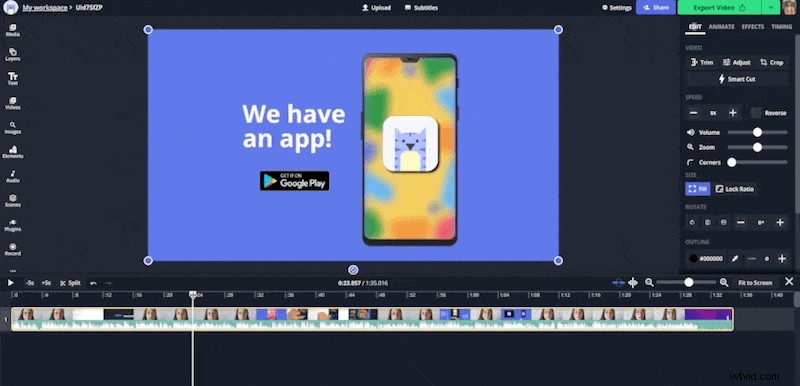
After you've created a freeze frame, delete the video layers in your timeline and export your project!
Step 4: Export and download.
Once you’ve chosen the perfect image frame from your video, you’re ready to process your JPEG file. Click the “Export Project” button in the top right-hand corner of your editor. Kapwing will automatically work its magic and your snapshot will be ready to download after a few seconds.

Once Kapwing is done processing, you can choose to download your file, share directly to Twitter, Facebook, or TikTok, or copy your own video link to share another way.
If you're not signed into a Kapwing account, sign in or sign up using your Google or Facebook account – once you've signed into a Kapwing account, the watermark in the lower right corner will be removed from your final image.

For an extra like and follow, remember to tag us @KapwingApp whenever you share your content on social media. We love to see what our creators are passionate about and will give you another like and follow! If you like this article, subscribe to the Kapwing Resources library – we’re constantly writing new tutorial and features to help you make the most out of Kapwing.
Related Articles:
- How to Convert a Video to Images
- How to Add Pictures to a Video
- Add a Freeze Frame to Your Video For Free Online