
Nowadays, digital cameras can record video at least 24 frames per second. And this frame rate is constantly improving on new devices. My camera shoots 10 frames per second in burst mode. If only there were a way to use the high frame rate in videos to capture still images? There is! And it is simpler than you’d expect.
This article will show you how to extract a still image from a video. These are high-quality images just as you would take with continuous shooting. The best part is that you don’t need to learn a new video editing program. You can do it in Photoshop.
What You’ll Need
- A video file
- Photoshop
That’s all!
Step-by-Step Tutorial
Step 1: Open the Video in Photoshop
First, open the video file in Photoshop. Lightroom will not let you export the video to Photoshop for editing, so you will have to open it directly. In Photoshop, go to the File drop-down menu and select File > Open (Ctrl or ⌘O). Navigate to your video file. The video will also open if you drag the video file directly into Photoshop.
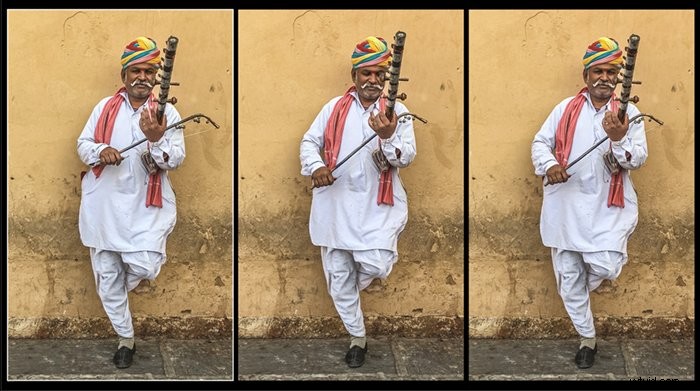
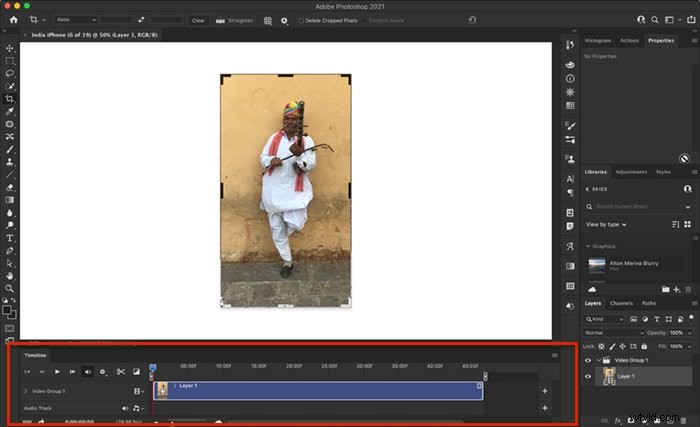
Photoshop recognizes the video and opens new features on your workspace. A Timeline appears below the video. This panel lets you trim and do some simple edits to the video. Here, I’ve opened an iPhone video of a street musician in Jaipur. I am going to use Photoshop to make a still picture from the video.
Step 2: Select Frames
Photoshop will separate your video into individual images. But this can result in hundreds or thousands of frames. A video shooting at 24 frames per second will create 240 images in 10 seconds. It is best if you can limit this.
Drag the playhead (slider above the red line) along the time ruler along the top until you find the frame you want to make into a still image. Move the beginning and endpoint sliders to either side of the red line.

To see a selection of images, you can expand the area by moving the beginning and endpoints. Move the beginning a little to the left and the end a little to the right. This will give you more individual images.

Quick Tip: If you already know which frame you want to convert to a still, place the red line on the frame. Go to the File drop-down menu and select File > Save (Ctrl or ⌘S). Save images as a JPEG or TIFF file.
Step 3: Separate the Images
The next step is to tell Photoshop to separate the images that make up the video. Click the Render Video button in the lower left-hand corner of the timeline. It looks like an arrow. This will open a Render Video dialogue box.
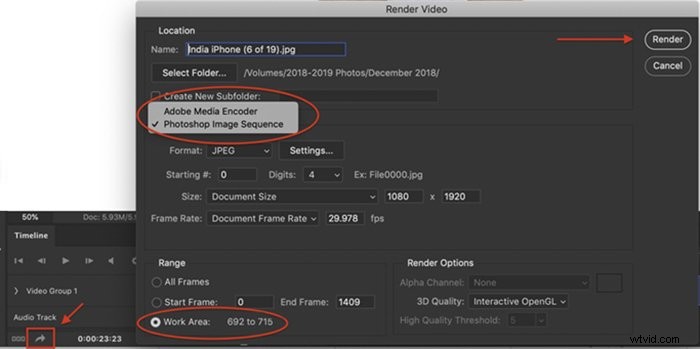
With the Render Video dialogue box open, do the following:
- Switch Adobe Media Encoder to Photoshop Image Sequence;
- Select the format of the images. I have selected JPEG, but TIFF is another option. Settings lets you adjust the image quality and size;
- Select the Work Area radio button. This enters the frame or frames that you selected in Step 2. You can also select All Frames or enter a range of frames; and
- Click the Render button.
Depending on the selections you made, another dialogue box may appear. Save at the highest resolution possible and click OK.
Step 4: Navigate to Saved Images
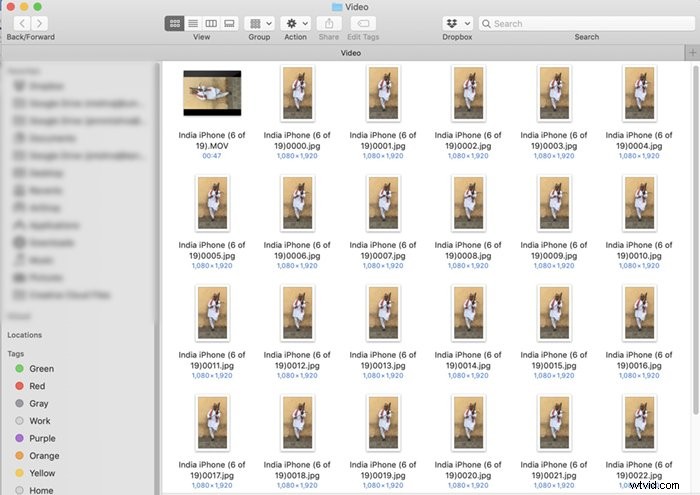
Photoshop quickly extracts the individual images from your video. But Photoshop will not send you a notification when the process is complete. The images will save in the background.
To find the images, go to the folder containing your video. You can then import the images to Lightroom, or open them in Photoshop.
Quick Tip: You can specify a different folder to save the images in the Render Video dialogue box.
Conclusion
Now you’ve learnt how easy it is to use video mode to capture action stills! This is a great trick to add to your growing Photoshop skills. Once you’ve created your JPEG or TIFF image, you can edit it like any other image.