
In Photoshop, you can easily create some surreal looking images. Just use a photo of a pattern and start combining multiple mirrored images.
If you want to learn how to create an interesting result, here’s how to create a mirror image in Photoshop!
How to Mirror an Image in Photoshop
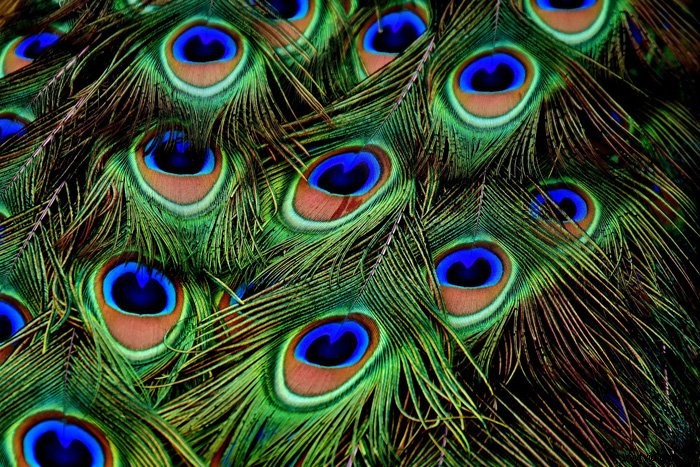
You can use any photo for a mirror image, but a pattern can create the best surreal graphic effects.
Step 1: Open Your Photo and Duplicate the Background
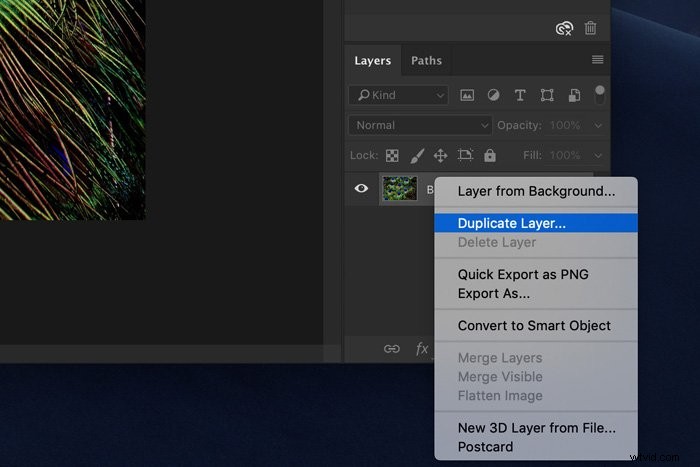
Open the photo you want to use in Photoshop. Right-click on the background layer in the layers panel and choose “Duplicate Layer”. A new Photoshop layer will appear on top of the background layer.
Step 2: Add Canvas to the Left
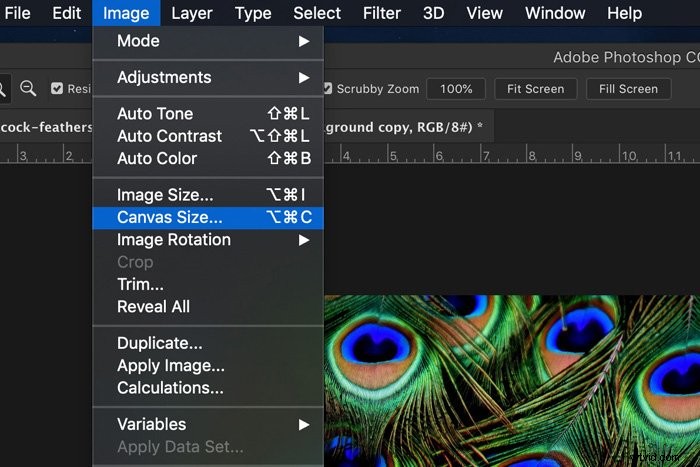
Go to “Image” in the top menu and choose “Canvas Size”. A new window will open.
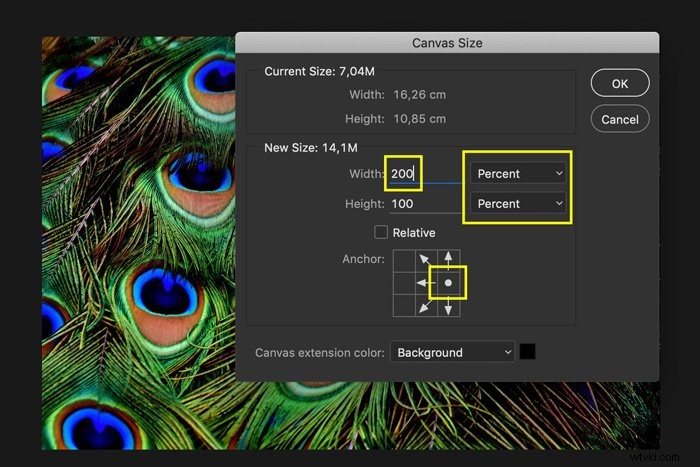
Set the units to “Percent” and click on the right middle square on the grid.
By doing this, you’ll force the canvas to expand only to the left. Because we need to double the canvas size, set the width to 200 and hit “OK”.
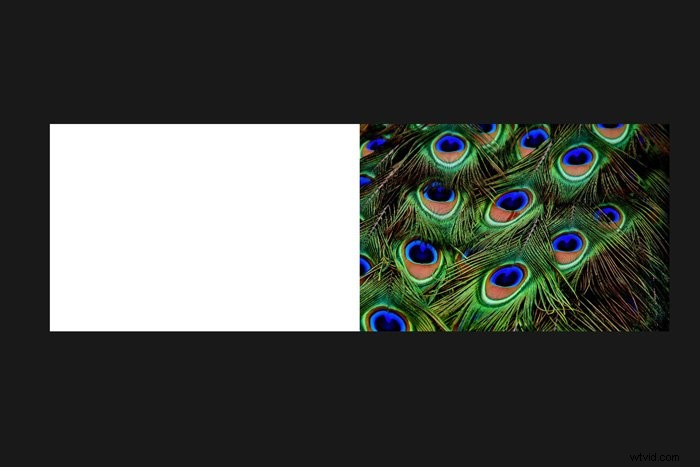
Step 3: Mirror the Image Horizontally
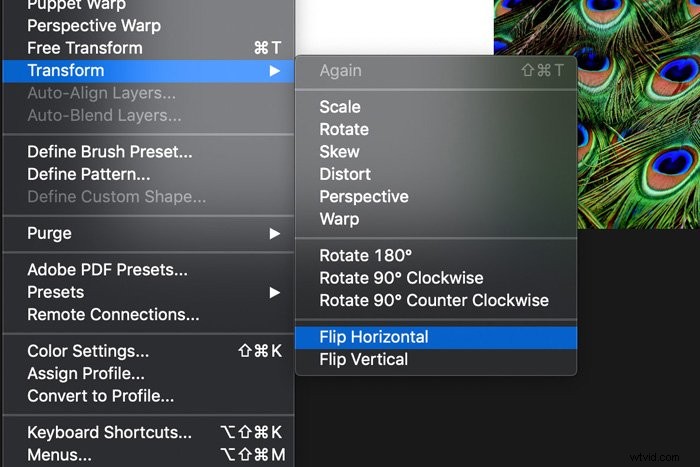
Select the top layer and go to Edit > Transform and choose “Flip Horizontal”.
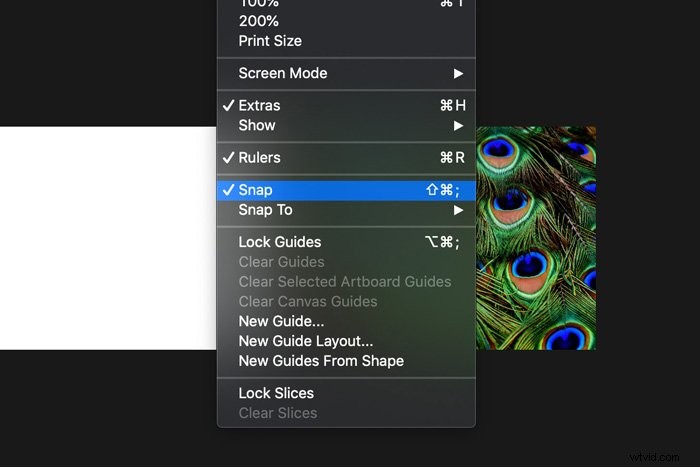
Go to the top Photoshop menu bar and select “View”. Make sure “Snap” is active.
Select the “Move” tool from the toolbar on the left. You can also use shortcut “V”.
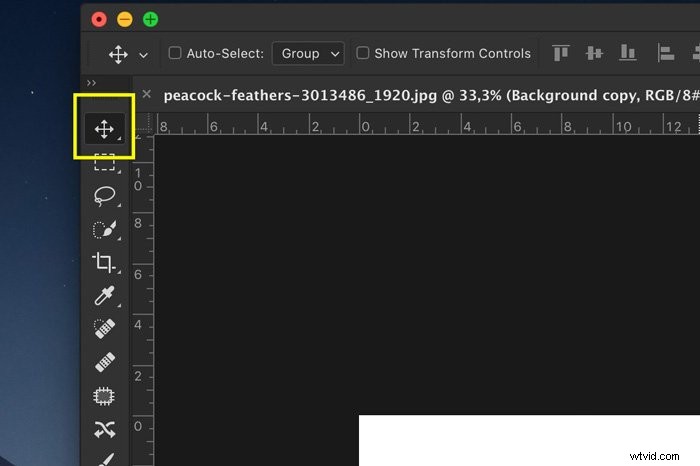
Hold the Shift key and drag the image to the left. Photoshop will help you by “snapping” the image in the correct position.
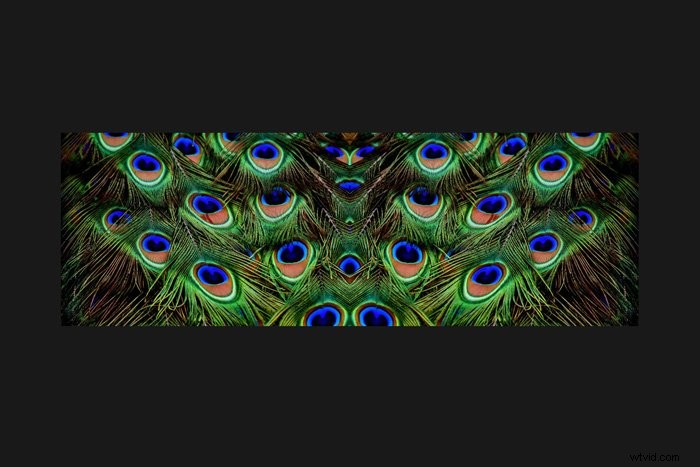
Step 4: Add Canvas Size to the Top
Open the “Layers” panel menu and choose “Flatten Image”.
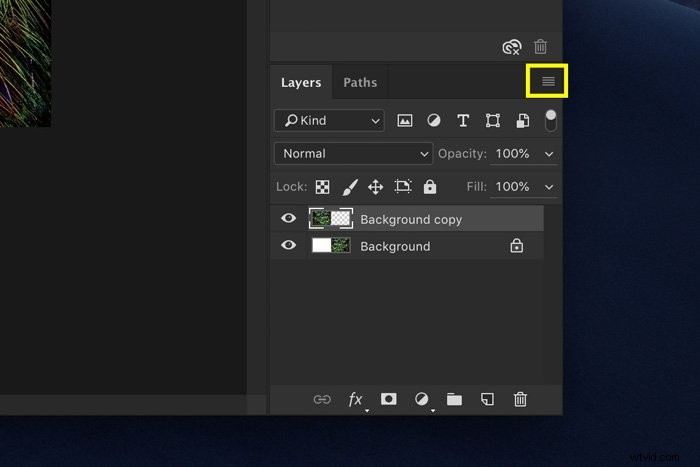
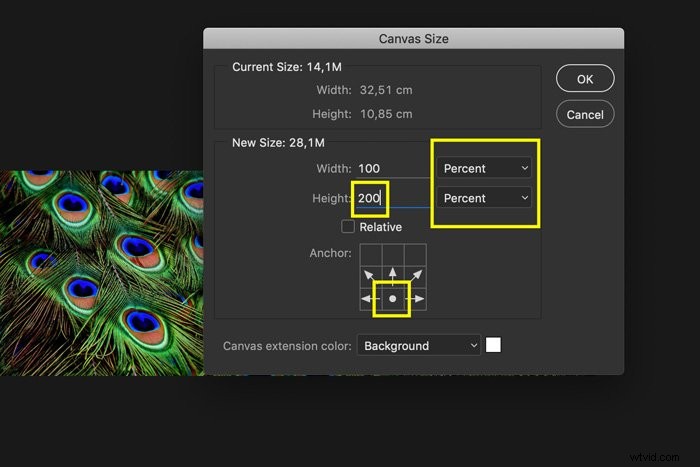
Right-click on the background layer in the layers panel and select “Duplicate Layer”. Go to “Image” in the top menu and choose “Canvas Size” again.
This time, select the bottom square and set the height to 200%. Click “OK”.
Step 5: Mirror the Image Vertically
Make sure the top layer is active. Go to Edit > Transform and choose “Flip Vertical” to vertically flip an image in Photoshop. Hold the Shift key and drag the image onto the empty Photoshop canvas. Flatten the image again.
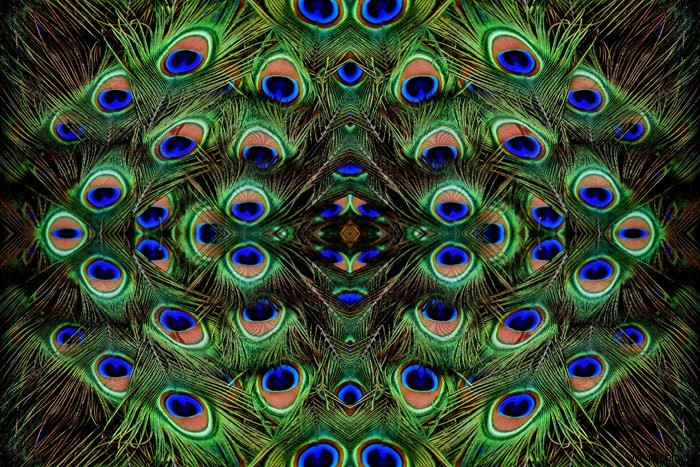
You’re all done, but you can keep repeating this process in Photoshop until you get the mirror image you want. Just remember that every time you add a flip image, the file size will double.
You can also rotate or distort the image in Photoshop for different results.
Experiment until you get a unique look.
Common Photoshop Mirroring Questions
How Do You Mirror a Layer in Photoshop?
Select the layer you want to mirror and make sure it’s unlocked. Go to Edit > Transform and choose “Flip Horizontal” or “Flip Vertical” to mirror the layer.
How Do You Create a Mirror Image?
Creating a mirror image in Photoshop is easy. Go to Image > Image Rotation and select “Flip Canvas Horizontal” or “Flip Canvas Vertical”.
How Do You Mirror Flip an Image on iPhone?
The best way to mirror flip a photo on an iPhone is to download Adobe Photoshop Express. It is pretty easy to use for more basic edits.
How Do You Reflect in Photoshop?
There are two options.
1. Go to Image > Image Rotation and select “Flip Canvas Horizontal” or “Flip Canvas Vertical” to mirror the image.
2. Go to Edit > Transform and choose “Flip Horizontal” or “Flip Vertical” to mirror a layer.
Conclusion
Mirroring images in Photoshop is easy and might even seem boring. Well, it doesn’t have to be. You can create some very cool looking images by combining flipped photos in Photoshop.
Start with simple patterns and then move on to other photos. You can use both landscapes and portraits to create a mirror image. You’re limited only by your imagination!
Check out how to use Photoshop distortion tools or our list of free Photoshop plugins next!