
Sometimes, for some reason, we need to remove background from image. So, how to remove background from image Photoshop? This article details how to complete the task of removing background from image with different tools. To make a video with images, try MiniTool MovieMaker.
How to Remove Background from Image Photoshop
The best way to remove background from image is to use Photoshop. Photoshop provides users with many different techniques to remove the background from the image. Here are the steps on how to remove background from image in Photoshop.
Option 1
Step 1: Open Photoshop and click File > Open to import your image that you want to remove the background from.
Step 2. Select Background Eraser Tool from the left pane.
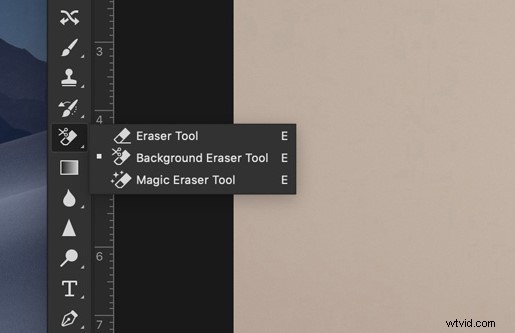
Step 3. Adjust the brush size to your liking.
Step 4. Make sure that Limits is set to Continuous and Tolerance is adjusted to a range of 20-25%.
Step 5. Bring your brush over your background and begin to erase. To avoid accidentally erasing certain areas of the foreground object, use Photoshop’s Pen tool to create a clean selection and remove unwanted backgrounds.
Step 6. Go to File > Save as, enter a name for the file, select PNG in the drop-down menu, and then click Save.
Related article: Top 7 Best Image Splitters of 2020 (Desktop & Online)
Option 2
Step 1. After launching the software, open the image that you want to process.
Step 2. Click the W key in your keyboard or select Quick Selection Tool from the toolbar.
Step 3. Drag the brush to choose the preferred area. Photoshop will detect the parts that are being selected and will choose the hard-edged and high-contrast parts itself neatly.
Step 4. Press Shift + Ctrl + I simultaneously to select the part that you want to keep.
Step 5. From the pop-up window, tap on the drop-down icon next to View under the View Mode section and then click On Layers option from the drop-down menu.
Step 6. Move further to the Edge Detection section, and check the Smart Radius option to make the subject details smoother and more realistic.
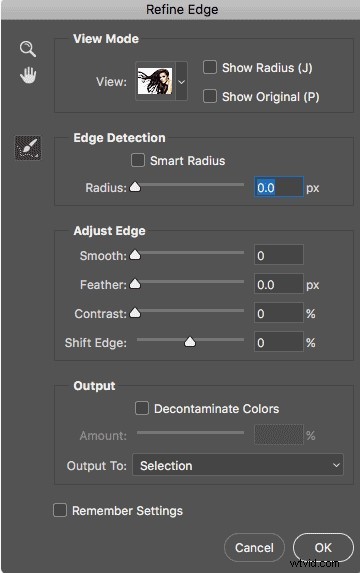
Step 7. Click Decontaminate Colors under Output Settings to erase extra color fringes and select New Layer with Layer Mask in the Output to section.
Step 8. Click OK to save all changes and then the complete background has already been removed from the canvas.
Step 9. Press Ctrl + S on your keyboard to open the export window, and then give a name for your file and select PNG as the output file format.
How to Remove Background from Image Online
If you prefer to remove background from image online, PhotoScissors should be your first choice. It makes things easier because you do not need to download any software. Now, let’s learn how to use this online tool to remove background from image free.
Step 1. Open your web browser and visit the official website of PhotoScissors.
Step 2. Click the Upload Image button on the screen, which will open a dialog box from where you can select the image you wish to remove background from.
Step 3. Once the image is uploaded, select the green + option to mark the foreground that you want to keep.
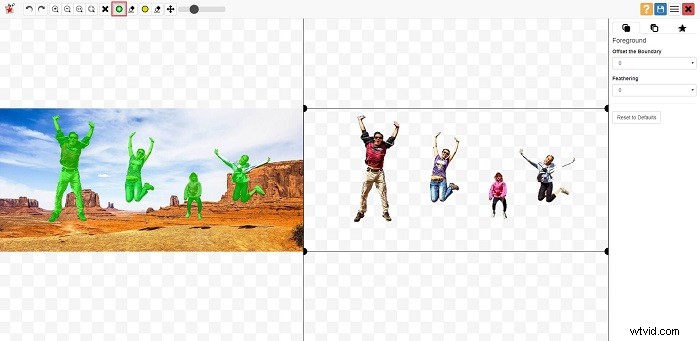
Step 4. Optionally, there are advanced options available, such as Zoom In, Zoom Out, Erase Markings, etc.
Step 5. When you are satisfied with the results, click on the blue Download button located at the upper right.
Bottom Line
Have you mastered how to remove background from image Photoshop or online after reading this post? If you have any questions or suggestions about it, please let us know via admin@wtvid.com or share them in the comments section below.