
For some reason, you need to change an image from pixels to inches. Wondering how to convert pixels to inches easily and quickly? This post offers the 4 best online converters to help you convert pixels to inches for free.
What is a pixel? According to Wikipedia, a pixel is the smallest addressable element in a raster image. What is an inch? An inch is a unit of length. 1 inch is 96 pixels.
Formula: Pixels = Inches x DPI
Formula: Inches = Pixels / DPI
How to convert pixels to inches easily? Try the following pixels to inches converters. (To make a video from images, you can use MiniTool MovieMaker.)
4 Best Converters to Convert Pixels to Inches for free
- Uproer
- UnitConverters
- Pixels Converter
- Ninjaunits
#1. Uproer
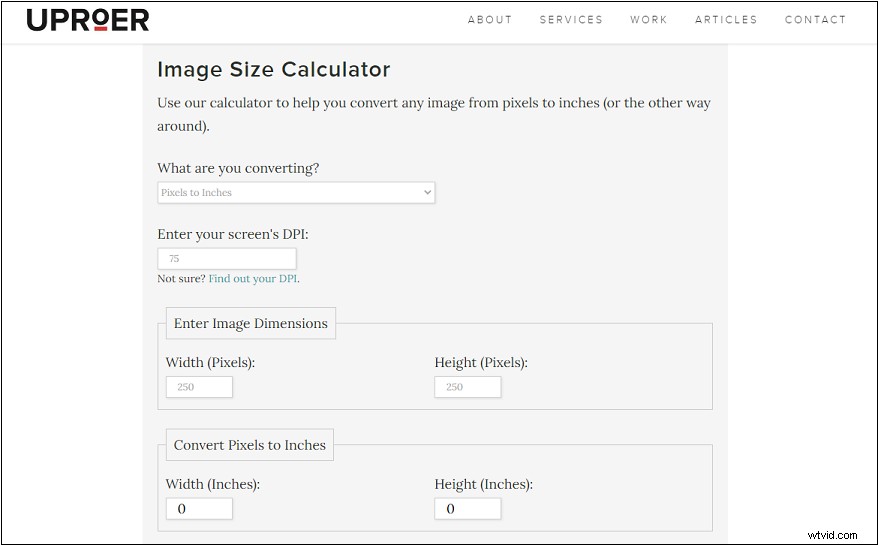
Uproer is a pixels to inches converter that can convert pixels to inches and inches to pixels. Also, it’s can be used as a DPI converter to calculate your screen’s DPI.
Here’s how:
- Visit the website: https://uproer.com/articles/image-size-calculator-px-in/#dpi.
- Enter pixel dimensions in the Width and Height box.
- Then it will convert them to inches.
#2. UnitConverters
UnitConverters can convert pixel to inch, meter, centimeter, twip, pica, point and so on. It offers other useful converters like engineering converter, heat converter, heat converter, light converter, and fluids converters.
Here’s how:
- Go to the website: https://www.unitconverters.net/typography/pixel-x-to-inch.htm.
- Enter the width/height of the image in pixels.
- Then you’ll get the result.
#3. Pixels Converter
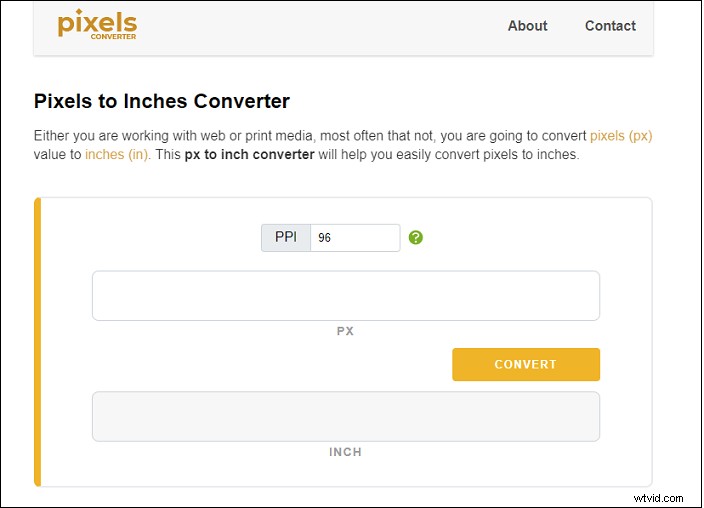
Pixels Converter is a free online tool that you can use to convert pixels to inches, inches to pixels, pixels to millimeters, px to em, px to rem and more.
Here’s how:
- Open the Pixels Converter website and click on pixels to inches under the INCH. Before that, you can change the PPI as required.
- Input the pixels value and click on CONVERT to start converting pixels to inches.
#4. Ninjaunits
This is another tool to convert pixels to inches with ease. You can select your monitor DPI or custom DPI and convert pixels to inches for printing.
Here’s how:
- Open the Ninjaunits website and go to Convert units > Pixels Conversion > Pixels to Inches.
- Select the desired DPI and enter the pixels value and you’ll get the inches value.
How to Change Pixels of an Image on Windows
After learning how to convert pixels to inches, let’s take a look at how to change the pixels of an image on Windows. To change the pixels of an image, you can use the inbuilt photo editor – Paint. It lets you resize images by pixels, draw on images, rotate images, and add text to images.
Here’s how to change pixels of an image using Paint.
- Find the image you want to change its pixels and right-click on it.
- Select Edit to open the image with Paint.
- Click on Resize and choose Pixels to input the pixels value.
- Click the OK button to save the change.
- Navigate to File > Save as to save the image.
Conclusion
Converting pixels to inches with an online converter is super easy. Choose one of these converters and try it now!