
Pinterest is an image-sharing service that allows users to upload and share pictures, animated GIFs, and videos. Sometimes you may want to save an image from Pinterest? How to save pictures from Pinterest on computer and phone? This post will provide clear steps.
According to Wikipedia, Pinterest has more than 400 million monthly active users as of August 2020. There’s no doubt that it is one of the most popular social media services. And more and more users would like to share beautiful and amazing photos to Pinterest. Frequently, you’ll find wonderful pictures on Pinterest and want to download them.
How to save pictures from Pinterest? Here we provide an ultimate guide. And if you’d like to make a video from photos and video clips, try MiniTool MovieMaker.
How to Save Pictures from Pinterest Directly?
#1. Download Pictures from Pinterest on Computer.
Step 1. Open the Pinterest app on your Windows PC or go to the Pinterest website.
Note: In addition to online services, Pinterest offers a desktop app for Windows. And you can get it from the Microsoft Store.Step 2. Lon into your Pinterest account.
Step 3. Find and open the Pinned picture that you desired to download.
Step 4. Click the three-dot icon and select the Download image from the dropdown list.
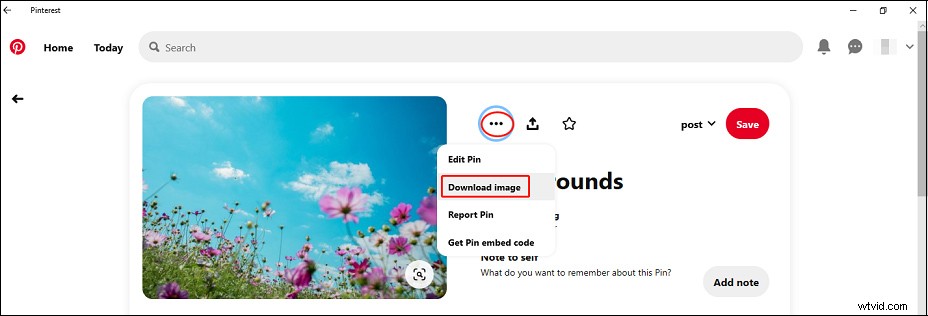
Step 5. If you use the Pinterest desktop app, after you click the Download image, a Save as pop-up window appears, and then you can give the image a name and choose a destination folder, and click the Save.
If you download the image from the Pinterest website, once you click the Download image, the image will be downloaded on your computer simultaneously.
#2. Download Pictures from Pinterest on Phone
Pinterest is also available on Android and iOS devices, and this part will show you how to save images from Pinterest on phone.
Step 1. Open the Pinterest app on your phone and sign in.
Step 2. Find and open the image you want to save, then click the three-dot icon at the top-left corner, and click the Download image.
Step 3. If it’s the first time you download the image from Pinterest, you’ll be asked for permission to access media and files on your device. Then click the ALLOW to continue. Once the downloading is finished, you’ll receive a notification. Then you can find the image on your Gallery.
On your iOS devices, you need to open the Settings > Privacy >Photos > Pinterest, then click the Read and Write to get the permission. Next, return to Pinterest to continue to download the image.
Related article: How to Download All Photos from Google Photos at Once?
How to Save Pictures from Pinterest Using a Third-party Tool - Experts PHP
Experts PHP allows users to download Pinterest videos, images, and GIFs online, and it’s also available on mobile devices. And here’s how to save pics from Pinterest online.
Step 1. Open the Pinterest website or desktop app, open the target image.
Step 2. Directly copy the URL from the address bar or click this icon and select the Copy link to get the image link.

Step 3. Go to the Experts PHP and paste the image URL in that box, and click the DOWNLOAD.
Step 4. Then it offers several images in different sizes in JPG or JPEG or PNG format. Click the desired Download link option to open and preview the image.
Step 5. Right-click the image and click the Save image as, then choose a destination folder, and click the Save.
How to Save All the Pictures from a Pinterest Board
Step 1. Download and install Image Downloader extension.
Step 2. Then open the Pinterest website, and find the Board where you want to save images. Click the Image Download icon from the extension bar.
Step 3. Tick the Select all box and then click the Download button to download all images from this Pinterest Board.
Conclusion
This post tells you how to save pictures from Pinterest on computer and phone. Now, you can try the above steps to download a single photo from Pinterest or use the Chrome Extension to save all images from a Board.