
GIMP is a professional and cross-platform image editor, and it’s widely used to customize images. And it supports most formats. JPEG is a lossy compressed file. Hot to save GIMP as JPEG? This post will offer you clear steps. Want to convert your JPEG files to a slideshow or a video, try MiniTool MovieMaker.
The Supported Image Formats of GIMP
Before using GIMP to edit images, you need to know which image formats can be opened in it. GIMP is compatible with a wide range of image formats. It can import and export many file formats: BMP, JPEG, PNG, GIF, TIFF, HEIF, and other formats of several applications like Abode Photoshop documents, X bitmap images, Corel PaintShop Pro images, etc.
XCF is the native image format of GIMP. And it offers SVG input and output. GIMP allows you to open, convert, and save to many file formats. What’s more, you can resize images, add text to photos, rotate images, crop images, flip images, sharpen or blur images, and more.
How to Save GIMP as JPEG?
After you finish image customization in GIMP, you may want to export it as a JPEG format because it’s a popular image format for online photos and it’s taken as the best format for sharing on social media. How do you let GIMP save as JPEG? Just follow the steps.
Step 1. Open the GIMP image editing software on your PC. (Windows, Mac, Linux)
Step 2. Select the File > Open to browse through your local system to upload an image.
Step 3. After your editing, click the File > Export as.
Step 4. In the Export image window, give the image a name in the Name box and choose a location for the image.
Step 5. Tap the Select File Type (By Extension) to open the output format list of the GIMP.
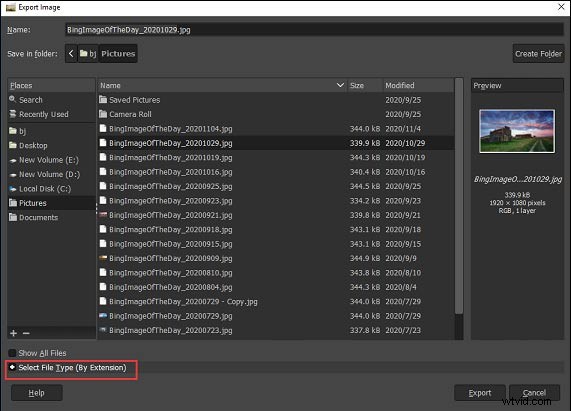
Step 6. Scroll down the list to choose and click the JPEG Image.
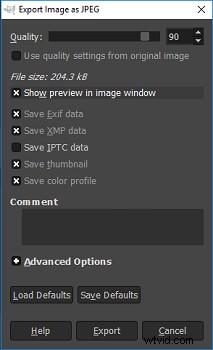
Step 7. Click the Export to display the Export Image as JPEG window.
Step 8. The default quality is 90, but you and move the slider to change the output image quality. If you want to know the current file size, click the Show preview in image window.
Step 9. Tap the Export to save this image as a JPEG file.
With these steps, you can save your GIMP as PNG, TIFF, WebP, BMP, etc. GIMP is a comprehensive image editor, but there’re still many GIMP alternatives. The following part will introduce 3 GIMP alternatives.
Top 2 Alternatives to GIMP Image Editing Software
Pixlr (Online)
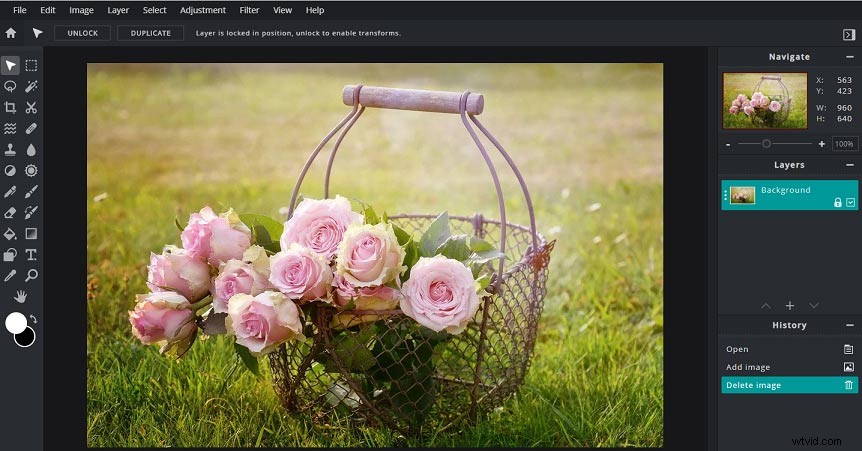
Pixlr is an online GIMP alternative packed with a load of features and it has an interface similar to Photoshop. It offers many tools like selection tool, text editor, color replaces tool, pen tool, color picker tool, crop tool, and more. And it also allows you to adjust the brightness, contrast, color balance, exposure, etc.
Adobe Photoshop (Desktop)
Photoshop is a raster graphics editor compatible with Windows and Mac and it’s the best desktop alternative to GIMP. It supports a wide range of formats and almost provides all tools you need to edit an image, such as the pen tool, selection tool, shape tool, etc. Photoshop makes it easy to customize your images, such as adding text or apply filters to picture, resizing images, changing or removing image background, and much more.
Conclusion
After reading this post, you’ll find it very simple to save GIMP as JPEG. Now, it’s your turn to save your GIMP file as a JPEG. Have a try!