
GarageBand is a popular DAW program for users to create music and podcast on macOS, iOS, and iPadOS devices. It has various built-in audio effects to enhance your audio track. Fade-in and fade-out are two of the effects. How to fade in GarageBand? This post offers step-by-step guides.
The fade effect can increase or decrease the level of an audio signal. When you apply the fade-in effect to a song, the sound will gradually increase from silence at the beginning. If you use the fade-out effect to the end of your song, the sound will gradually fade to silence.
And in this post, we’re gonging to show you how to fade in GarageBand. If you want to fade in and fade out the music in the video, just try MiniTool MovieMaker.
How to Fade in GarageBand
GarageBand allows you to add an automatic fade-out effect to your music or just manually apply a fade-out effect. By the way, GarageBand is a pre-installed application on your Mac, iOS, and iPad.
Here’s how to fade out music in GarageBand automatically on Mac.
Step 1. Open GarageBand, and open your music from the Home Screen.
Step 2. Click Track > Show Master Track from the menu, and the master track will appear below the last track in the Tracks area.
Step 3. Select the Mix > Create Volume Fade Out on Main Output option.
Step 4. Then click the Volume from the menu in the master track header, move the volume points to change the length of the fade-out.
And you can also apply the automatic fade-out using GarageBand on your iPad. Just open the Song Settings, and turn on the Fade Out option.
What’s more, GarageBand enables you to add fade-in or fade-out effects to a song manually. After opening a song in GarageBand on your Mac, click the Track and Show Master Track to have the Master Track.
Then choose the Volume option. To apply a fade-in effect, add volume points to the beginning of the curve. To add a fade-out effect, add volume points to the end of the curve. And you can move these points to change the duration of fade-in and fade-out.
How to Fade Music in the Video
After learning how to fade music in GarageBand, this part will describe how to fade in and fade out the music in the video with MiniTool MovieMaker. It’s a free video editor without watermarks and has many basic video editing features like speed control, color correction, video trimming, splitting, and more.
As for the audio editing, MiniTool MovieMaker allows you to fade in, fade out the music, and adjust its volume. Below are detailed steps on how to fade music in the video with MiniTool MovieMaker.
Step 1. Open MiniTool MovieMaker after installation, close the pop-up window, click the Import Media Files to add your video, and drag it to the timeline.
Step 2. Click it, and go to the Audio tab. Then you can drag the slider of Fade in or the Fade out to set the duration of the fade-in and fade-out effects.
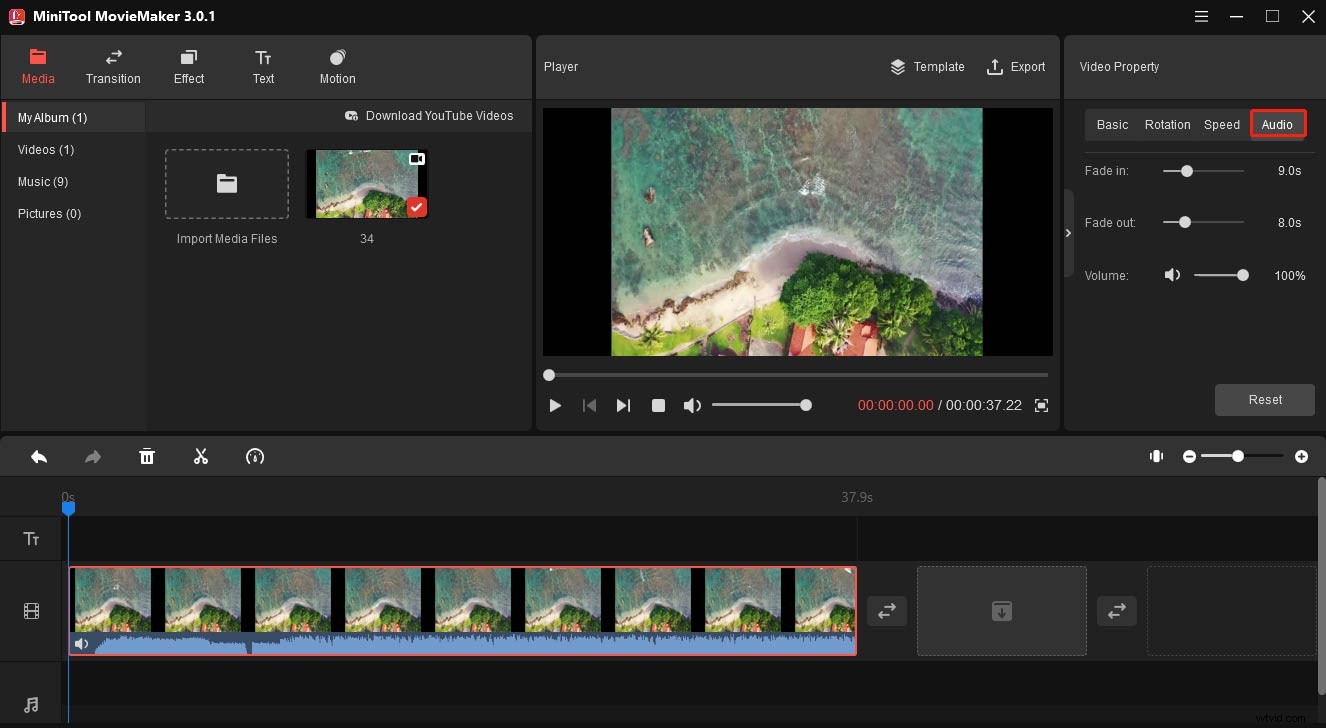
Step 3. You can continue to edit this video. To export this video, click the Export button, and then choose an output folder, output format, and click the Export to save your video.
Conclusion
This post offers a simple guide on how to how to fade music in GarageBand. If you have other useful tips to fade music with GarageBand, just leave them in the comments area. And if you want to fade the music in the video, try MiniTool MovieMaker.