
How to fade in and fade out song
Its counterpart, fade in, works in an exact opposite way, meaning a black screen slowly becomes a picture. Fade-in and fade-out in a video are almost mandatory techniques to know at this point, but what about music?
Sound fades, thanks to which audio becomes progressively quieter or louder, are also two of the most popular techniques today. You can use them to complement visual fading, slowly fill the scene with music, or stop sudden and awkward changes in sound design.
So, how to make music fade in or out? In the classic songs of the last century, creating such effects required a complex manual process. But these days, all you need is the Internet.
Our online tool is a great option. With it you not only add fades to the music, but also cut it and change its format. It's free if the file size is less than 500 MB, and easy to use. Clideo Pro subscribers do not have any limit for a file size, and have an added bonus of continuing editing without the need to download the file first.
Thanks to this tool you can add a fade effect in just a few clicks.
Upload the song
Open Clideo’s audio cutter in any browser on any device. Upload audio by using one of the following options: from your device, Google Drive, Dropbox.
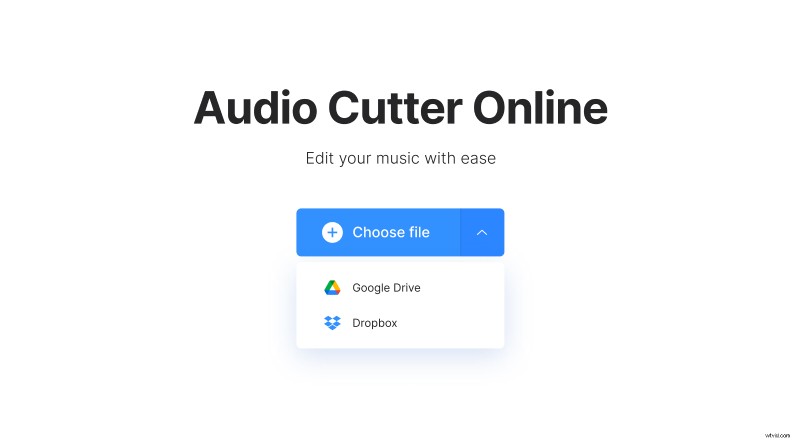
Add fade out and fade in sound effect
Once your song is uploaded, it is time to select a part of it that you want to use. You can do it by moving the markers or by typing in time in the “Cut from” section. Don’t forget whether you want the selected part to be extracted or deleted, this can be done in the upper-right section of the screen.
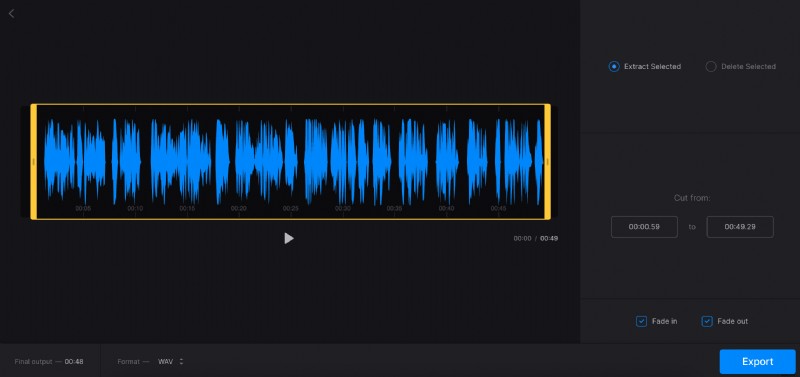
And now it is time to fade in and fade out. You will notice two boxes in the bottom-right part of the screen, check them both (or only one) and the effect will be automatically applied to the audio.
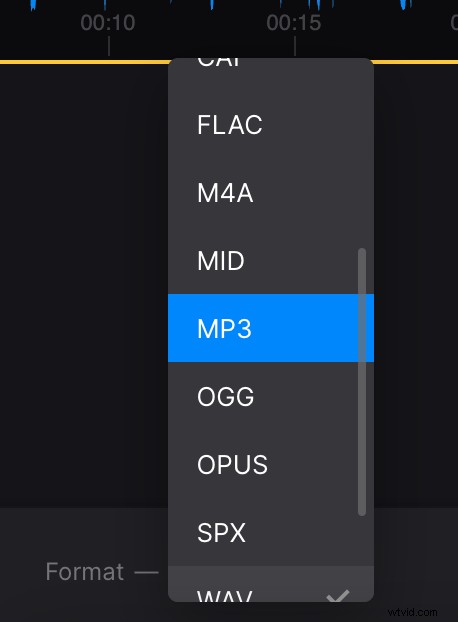
In the bottom part of the screen, you can select the format of the file. There are many options, meaning you can pick whatever you want, but we recommend MP3 for your songs. Click the “Export” button.
Save the file
Now you can listen to the soundtrack with added effects. If you want to change something just click “Edit” and you will return to the previous screen.
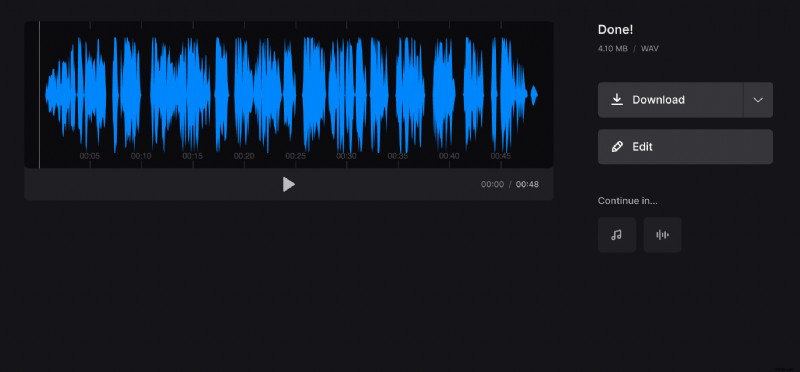
Save the audio to your device or directly to your cloud storage account. Above the “Download” button you can see the size of the new file and its format.