
Add music to a photo slideshow on Mac, Windows or another device
Not everyone knows how to do it, it’s fine, we’re not all professional photographers with great editing skills. But in fact, it’s not that difficult – you can easily do it right now in the comfort of your web browser using our tool. It’s online and compatible with any device.
Follow three simple steps to create a slideshow from scratch.
By the way, if you want to just add audio to a slideshow that you have already created, you can also do it easily with another special tool.
Upload files
Open Clideo’s Slideshow Maker. Click on the “Choose files” button and pick them from your device. If you’re using a computer, you can just drag and drop the necessary photos and recordings.

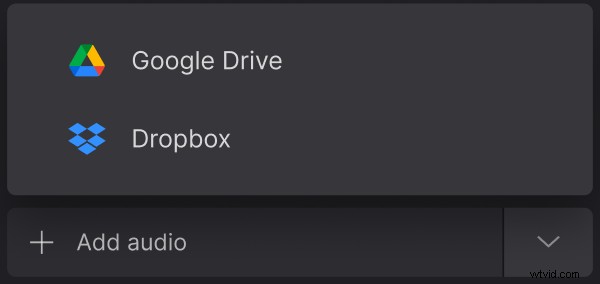
There’s an option to upload files directly from Google Drive or Dropbox, if you have them stored there – just hover over the arrow on the right side and pick the cloud storage.
Each file can be up to 500 MB if you’re using the free version of our service.
Create a video and picture slideshow
Here on the top right, you can add more files using the same ways from the first step. Then change their order according to your needs.
On the right side there are “Crop options”. If you pick “Zoom & Crop”, it will crop the image to fit one of the four aspect ratios depending on the one you chose. Picking “Fit with border” will not change the image itself, it will just add bars on sides.
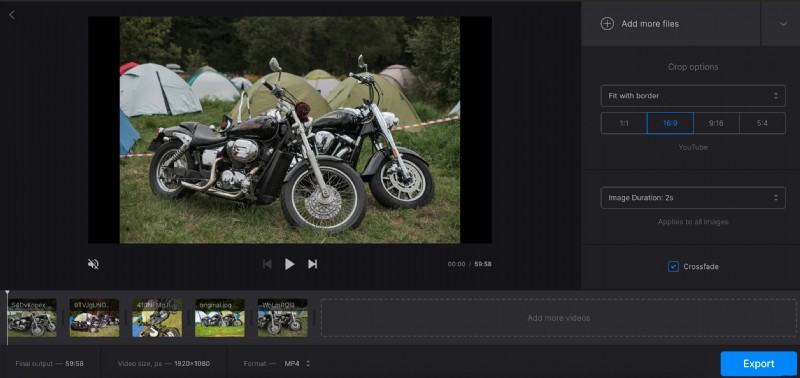
Next, you can set image duration – simply pick one of the wide range, and it will apply to all the images.
Below that setting there is a “Crossfade” option. If you tick it, the transition between pictures or videos will become smoother.
To add a song to the slideshow, use the “Add audio” option. It again allows adding from the device, cloud storage or via a link.
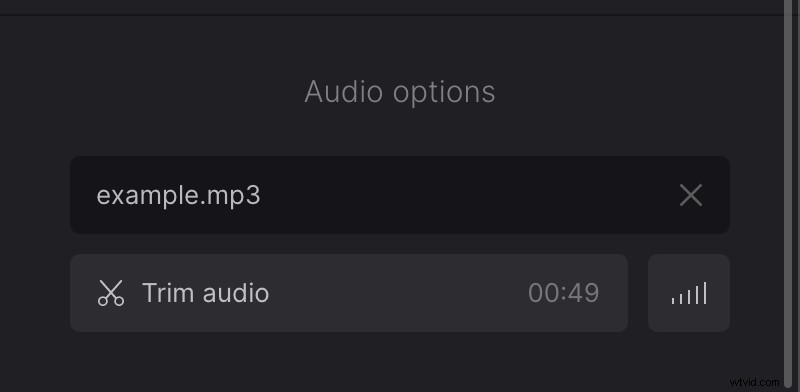
When added, click on “Trim audio”, if you want to use just a part of the song. Here, drag the yellow markers on both sides to cut the fragment you need or put time stamps in the fields below. Volume bars icon allows adjusting the volume of both video and audio tracks.
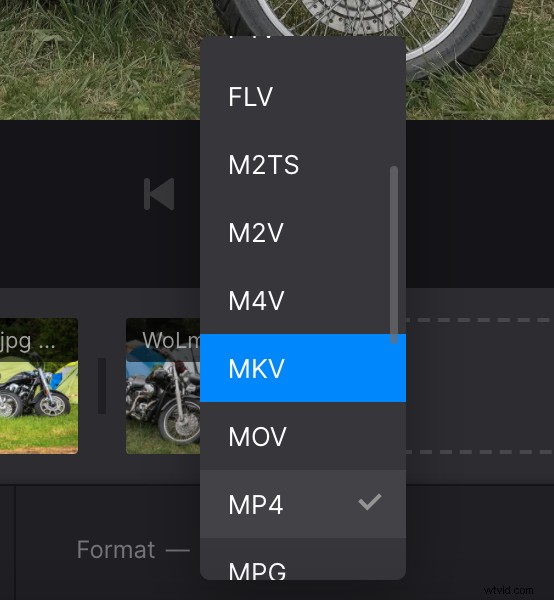
The slideshow will be saved as a video, and you can choose the format for it below the timeline – there are MP4, AVI, MKV, WMV and many others available.
When you’re done with editing, click on “Export”.
Download the result
On this page you can watch the preview. If you want to add some changes, click on the “Edit” button to return to the previous step without losing progress.
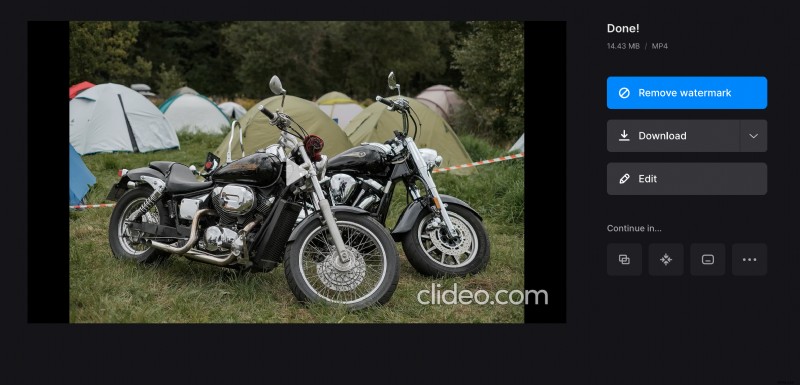
Otherwise, save the slideshow to your device or cloud storage using the “Download” button.