
Make a slideshow on iPhone in three steps
Using our iPhone Slideshow Maker, you can enhance a video clip in minutes. Completely online.
Sure, there’s plenty of slideshow apps for iPhone out there, but this way is much faster and you won’t need to download any potentially dangerous third-party software.
Working from all browsers, Clideo’s tool is also really secure. Any data uploaded can only be seen by you, and even then, it’s automatically deleted from the cloud after 24 hours.
Best of all, though - it’s free to use. So with no further delay, here’s how to do a slideshow on iPhone...
Upload your slideshow media
First off, make your way over to the iPhone Slideshow Maker homepage and select the blue ‘Choose files’ button to choose a clip from your device.
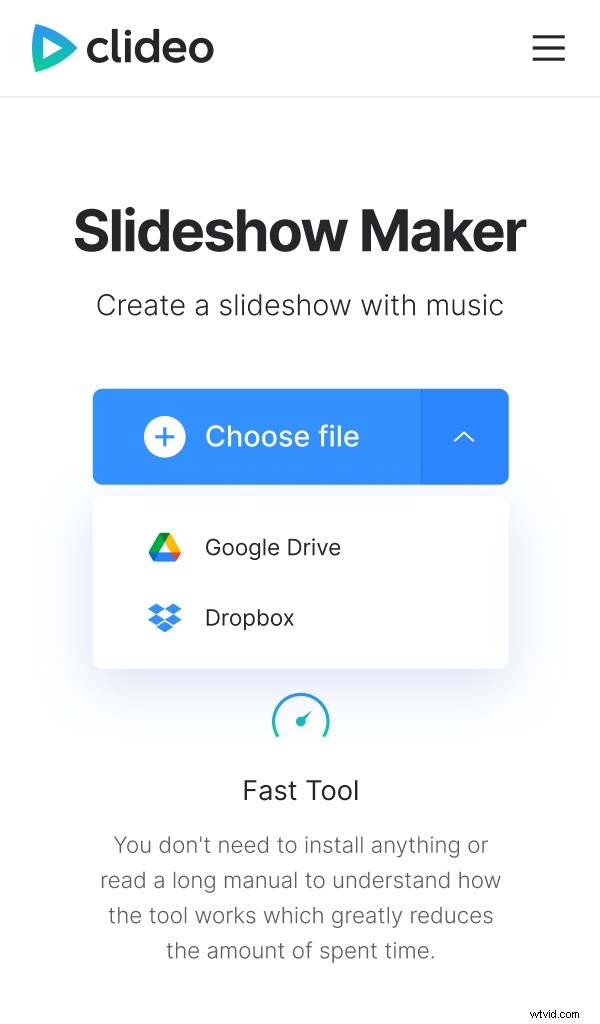
If you’d like to upload directly from a cloud storage account via Dropbox or Google Drive, simply select the down-arrow on the right, which will display a drop-down menu.
Mix it up
You’ll now be taken to the editor page where you can play around with the order of the files you have added to create the Slideshow. You can add more via the ‘Add more files’ button under the preview pane.
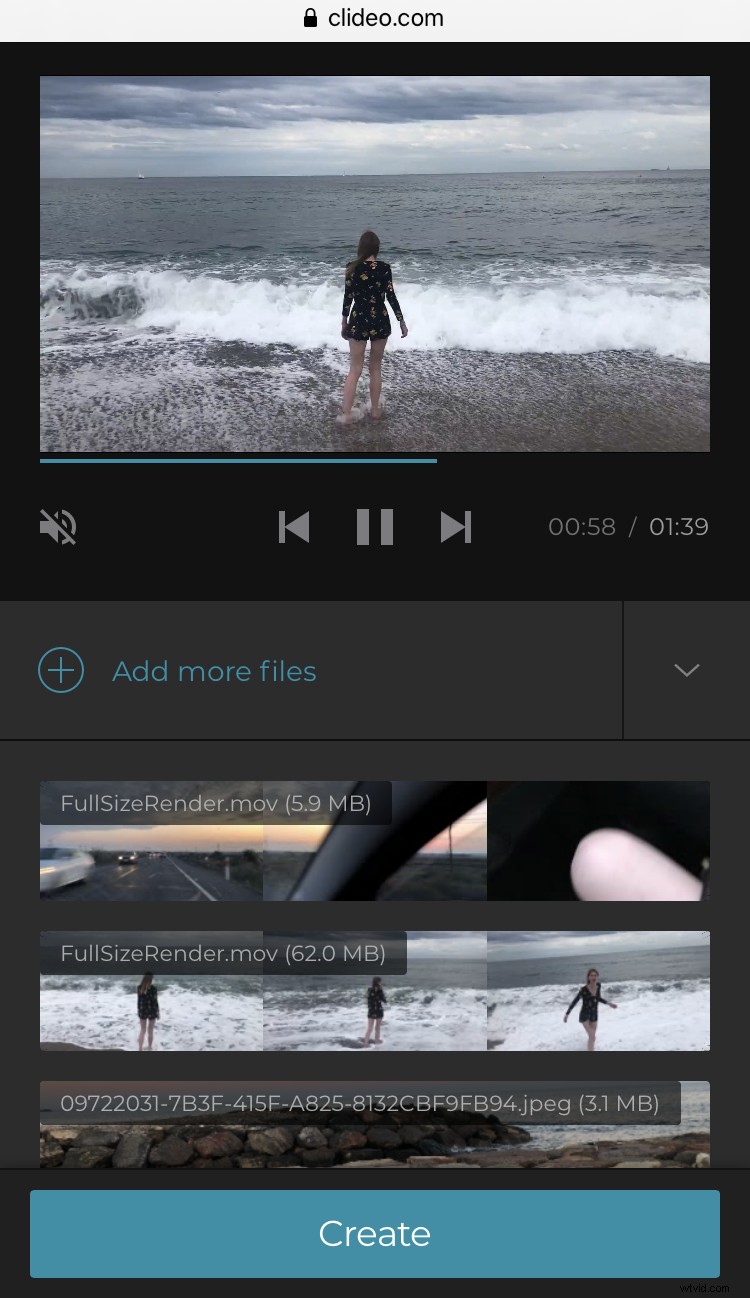
If you want to get really creative, you can add music as a backing track to your slideshow. You’ll find this option just underneath.
Next, you can choose how you’d like the slideshow to be cropped. This all depends on where you’re planning to display or post it. For example, opt for a 9:16 crop for Instagram Stories, or 16:9 for YouTube, and so on.
Below this, you can also choose how long the images are displayed for via ‘Image duration’. You can add a crossfade if you like by ticking the box underneath.
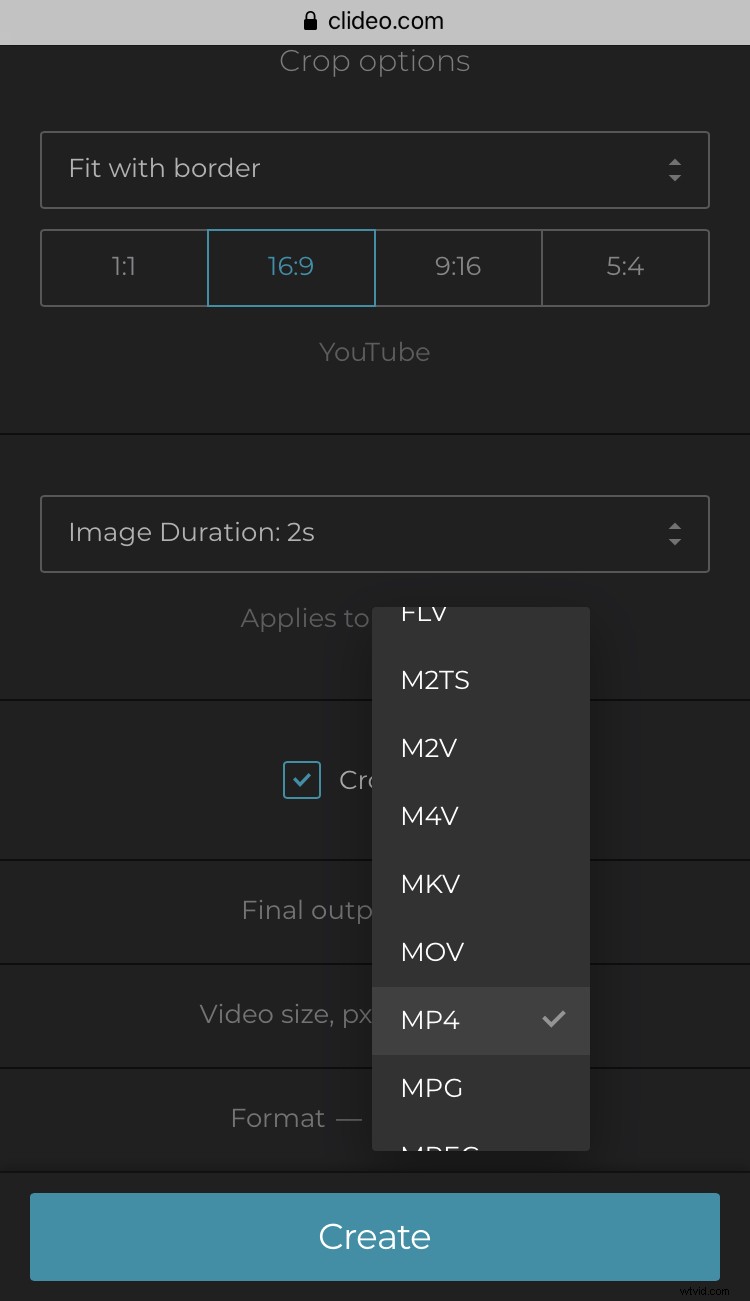
You can then change the video format. MP4 is best for iPhone but you can select between multiple formats, depending on your preference and which platform your slideshow is intended for.
To finish editing, click the ‘Create’ button right at the bottom.
Save it!
Now, just wait a few moments and your new iPhone video or photo slideshow is ready to save back to your iPhone.
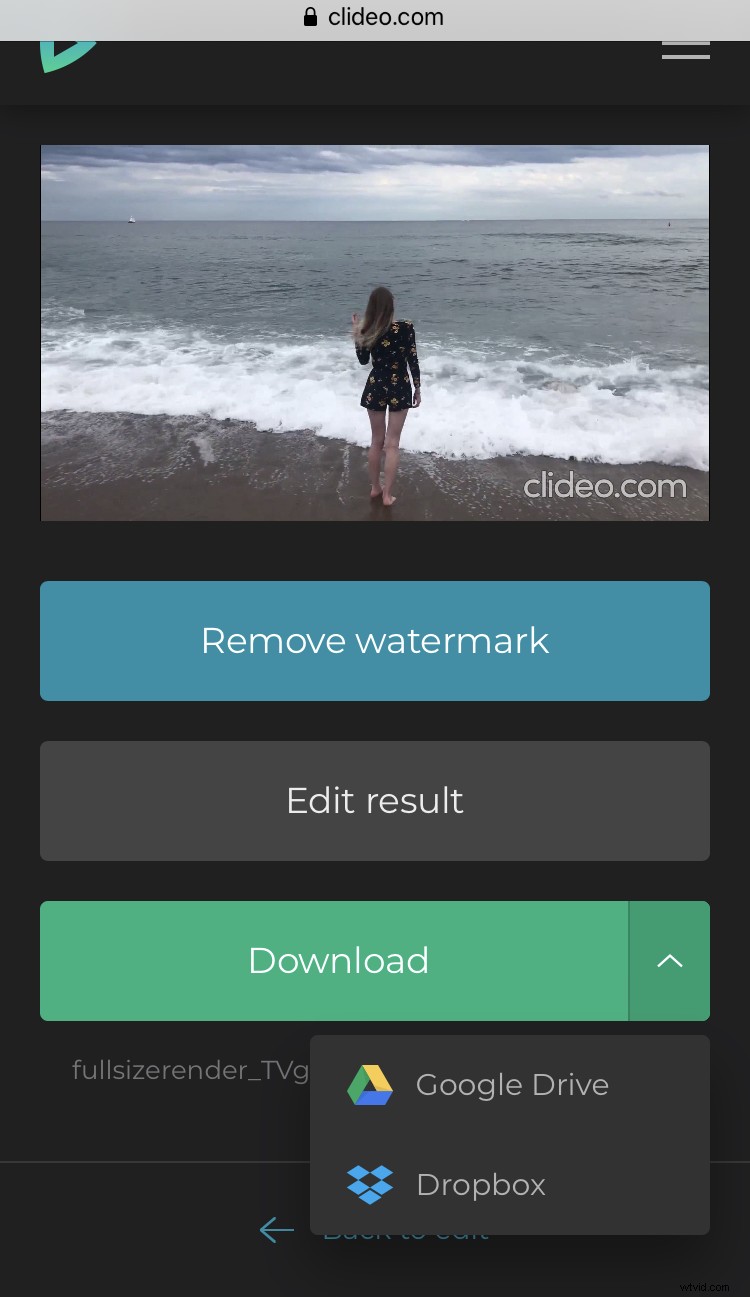
Next, give it a preview. You don’t want to download it to your device and realise you made a mistake. If you do want to change something, however, simply tap the ‘Back to Edit’ option.
Once you’re completely happy, download the slideshow to your device, or - again - save it directly to your cloud account. And you’re all done!