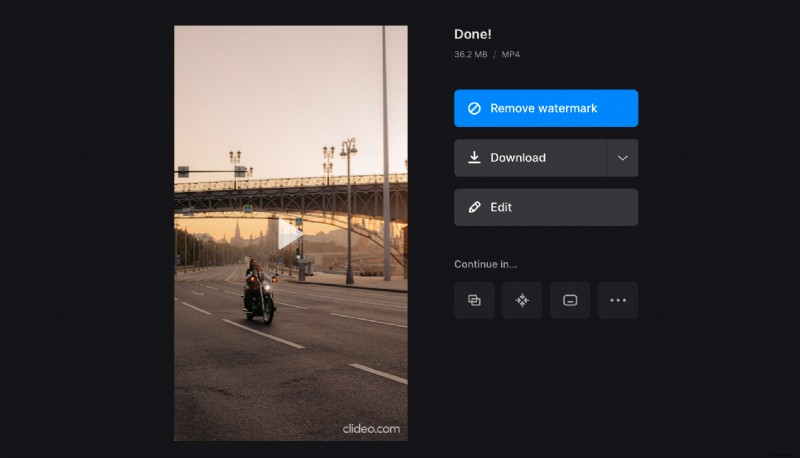
How to make a picture slideshow on any device
Clideo offers a free online tool that allows making a video out of images and recordings. You can also combine your best memories with music and create a road movie or romantic drama, whatever fits your mood.
You do not need to install any apps or learn anything about editing to start. Our service works in your favorite browser on Windows, Mac, Android, or iPhone. Let’s go through the three steps to create a photo slideshow the easiest way.
Upload the files
Open Slideshow Maker by Clideo and click the big blue “Choose files” button to add the pictures from your device. You can also upload from your Google Drive or Dropbox accounts. To use these options, hover over the arrow next to the blue button.

No need to worry about formats as our tool can upload various ones: JPG, PNG, TIFF, GIF, and more. So choose any of them and as many as you need. Also, you don’t have to add everything at once, as you can always do this later.
Make slideshow with pictures and videos
Once your media is prepared, it’s time for some adjustments.
Use the timeline under the preview to change the order of the files, just drag and drop the thumbnails. To delete an image, select its thumbnail and click the “x” icon. To add a new one, click the “Add more video” button in the timeline, or use “Add more files” at the top of the right-side pane.
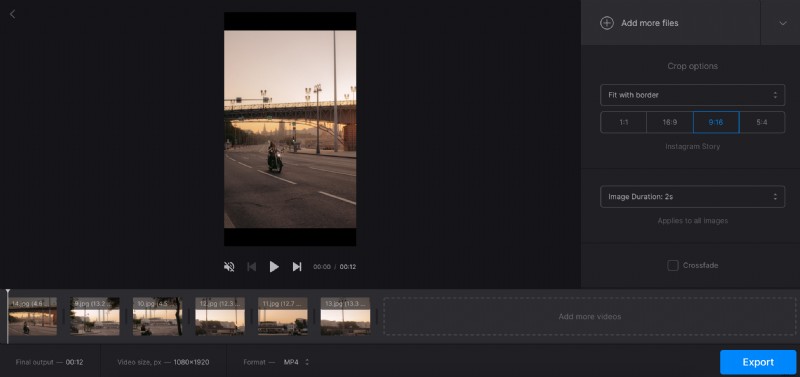
The “Crop options” area lets you select the right aspect ratio for Instagram, Facebook, or YouTube. You can also decide whether you want to zoom and crop your final video or fit it with borders.
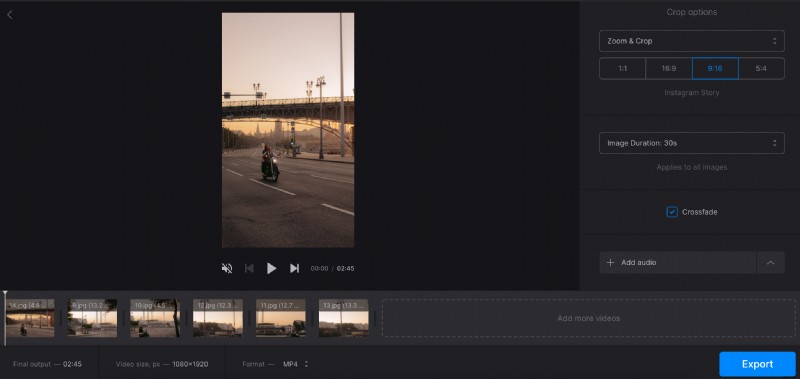
To choose the timing of the slides, use the “Image duration” drop-down list. Please note, this setting applies to images only and to all of them at once. If you have videos in your slideshow, their duration won’t change. To have a smooth transition between the slides, select the “Crossfade” check box.
To upload a soundtrack to your slideshow, hit “Add audio” and select your music. Just like in the first step, use the arrow to add the files from your online storage accounts or via a link.
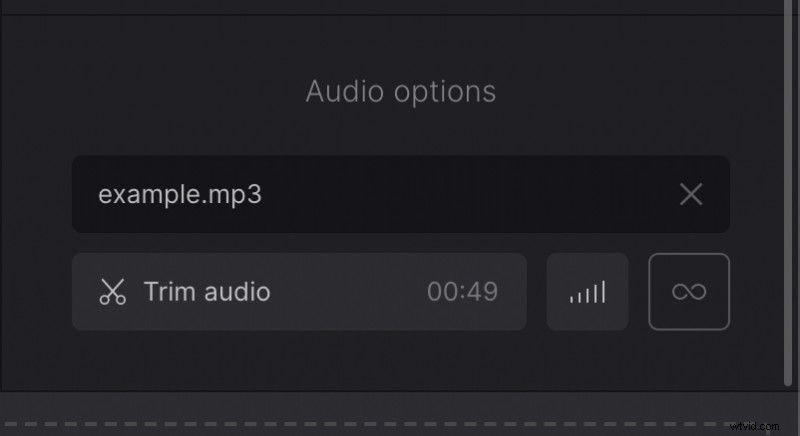
Then, you can trim the track, add the loop effect if needed, and adjust volume settings.
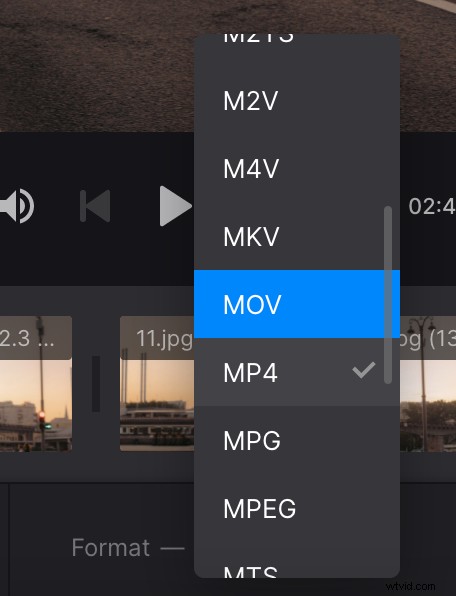
The bottom left panel has some useful stats about your slideshow duration and size, as well as the file format picker. If, for some reason, you need any specific format, call the drop-down menu and select the one you need.
Finally, click the “Export” button and let the tool do the rest of the job.
Save the result
Preview your slideshow and, if all looks perfect, download it. To make any changes, click the “Edit” button, and you will get back to the slideshow editor again.