
Magic Boxes with pictures, automatic image sliders or slideshows – there are so many names for the same content. Files containing this feature are commonly shared on internet with informative and entertaining details and you can easily find one on almost every website. in case if you are a web developer then you may soon need to develop your own slideshow so it is good to learn the tips and tricks now. Here're 2 great tools to create slideshow in HTML and embed on your sites:
- How to make Slideshow in HTML with CSSSlider?
- How to make Slideshow in HTML with WOWSlider?
How to make Slideshow in HTML with CSSSlider?
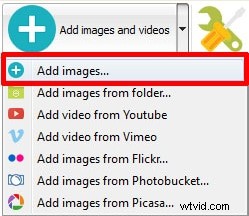
Step 1: Use Add Images option from Navigation Bar:

There are two easy options for adding images to your slideshow, you can either use that add images button available on navigation bar of your tool at top portion of screen or the other option is to simply drag and drop your desired images on timeline. Both these options will bring images immediately to your timeline from computer’s memory.
Step 2: Captions and Settings:
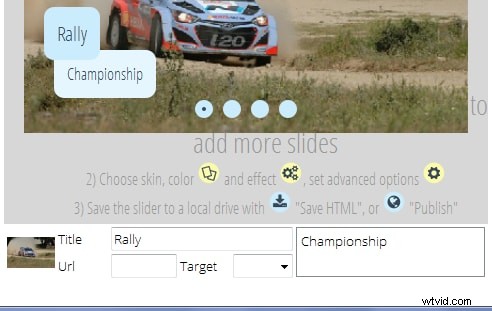
Once the image import process is finished then you can find your collection on CSSSlider window. The center window can show you preview of your slideshow. It is time to add title or caption for your photos. Hit that title field available below every photo and enter your data, use second slot for longer descriptions. At last add URL of your desired webpage to which you want to link your content.
There is a wide range of settings on CSSSlider tool:
Skins: Appearance of slideshow can be adjusted using this skins feature. It can make changes over color schemes to make your slides more appealing.
Effects: Add desired transition effects to each slide.

Step 3: Save HTML:
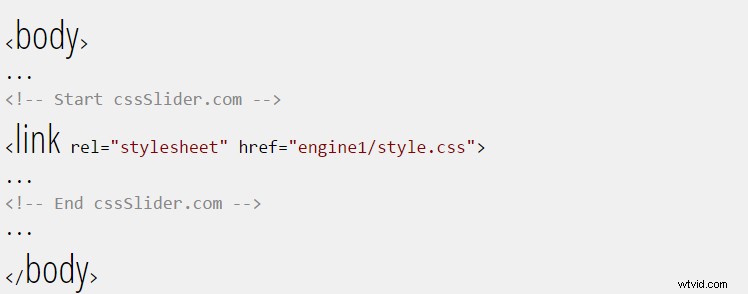
Once your editing task is complete then you can use that top navigation bar to export your recently created project and finally it can be saved anywhere on computer.
How to make Slideshow in HTML with WOWSlider?
Step 1: Create Slider:

Once you have downloaded your tool from internet and have complete the basic installation process then launch it. This software tool provides simple drag and drop facility to add images on editor window. Users can also prefer to use “Add images and videos” option to get their desired collection from computer. You will be glad to know that WOWSlider allows users to get images and videos from social media platforms like YouTube, Vimeo, Photobucket, Flickr, Picasa and many more. You can adjust all required settings to develop customized slideshow, choose template, improve quality of images using slider, apply unique transition effects and adjust slide delays.
Step 2: Export your Slider:
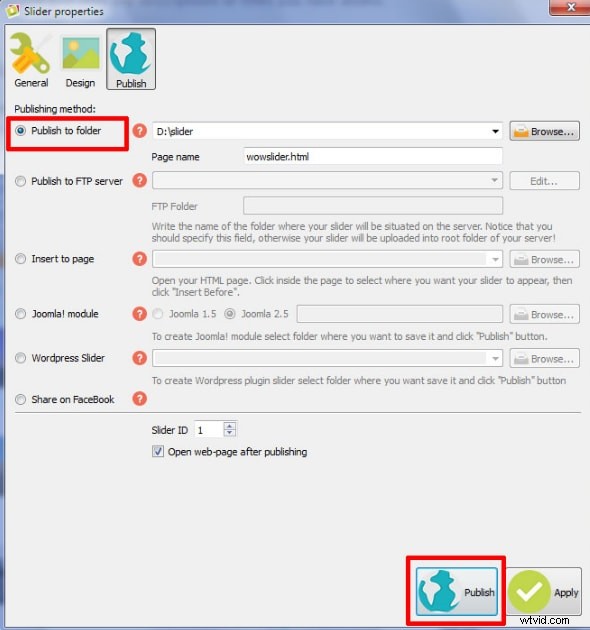
Once you have complete the editing process in step one then it is much easier to export your final file. Simply go to the Publish tab and then select publish to folder option. You can also choose publish to FTP server option as per need. Choose your destination folder to save your images folder and html files.
Step 3: Add slider to Webpage:
Simply copy the engine 1 and data 1 folders from WOWSlider folder inton the folder containing HTML files. Enter your head section code that contains dedicated links to your jquery and css files. Now open HTML editing program of your webpage and paste head section code at specified location. You can check all the changes on your webpage instantly.