
What a magic movie maker means to you? In my opinion, it should not only provide all common video edits that you need to stitch your photo/video clips together to make a complete movie, but also turns them quickly to professional-looking movie or slideshows that will impress everyone. Since you’re here, you probably look for such a magic video maker that make magical videos like this:
What you need is a user-friendly way to put together film while helping you to add fancy creative effects and perfect for sharing. Wondershare Filmora for example is known for simple ways to connect your video and create a final film.
In this article, we'll show you a step-by-step tutorial on how to make your video magical with Wondershare Filmora, and all steps are quick and easy. Get below free trial now.
1 Import your media files
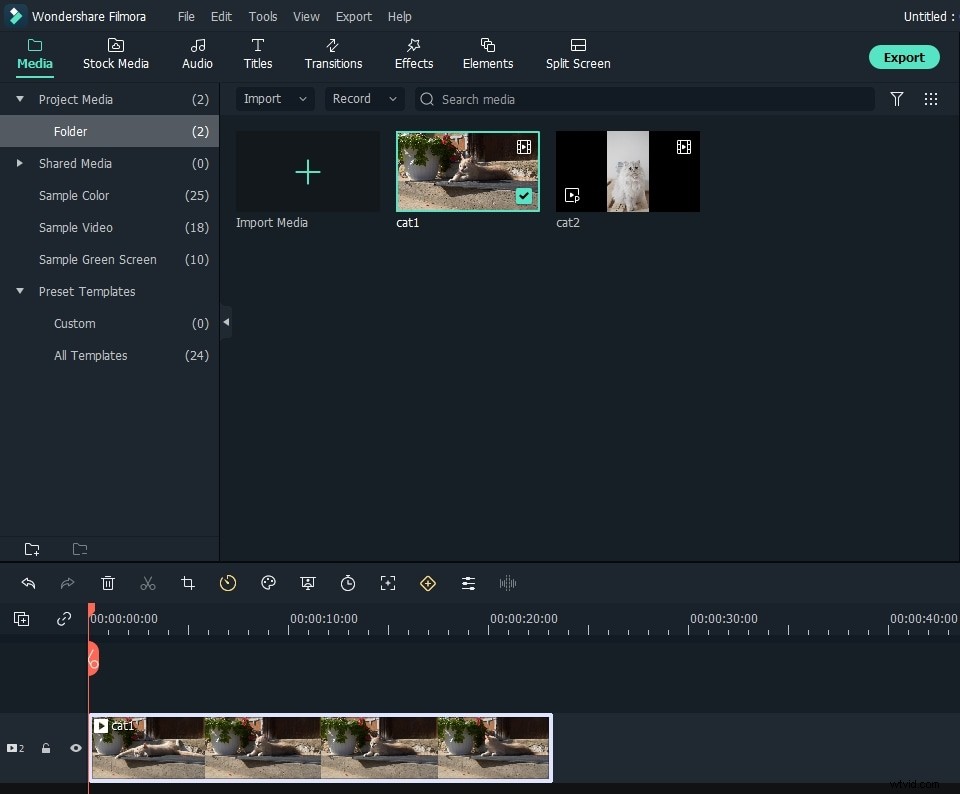
The magic media maker provides a User's Album to manage your source files, and keep them intact for convenient access. To import your videos, audio or images to this program, simply click "Import" to browse your file folder or drag them directly to the primary window.
All imported files will show as thumbnails in the left pane. When they come into place, drag and drop these files to their corresponding Timeline.
2 Create your own masterpiece with handy tools
Now, go ahead to edit and personalize your videos. With comfortable Timeline-based editing and comprehensive drag-n-drop feature, you'll find it easier than ever to get started in the world of video editing. The most important: this application features everything you need.
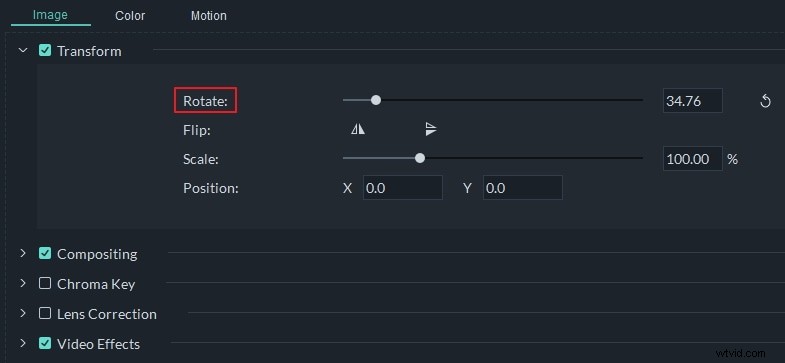
Basic Edit: Double click a video clip on the Timeline to pop up the editing panel. Here, you can rotate, crop, adjust brightness, contrast, saturation in the video pane, or change volume, pitch, set fade in/fade out effect in the audio pane. Apart from this, you can do cutting, copying, splitting, removing audio, etc. by a right menu click.
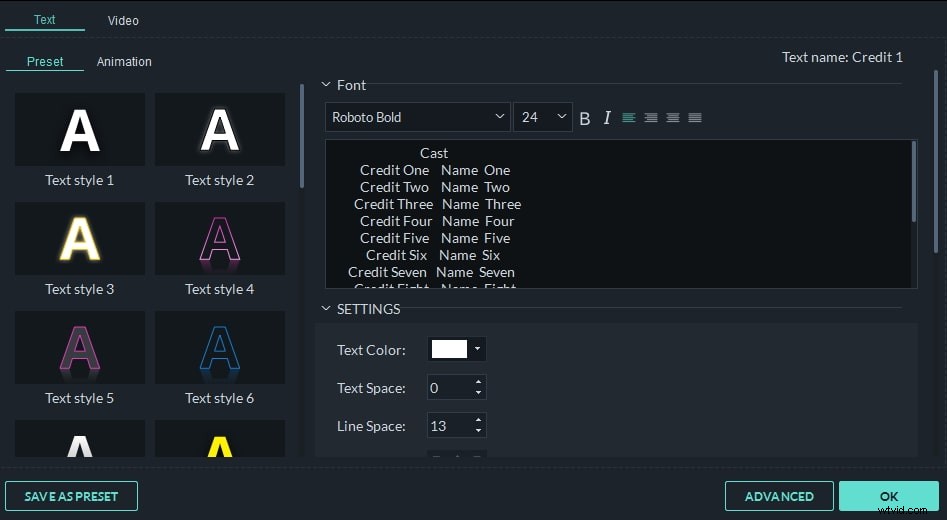
Add Elements: Adding elements like smooth transitions and colorful visual filters will polish your video instantly. And this magic video editor can do this by simple drag-n-drop. Click "Text", " Effect", "PIP", "Transition", "Intro/Credit", or "Sound" tab above the Timeline, you'll see hundreds of free templates available to touch up your videos. Just pick your favorite one and drag them to the position to apply. When it comes into place, you can even adjust the play duration and set animation to achieve more.
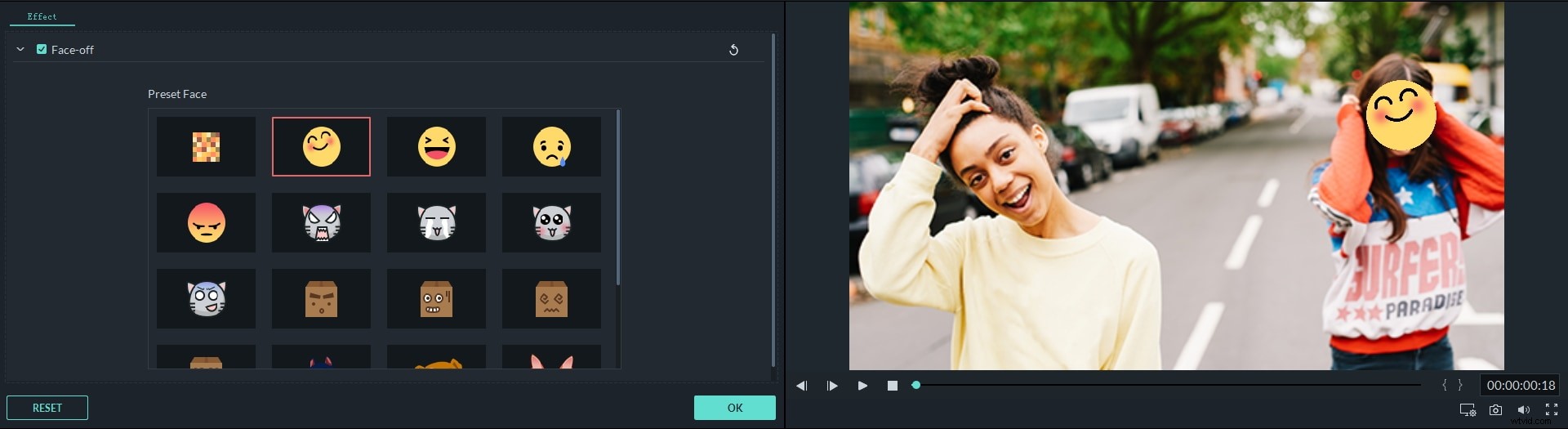
Advanced Edit: The advanced editing for this Magic movie editor refers to the professional video editing tools like tilt-shift, mosaic, jump cut, face-off, and flash-n-hold that makes your video extraordinary. To do this, just click the "Power Tools" icon above the Timeline, and you'll come to a window that helps you complete all the above effect in a click.
3. Save and share your creation
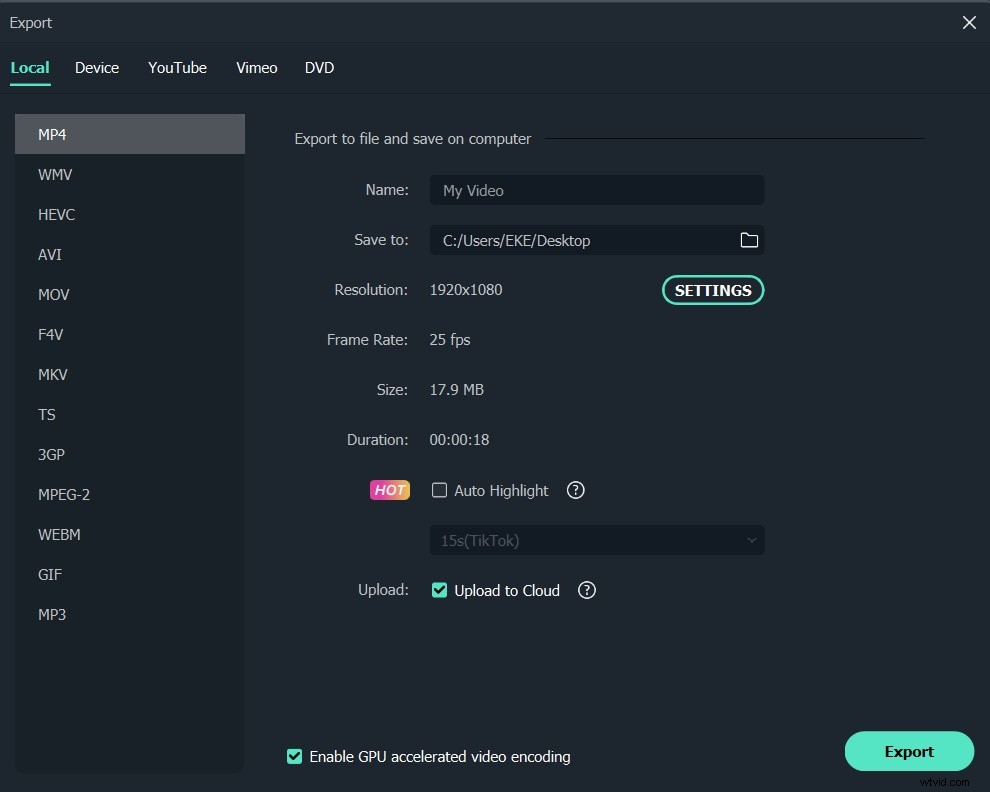
When you're satisfied with the result in the previewing window, simply hit "Create" to save your creation. You can show off your video on popular video sharing sites like youtube, Facebook, Twitter, or save it in all popular formats to play on the go. Apart from that, you can also burn it to DVD with excellent quality to watch it on TV.
Congratulations! You've just made a stunning video ready to share. It's pretty easy, fast, cool to create a home movie with this magic movie maker, right? Download the free trial and get started now!