
Make a photo slideshow with music on Mac online
When you take a lot of photos on vacations or some events, you might want to share them with your friends and family. The best way to do that is creating a clip with photos and music!
If you want to create a photo slideshow on Mac, you don’t have to waste your time on downloading anything since our tool works completely online! It’s compatible with all formats including PNG, GIF. JPEG, and more rare ones like TIFF, HEIC, HEIF.
It’s also easy to use, just take a look at the steps below.
Upload files
Open Clideo’s Slideshow Maker. You can simply drag and drop the necessary photos and recordings onto the page or click on the “Choose files” button or select them from your device.

If you want to upload files from Google Drive or Dropbox, hover over the arrow on the right side and pick the cloud storage.
Create a photo slideshow with music
If you want to add more files, click on the option with the same name on the top right, then put more pics or videos using the same ways as in the previous step. Then change their order according to your needs.
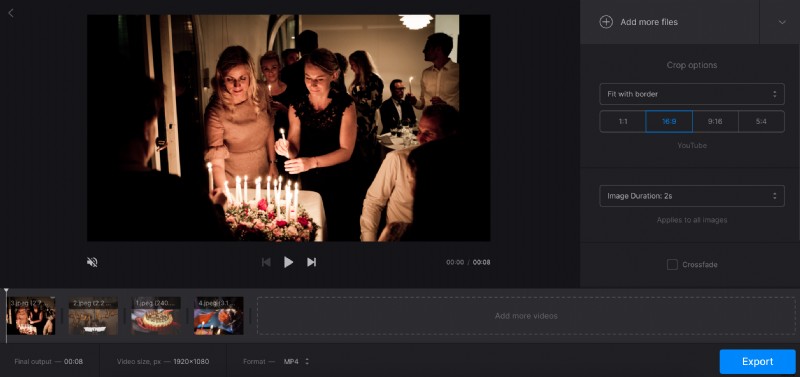
Below, there are “Crop options”. If you pick “Zoom & Crop” and one of the four aspect ratios, the photo will be cropped to fit the ratio you chose. “Fit with border” option will not change the image itself, it will just add bars on sides.
The image duration option will let you select for how long the photo will be shown. Pick one duration, and it will apply to all the images. Tick the “Crossfade” option below if you want the transition between files to be smoother.
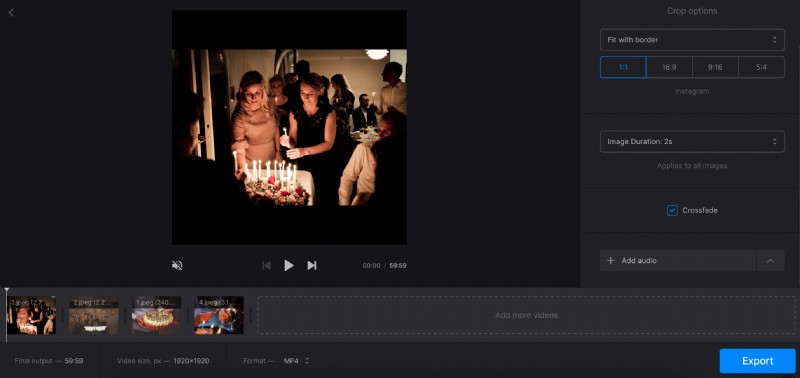
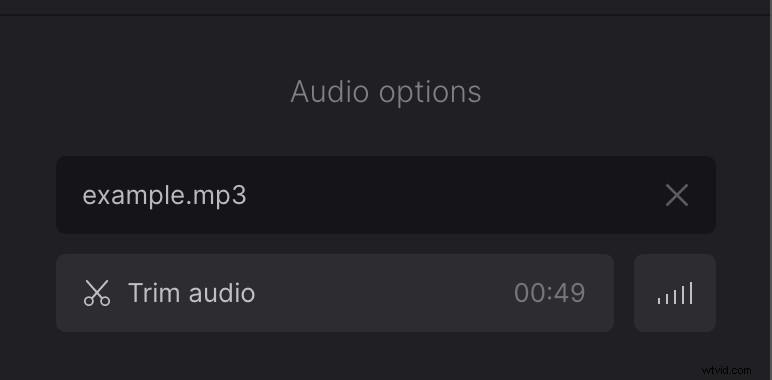
Then, use the “Add audio” option to add any song you want from the device or cloud storage. If you want to use just a part of it, click the “Trim audio” option. Then, drag the yellow markers on both sides to cut the fragment you need or put time stamps in the fields below. Volume bars icon lets you adjust the volume of both video and audio tracks.
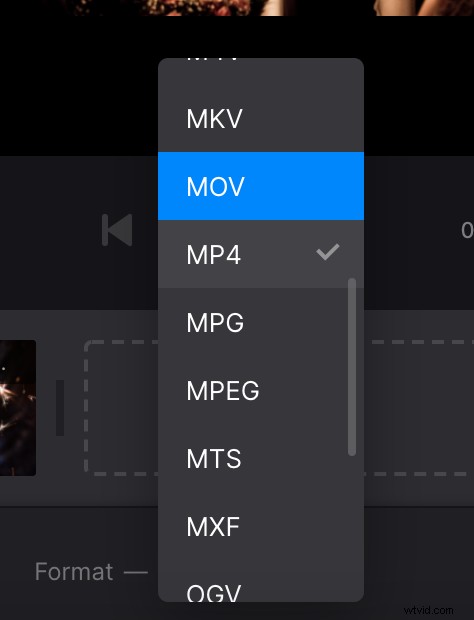
The slideshow will be saved as a video, so you can choose the format for it below the timeline – there are MP4, MOV, AVI, MKV, WMV and many others available.
When you finish editing, click on “Export”.
Download the result
Watch the preview to be sure everything looks like you wanted. If you need to add some changes, click on the “Edit” button – it will take you back to the last step before exporting.

Otherwise, save the slideshow to your device or cloud storage using the “Download” button.