
Creating memes on iPhone without app
Making memes with Clideo is as easy as ABC. All you need is a stable Internet connection and a pinch of creativity. You don’t have to install and set up any programs or applications – the service works online. It is fully compatible with all the operating systems, be them Android, Windows, or iOS.
Follow these three easy steps:
Upload a meme picture
Open Clideo’s Meme Maker in any browser and upload a base for your future meme. You can just hit the "Choose file" button and select it from your personal library or tap a small arrow next to the button to import an image from the cloud storage.
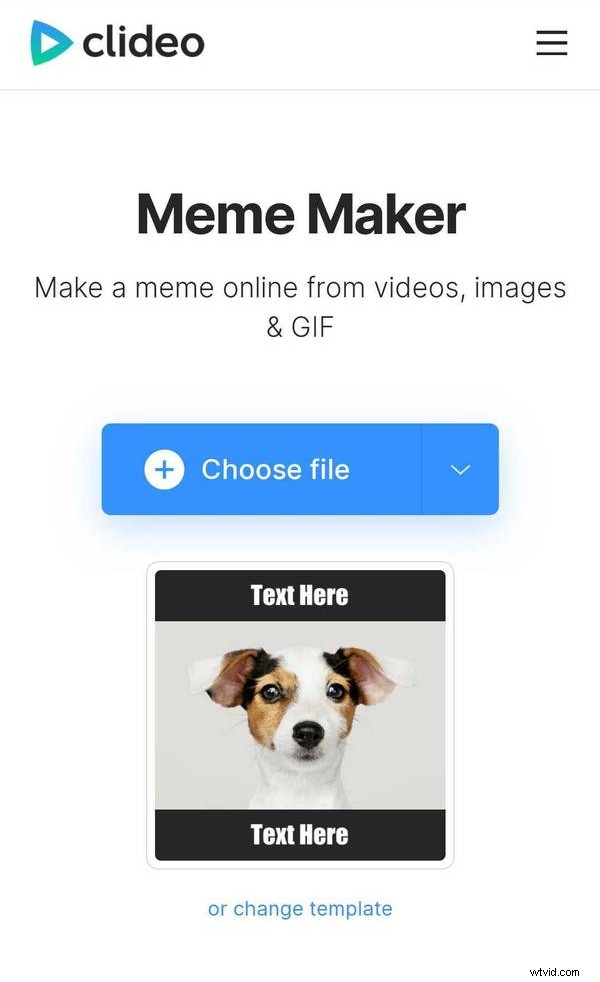
You can also change a template here by tapping the image or the "Change template" link. This option will also be available at the next step.
Edit your meme
If you want to change a template, you can do itby tapping the "Choose meme template" button.
Then enter your captions in the corresponding fields. Choose the text font and alignment.
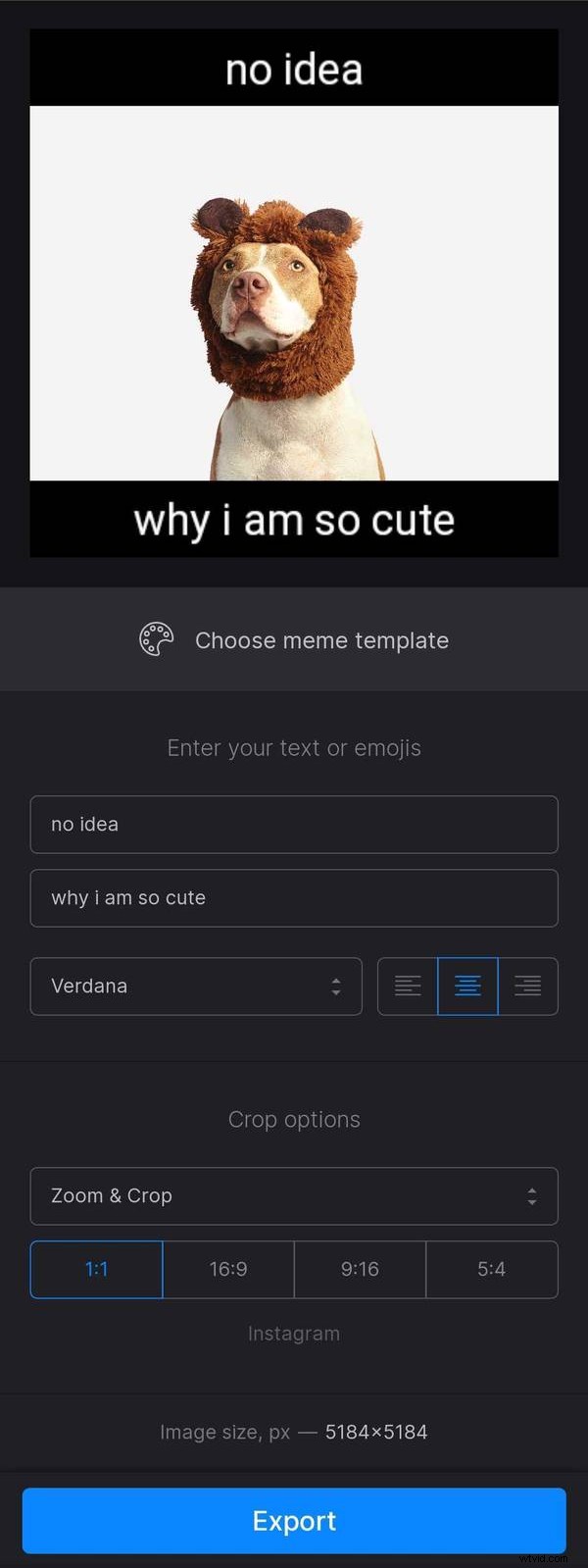
Decide on the crop option: you can either zoom the image in or fit it with borders. Try different options to compare. Then select an aspect ratio: you can choose one of the four most popular ones.
When you are fully done, hit the "Export" button and wait several moments.
-
Save the meme
If you are happy with the result, save it to your mobile phone or upload to Google Drive or Dropbox. If not, click on the "Edit" button and try other texts or templates.
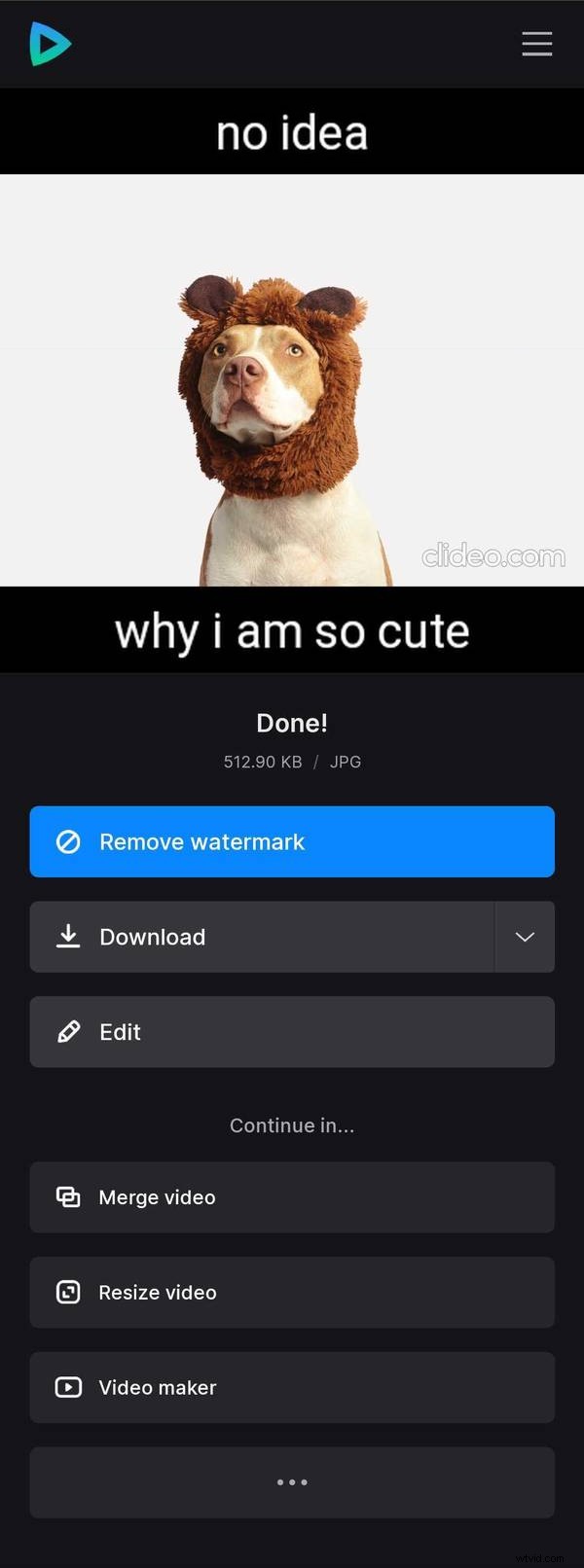
To get rid of the Clideo watermark consider buying our Clideo Pro plan.