How to create a meme with your own image online
But we have taken it a step further. Clideo allows using your own image, video or GIF so you could be more creative!
Our Meme Creator is free for files up to 500 MB. It is fast, handy, and user-friendly. Moreover, it works online, in a browser, which makes it especially convenient for using on a PC.
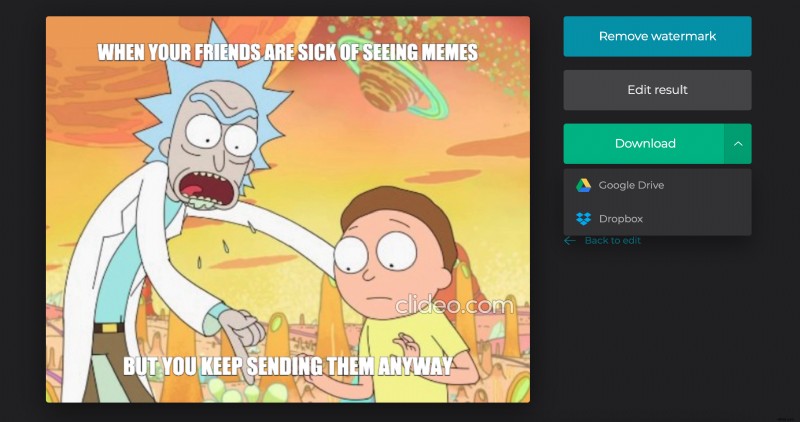
Be aware that we put a tiny discreet watermark in the bottom right corner of each ready meme, as a humble sign of respect to our service. If you want to delete it, just upgrade your account to Clideo Pro!
Keep reading and get to know how to make your own meme with your own picture in three steps.
Upload a photo for a meme
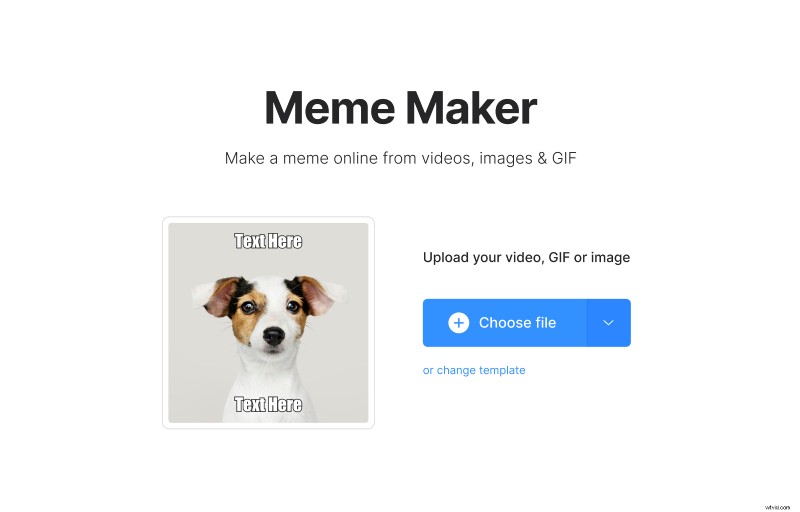
Open Clideo’s Online Meme Maker and hit the “Choose file” button to upload a pic, a video or a GIF from your personal device. You can also import files stored online – just call the drop-down menu on the right side of the pane and select it from a cloud storage account. Click on “Change template” to choose the best one for your future meme. On the left side you can see its sample view with a cute dog.
Create a meme with your own picture
Enter the captions, select one of the available fonts and change alignment.
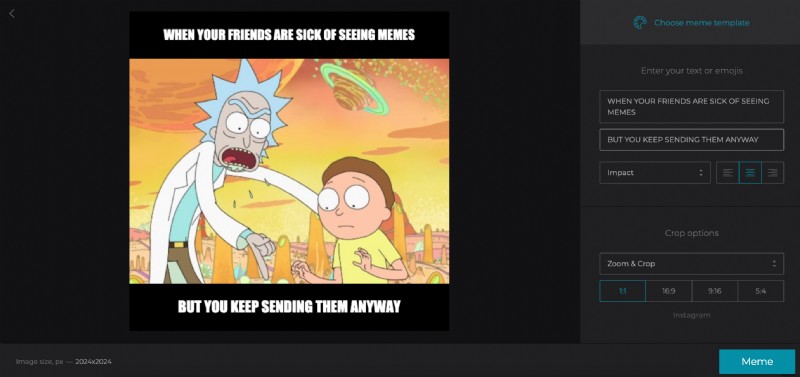
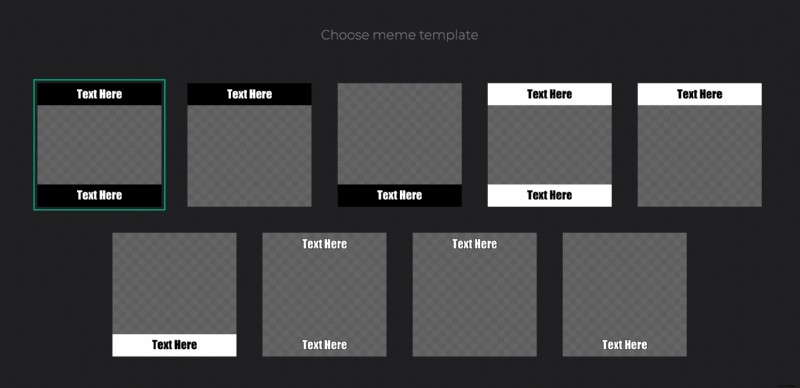
If you’ve changed your mind and decided that another meme template will suit your idea better, you can still change it by clicking the button on the top right.
Select a crop option: it depends on the platform where you are going to post your meme. We have already prepared for you four presets that fit the most popular social media: Instagram, Snapchat, Twitter, Facebook, YouTube, etc.
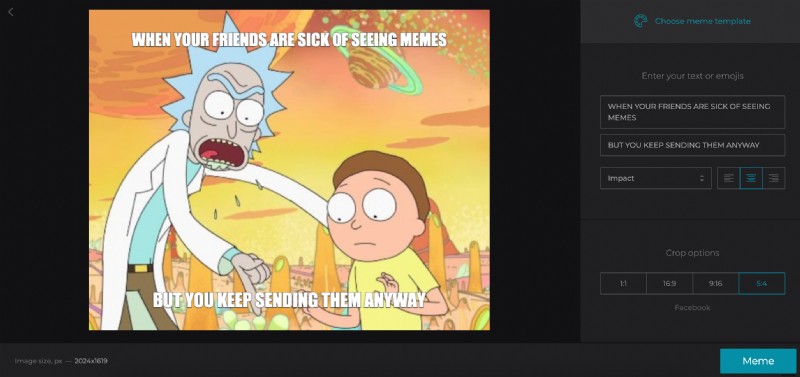
When you are done, hit “Meme” and get ready to check the result.
Save the meme
Have a final look at your project. Are you happy with the result? Save it to your personal device, Google Drive or Dropbox. Just realized that another caption or template would fit here better? Click on “Back to edit” and change it!