
How to convert MP3 to AVI in three steps
If you weren’t aware that this was even possible, well it is. And there are many reasons why someone might want to do this. Perhaps they’re looking to host an MP3 file on YouTube and need an image to accompany the video? Or maybe they want to better tell the story of an image with an appropriate backing track?
Whatever the reason, we’ve got just the tool. And what's more our free MP3 to AVI converter tool works completely online, from any browser, meaning you won’t have to download any dodgy software or apps to use it. Neat, huh?
Here’s how to use it...
Upload an image
To get started, head over to Clideo’s MP3 to AVI converter. This nifty online editing tool will work from any browser and on any device, be it Mac, Windows, Android or iPhone.
On the home page, you’ll see a big, blue ‘Choose file’ button. Tap this to upload the image file you’d like to accompany your audio track.
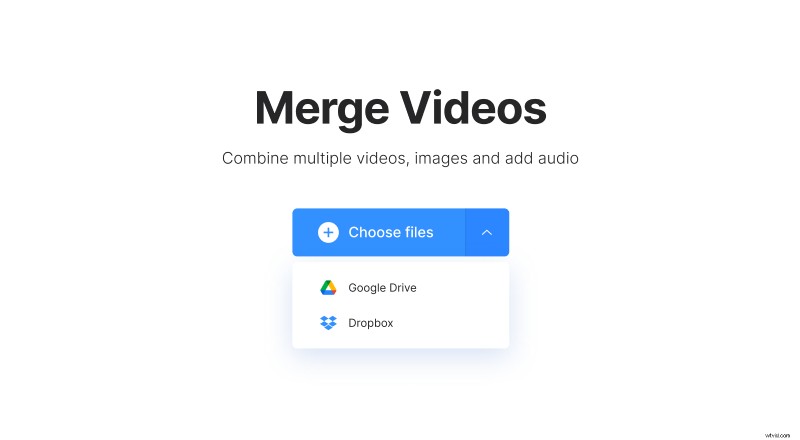
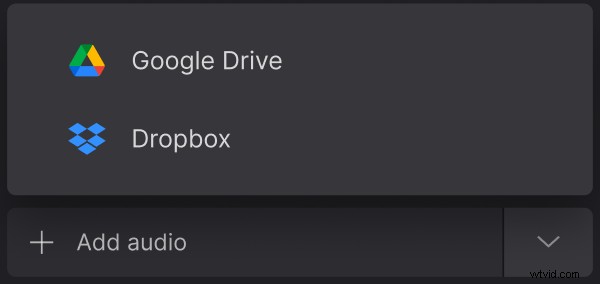
Hit the down-arrow at the end of the button if you’d like to upload your pic from a cloud account on Dropbox or Google Drive. Once you’ve selected your file, it will automatically begin processing and upload to Clideo’s servers.
Add your audio
Next, you’ll be taken to the editor. Here, you can easily add an MP3 file to turn your creation into a video consisting of one audio and an image.
In order to make the image continue through the track, simply ensure that ‘As audio’ is in the ‘Image Duration’ section. This option is usually selected automatically when only one pic and an audio track are added.
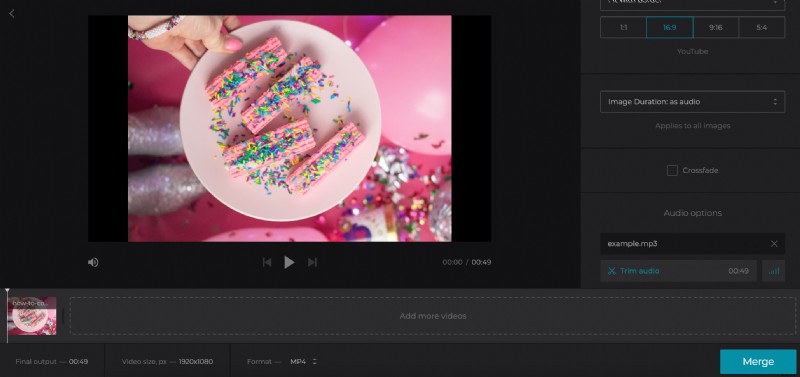
Please note that more images can be added, too, but this will mean the ‘As audio’ option will disappear. When this happens, just select another image duration and remember that this setting will be applied to all images at once.
You can also crop the frame, adjust the aspect ratio, trim audio and set its volume.
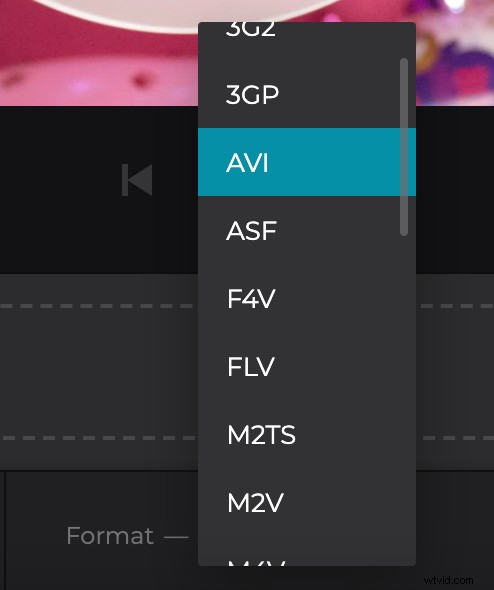
Before you complete the editing process, make sure that the video format is set to ‘AVI’ within the ‘Output Formats’ menu on the bottom left. Finally, tap the green ‘Merge’ button and the tool will get to work on creating your masterpiece!
Download and save
After a short time processing, your video will be ready to save back to your device - just click the ‘Download’ button. Again, you can save to your cloud storage accounts if you'd prefer via the down arrow.
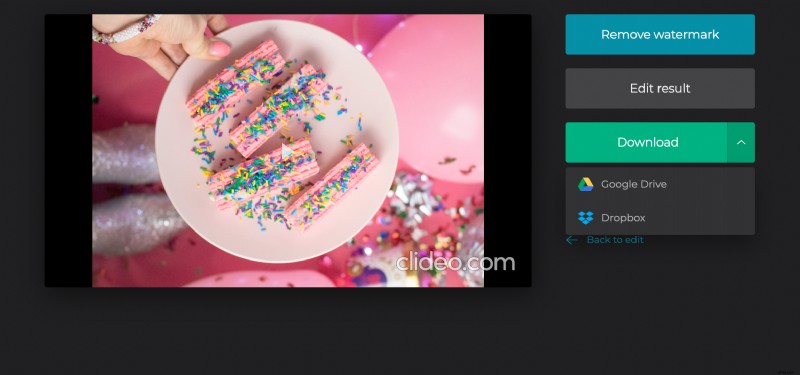
If you’ve previewed your AVI clip and think some changes need to be made, don’t worry - this can be done easily. Tap the ‘Back to edit’ option and you’ll be taken to the editor where you can make any final tweaks without needing to start over.