How to resize photos on iPhone
Clideo works online and doesn’t require any previous installation or setting up. It works perfectly for all types of devices and operating systems. It allows resizing videos, GIFs and photos.
If you’re an iPhone owner, it’ll be good to know that we have a free app for resizing exclusively videos. It’s very convenient and works completely offline, try it when it’s time to work with a moving image.
Read on and get to know how to resize an image on iPhone in four short steps.
Upload a picture to the tool
Open Clideo’s iPhone Image Resizer in a browser and hit the big blue pane to import a visual from your camera roll.

You can also upload a file stored online. Just call the drop-down menu on the right side of the “Choose file” button and either pick it up from a cloud storage account.
Select a preset or resize manually
Choose one of the social media and its post type in the drop-down lists below the uploaded image. There are about 100 presets to select from!

If you want to resize your photo manually, hit the “Custom” option and decide on the aspect ratio. Then just set either height or width, and the second parameter will be counted automatically.

If you precisely know the size you need, click on the chain symbol between boxes to make it inactive and set both dimensions manually.
Decide on the crop option
Under the pic on the left, click the left button to fill the frame with the image, it’ll crop it. Click on the right button to fit the pic to the frame, there will be sidebars left, and you can decide on their colour or blur them by clicking on the paint bucket.
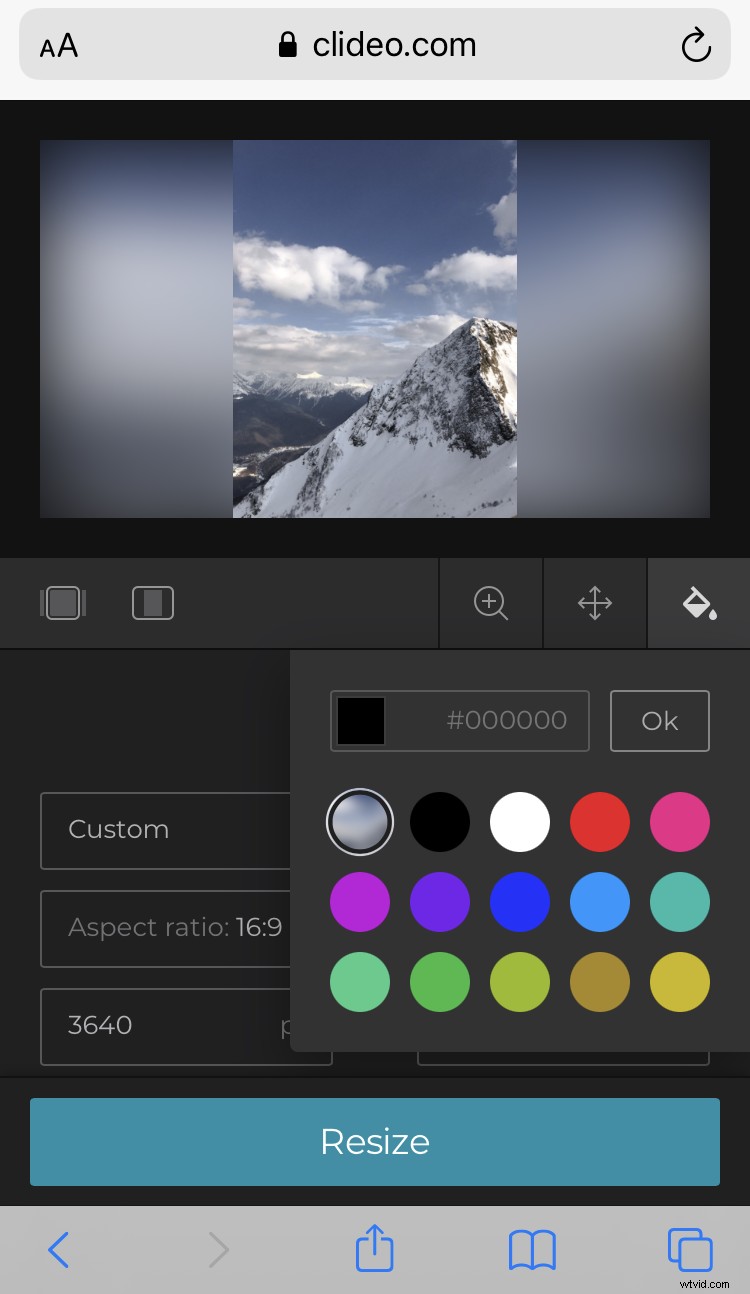
Whatever you choose, you can move the picture, zoom it in or out with the help of the buttons on the right of crop options.
When you are done, hit the “Resize” button and get ready to revise the result.
Save the resized image
Have a quick glimpse at the output photo. If you are happy with it, download it to your personal device, Google Drive or Dropbox. If you want to change something, do it by clicking on the “Back to edit” arrow.