
How to resize PNG on Mac, Windows or another device
PNG stands for Portable Graphics Format and it is especially known for its “lossless” file compression. Quite obviously, when it comes to posting on social media, it’s just essential to resize PNG without losing quality.
Luckily, we have a handy solution!
Our PNG image resizer works online in a free mode, without any ads or “freemium” subscriptions. You can upload and process as many images up to 500 MB each, as you need.
As our service works in a browser, there are no OS requirements and you can open it from Mac, Windows, Linux, or any other device. Keep reading and get to know how to use our tool step by step.
Upload an image to resize
Open Clideo’s PNG resizer and hit the “Choose file” button. Here you can pick up pics from your personal device in one click.
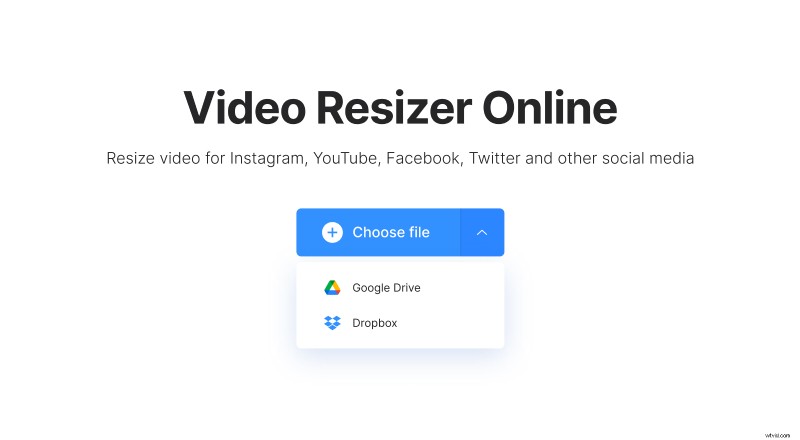
Another option – hover the cursor over the tiny arrow on the same pane or just tap it to call a drop-down menu. Here you can import images stored online – in the Google Drive or Dropbox clouds.
Resize the PNG file
If you are going to post your picture on social media, choose the preset you need and then hit a post type. There are about 100 combinations available!
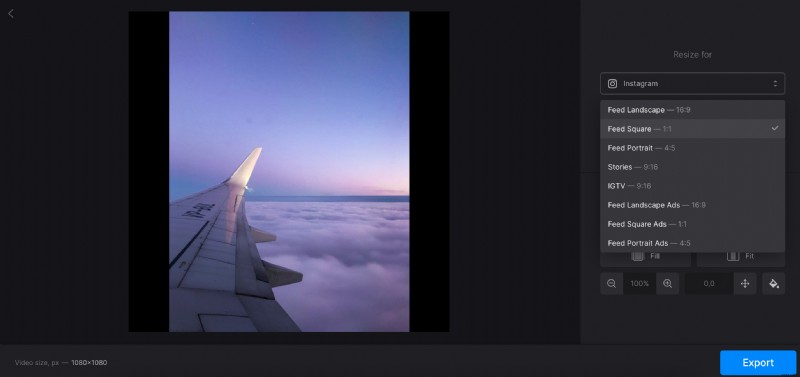
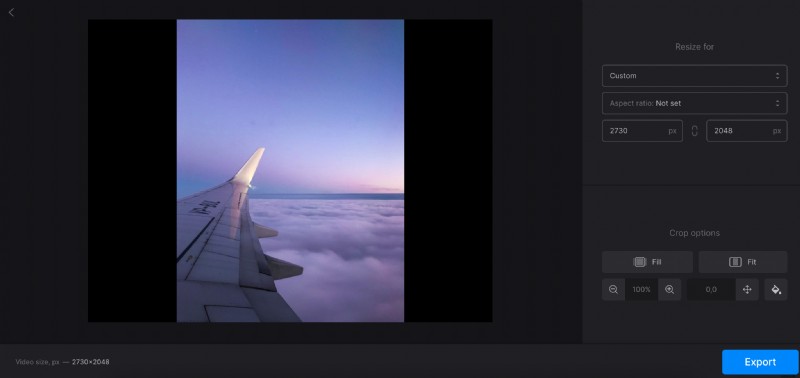
You can also select the “Custom” option and decide on the aspect ratio. Then insert a height or a width and the second parameter will appear automatically.
The last option – hit the chain sign between the boxes to make it inactive and set both parameters manually to get a unique custom size.
Crop the image
The PNG resize tool provides two options:
- “Fit” places the whole photo to the frame, but there may be sidebars left. You can choose their colour, blur them or set a hex code manually.
- “Fill” fits the picture to the frame without blank sidebars. Be careful, depending on the aspect ratio and size, some parts may be cut off.
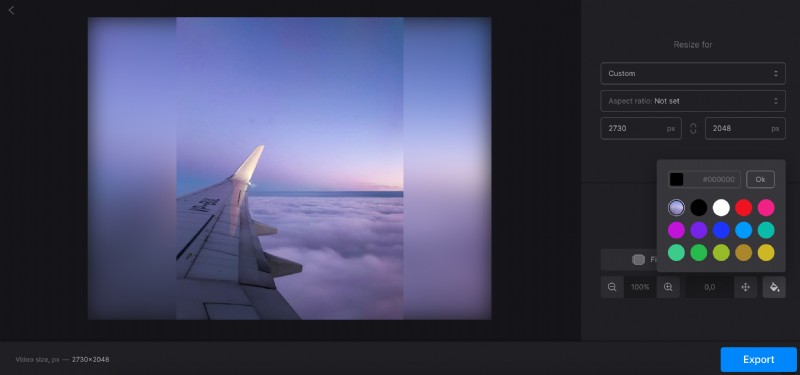
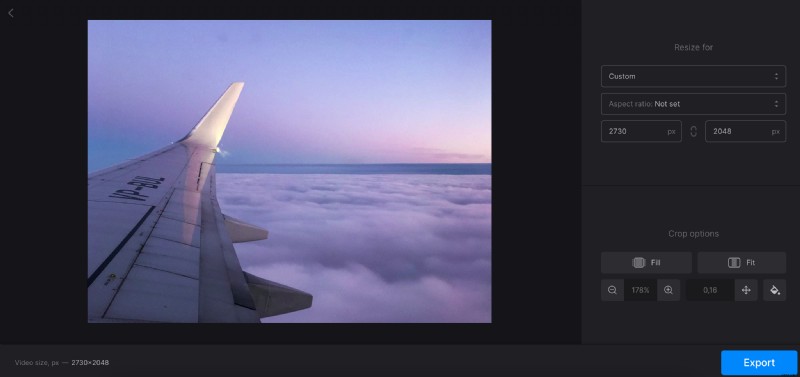
Whichever option you choose, you can zoom the image in and out and move it with the help of arrows to find the best position.
When you are done, hit “Export” and get ready to revise the result.
Save the resized image
Download your renewed picture to your personal device or cloud storage. If you want to change something and return to the editor, click on the “Edit” button.
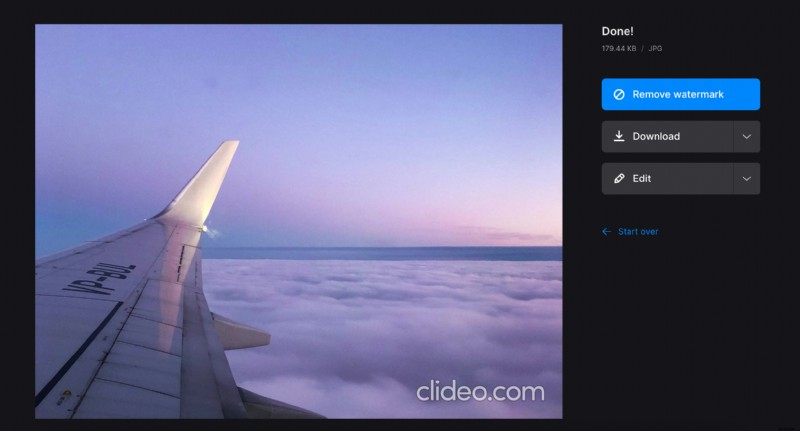
If you want to cut, mirror or edit your picture in any other way, call the drop-down menu and choose the tool you need. The latter option is available only for Clideo Pro subscribers.