Crop a screenshot on Mac
You have probably noticed that every social medium has specific image requirements for different types of posts. When you add a photo that doesn’t fit, it might be cropped and some important information can be cut off.
So it is always a good idea to know the height and width specs to make sure your post looks perfect. What if you don’t have time to find those and need to crop a Mac screenshot for your next post ASAP?
Well, this can be easily done online in any browser in just a few steps with the help of Clideo — a set of simple online tools for video editing. And here is a lifehack for you: even though the tools are focused on video, some of them, including the tool we are going to use, allow performing the same operations with images as well.
Moreover, this is all free if your file is up to 500 MB, and you can edit them in any browser on your Mac, Windows, iPhone, or Android.
So we’ll show you how to change the size of your image for a Facebook post for example, but you can select any other size.
Upload your screenshot
To add a screenshot from your Mac, go to the online resizer and click the blue “Choose file” button. You won’t miss it as it is the biggest one.
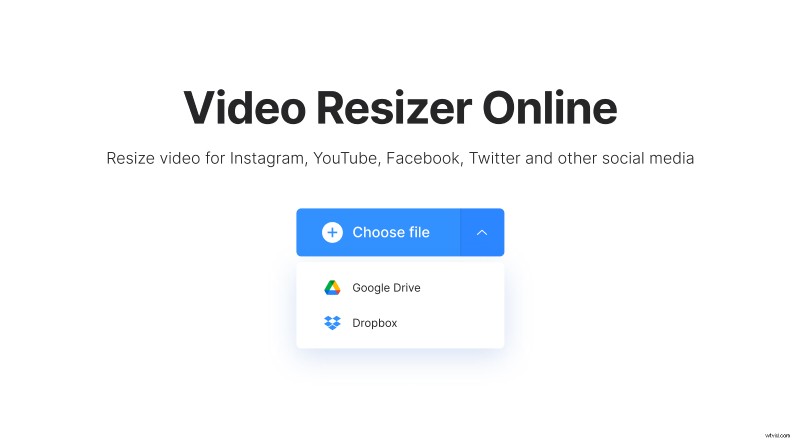
If your picture is located in Google Drive or Dropbox online storage, you can upload it right from over there. Just hover over the drop-down arrow right to the button, and then select the corresponding option.
Resize the image
Once the screenshot is processed, in the right pane, select Facebook and then the post type. There are more than 20 presets for Facebook only, so you should find what you need in the available list. In the preview area, you will instantly see how your image will finally look like.
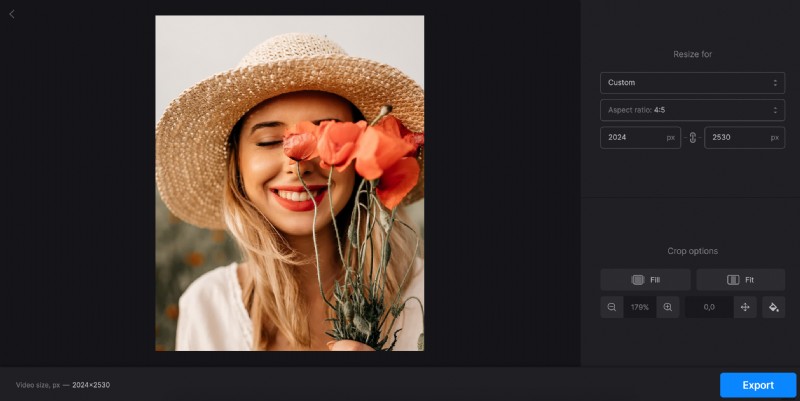
The “Crop options” section below lets you experiment with the black bars on the sides or top and bottom of your screenshot if this is your case.
You can select “Fill” to get rid of them, or “Fit” to keep them. In the latter case, you can choose the matching background color, as well as reposition the image to make sure all the info you need is visible.
Finally, click “Export”.
Save your screenshot
Done! You can now download your screenshot or save it back to Google Drive or Dropbox. To make changes, click the “Edit” button.