Crop screenshot on Windows easily
Screenshot is the quickest and the most convenient way to show someone what is going on your screen or take a snap of the information you need without writing it down. But after having taken a screenshot it’s a good idea to crop it and cut off all the unnecessary details.
And here we are! Clideo service allows you to cut screenshots on Windows and any other operating systems. Even though our site has a responsive design and works quickly, you don’t need to download it, so you don’t have to worry about your phone’s memory.
The best part — it is completely free for files up to 500 MB and extremely user-friendly: you don’t need any video- or photo-editing experience to use it.
Follow three simple steps.
Upload a screenshot to the tool
Open Clideo’s picture resizer in any browser. Hit the “Choose file” button to upload a picture from your personal device. Working on a PC, you can just drag the needed screenshot and drop it to the blue pane.
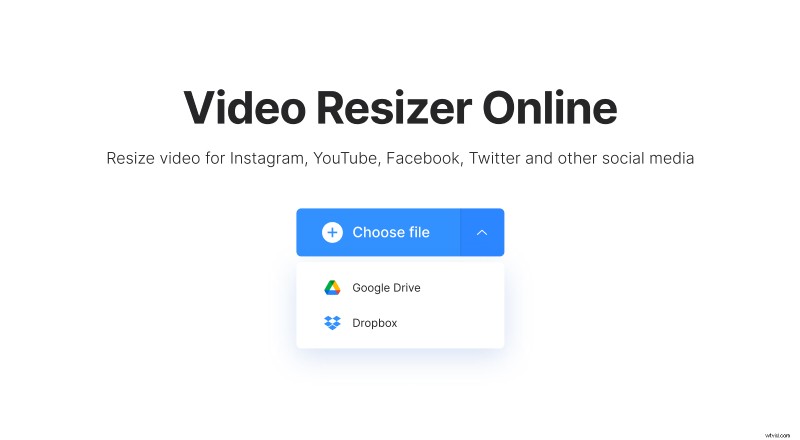
You may also call the drop-down menu on the right and select a file from your cloud storage accounts.
Resize the screenshot
Hit the “Custom” option, choose the aspect ratio you like and set height or width of the pic manually, the second parameter will be calculated automatically. If you don’t want to follow any specific aspect ratio, just untick the chain sign and set both parameters as you need.
Of course, you can also avail of our presets if you want to share the pic on social media.
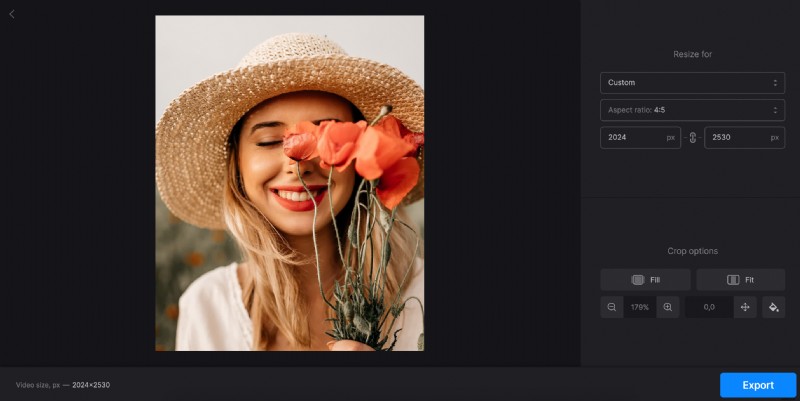
Then decide on the crop option: you can either fill the frame with the image or fit the image to the frame. If there are sidebars, you can choose their colour or just blur them.
Zoom your screenshot in and out and move it in the frame with the help of arrows. When you find an ideal position, hit the “Export” button and leave the rest to the tool.
Save the resized picture
Download the renewed screenshot to your personal device or upload it to Google Drive or Dropbox. If you want to get rid of the tiny watermark, upgrade your account.