
What a video clipper does & why you need it
Let’s imagine you have a need to share some mind-numbingly addicting song on your social media accounts. Your business is promoting something relevant or running a contest and this song just fits – pretty perfectly, actually!
So you have to sort out how to cut out the needed part. Most people stop right there.
You need an online video splitter that’s slick, quick and doesn’t require a massive software download that will slow your laptop to a crawl. One that allows you to upload a video and do what you need in a matter of seconds. You need Clideo.
Upload your video
Go to Clideo’s video clipper tool and click the "Choose file" button to upload your great song from your device. There will also be an option to add a file from Google Drive or Dropbox.
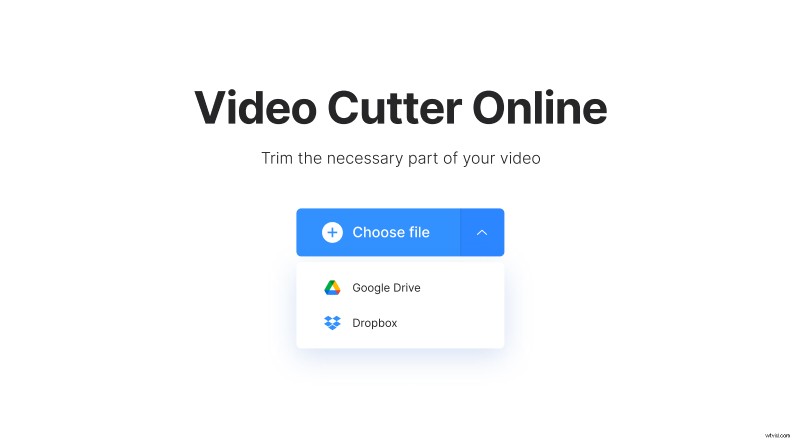
Just make sure it’s under 500 MB for the free version.
Clip the video to your liking
From there, you select which portion you’d like to have with the sliders. Then you'll have two options:
- Extract selected. You'll be able to save the part you've chosen. Decide if you’d like it to fade in or fade out (to a black screen). It’s a gradual transition and gives your offering a more polished look, specifically the fade out aspect.
- Delete selected. The part you've chosen will be erased and the two remained parts will be merged. Check the Crossfade box to make the transition smother.
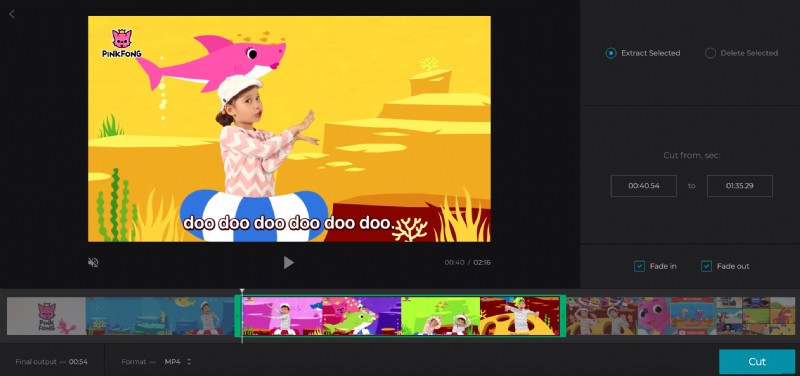
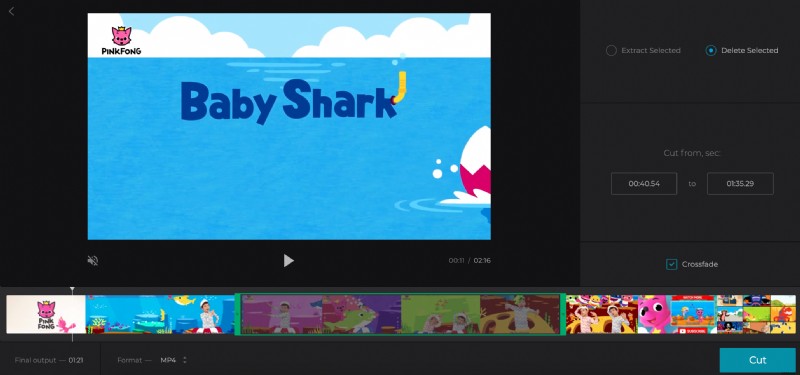
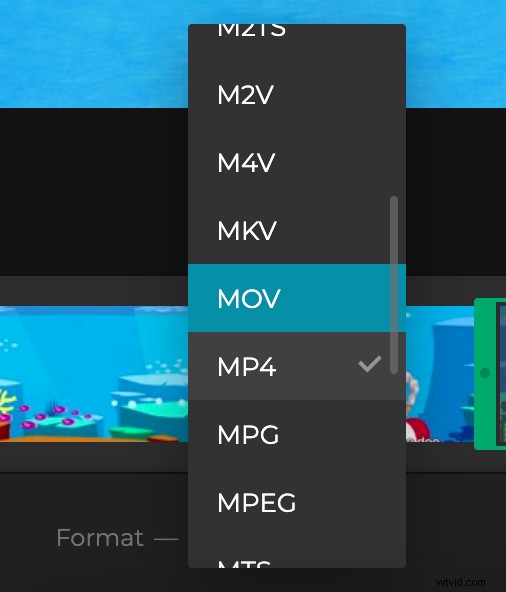
If you don’t like the format your video has, you have choices there too. When selected, click "Cut".
Download the video clip
All that’s left to do is save it to your personal device or a cloud storage account.
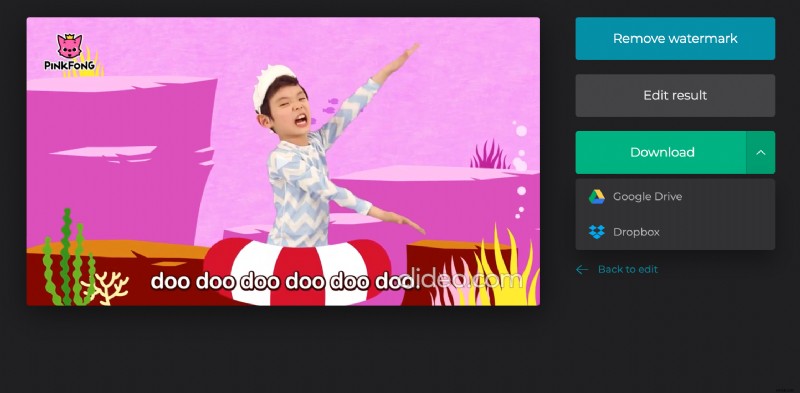
Made a mistake? It’s simple to pop back to the edit screen and fix it by clicking on "Back to edit".
How to clip a video on an iPhone or Android
But what if you’re not on a laptop or desktop? Does it work from your phone too? Yes!
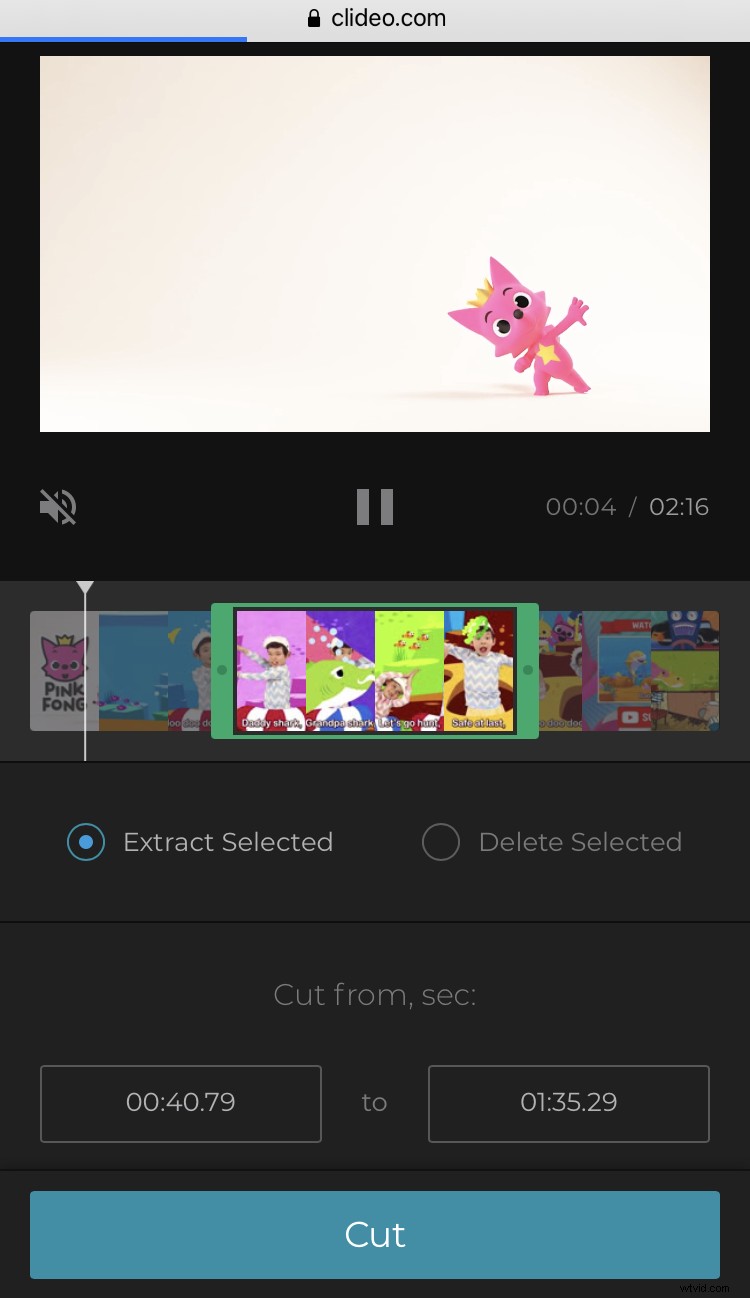
The process for creating clips on an iPhone or Android is pretty much the same. You’ll find that having an MP4 video splitter is remarkably time-saving, as well as manageable. And yes – having the ability to split this imagery via an app on your phone is key. You’ll find yourself using it a lot once you get used to it.
Why do we mention MP4s with so many options for downloading? It’s important to note that an MP4 format is best when editing from your iPhone or Android device.