
Do you want to experience the most hypnotic level of sound? Does that add power and life to your audio and a mesmerizing repeating-decaying effect? By adding echo effect to audio, you surely can. With its power of adding reflection to the song, it makes the normal song turn more interesting. And if you are wondering how you can add echo to audio online, then we’re here to guide you in the upcoming session! Stay tuned!
- Part 1: How to Add Echo to Audio Online with TwistedWave
- Part 2: How to Add Echo to Audio on Windows with Audacity
Recommended software to add echo to audio - FilmoraPro
If you want to give precise audio editing, you should try to use FilmoraPro. It is the best video editor for intermediate users. You can use it to add echo to audio by directly dragging the effect onto the timeline. Download it now to have a try (Free)!
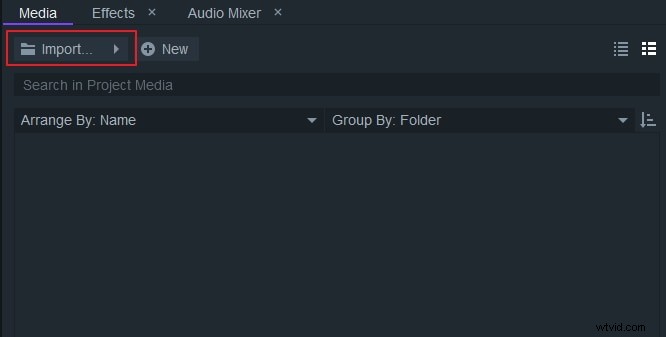
Step 1 – Import audio media
Click Import to start adding audio into the media library, and then drag it onto the timeline.
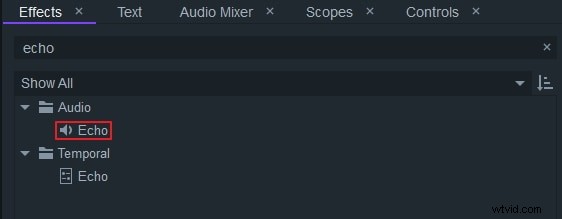
Step 2 – Use echo effect
Type echo in the search bar in the Effects panel. You will see an echo below the audio tab. Drag it onto an audio clip in the timeline.
Step 3 – Edit echo effect
In the controls panel, you can edit the echo effect by delay, fallof, and a number of echos. Just drag the slider to left or right to get the perfect effect.
Part 1: How to Add Echo to Audio Online with TwistedWave
TwistedWave is one of the online mediums of adding echo to any audio file in a convenient way. It is essentially useful for people looking for a web-based application to add the echo effect without having to install the software on your computer. Desirous to know how it works, follow the below steps now!
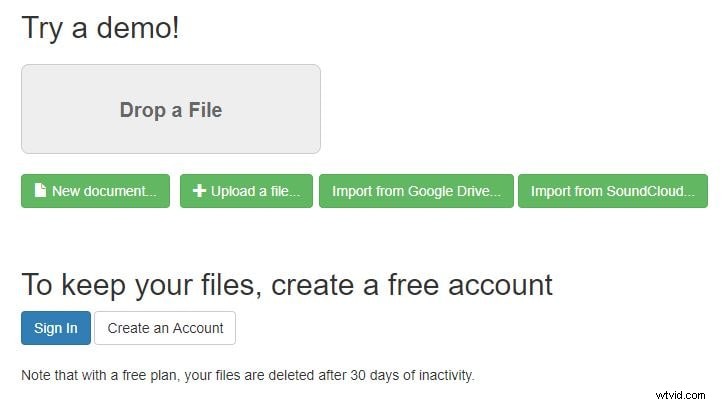
Step 1 – Uploading Audio
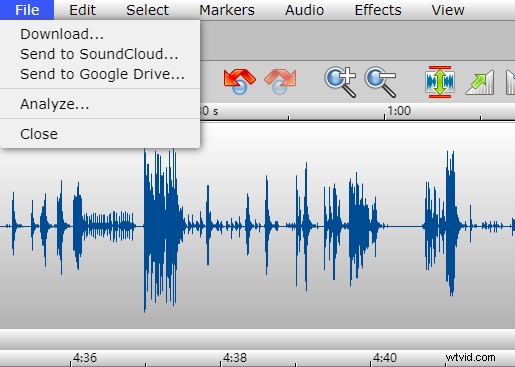
First of all, visit the online platform that TwistedWave offers and click on "Upload a file" to insert the file. Now the desired audio file will load and appear on the editing page.
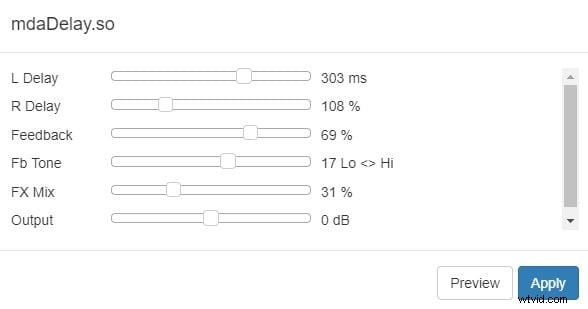
Step 2 – Apply Echo Effect
Now, you have to select the part of the audio where you want to apply the echo effect. Simply, on ‘Effects’ and opt for ‘EST effects’ and from the EST effects, tap on mdaDelay.so. Once you are through with applying effects, a pop-up window will visibly appear for making any adjustments.
Step 3 – Download the Echo Audio File
If you are content with the echo effects, then save it by clicking on the file and proceed with the ‘Download’ tab.
Part 2: How to Add Echo to Audio on Windows with Audacity
If you are looking for a software medium, then Audacity stands as a great choice to consider. With its simple GUI and advanced features, you can add the Echo filter to your desired audio file. So, without making you wait any longer; follow the step-by-step guide now!
Step 1 – Inserting Audio file
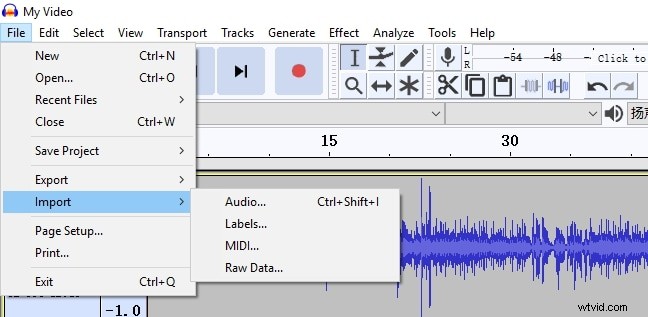
In order to add echo in your audio file, download Audacity on your Windows PC. Allow the software to load on your system and then open the program. From the main interface, go to ‘File’ and select the ‘import’ option from the drop-down menu. Then, search for ‘audio’ and then from the file browser, locate the audio file that needs to be edited.
Step 2 – Apply Echo effect
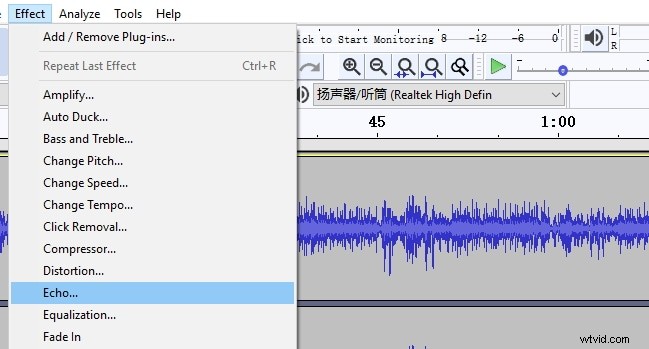
The audio will load on the main screen. Simply, select the portion where you want to add the echo effect on the audio file. Then, tap on ‘Effect’ from the toolbar and search for ‘Echo’.
Step 3 – Do the needful adjustments
A pop will incur over the screen, from where you can choose the suitable adjustments. You can opt for managing delay time, decay factor for the audio.
Step 4 – Preview Actions and Save
The final step is to preview whatever adjustments have been made by you on the audio file. Intently, listen to the audio file. If you are content with the settings, then you can confirm the actions per se. All you have to do is, click on the ‘Ok’ button and the audio is all set to groove your way!
Bonus: How to add echo effect with Filmora?
If you're using Filmora and looking for the echo effect, you can find the audio preset, but you can also make the audio echo by following the tricks below.
1. After importing the video to the track, right-click on it and then select Detach Audio.
2. The separated audio file will be placed in the audio track; you can then split the audio file to select the desire segments.
3. Since Filmora supports up to 100 audio tracks, so you can copy and paste the audio clip to several audio tracks to work with next.
Below is a video tutorial about how you can create echo effects using nothing else except Filmora.
Conclusion
Slaying the audio file in an echo-based filter is all the more soothing. Besides, changing the rhythm of the song redefines the music into a 360-degree angle. According to your requirements, you can opt for a suitable medium. For making use of a good web-based application, TwistedWave is the apt choice for you. Or, you can opt for Audacity software for your Windows PC to add the echo effect on your favorite audio file.