
The importance of music and atmospheric sounds is often underrated in social media videos. A good soundtrack can drastically increase the overall quality of a video since barely audible dialogues or background noises distract a viewer. Even adding simple effects like fade in or fade out can make a huge difference in how well a video is accepted by your friends on social media. If you would like to learn how to fade audio in your videos, you're at the right place, because in this article we are going to show you how to fade in or fade out an audio clip.
Fading Audio in Adobe Rush
Adobe Rush app that was released a short while ago doesn't seem to be living up to the high standard we can commonly expect from Adobe's products. The app doesn't feature fade in/out options and its audio editing capabilities are limited. The only way you can fade audio with Adobe Rush is to open the project in Adobe Premiere Pro CC, but in order to be able to do so, you have to be subscribed to the Adobe's Creative Cloud.
Wondershare Filmora, on the other hand, offers all tools you're going to need to produce a YouTube video including the fade in and fade out audio effects at a more affordable price. Here's how you can fade audio in Filmora.
Fading Audio in Wondershare Filmora
1. Import video and audio files into Filmora
Most video clips contain an audio track, but in some cases, you might want to remove the clip's original audio and replace it with music, narration, dialogue or atmospheric sounds you choose. You can import an audio file into Filmora by clicking on the Import drop-down menu and selecting the Import Media Files option.
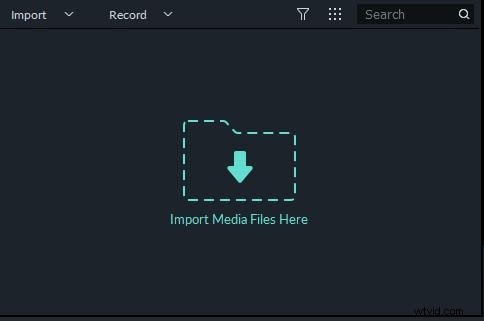
Alternatively, you can just drag and drop an audio file from the folder to the Media Panel. Filmora also features a rich library of royalty-free music you can use to select a soundtrack for your video. Drag and drop the video or audio file into the timeline from the Media Panel.

2. Fading audio in Filmora
Method 1: With Audio panel
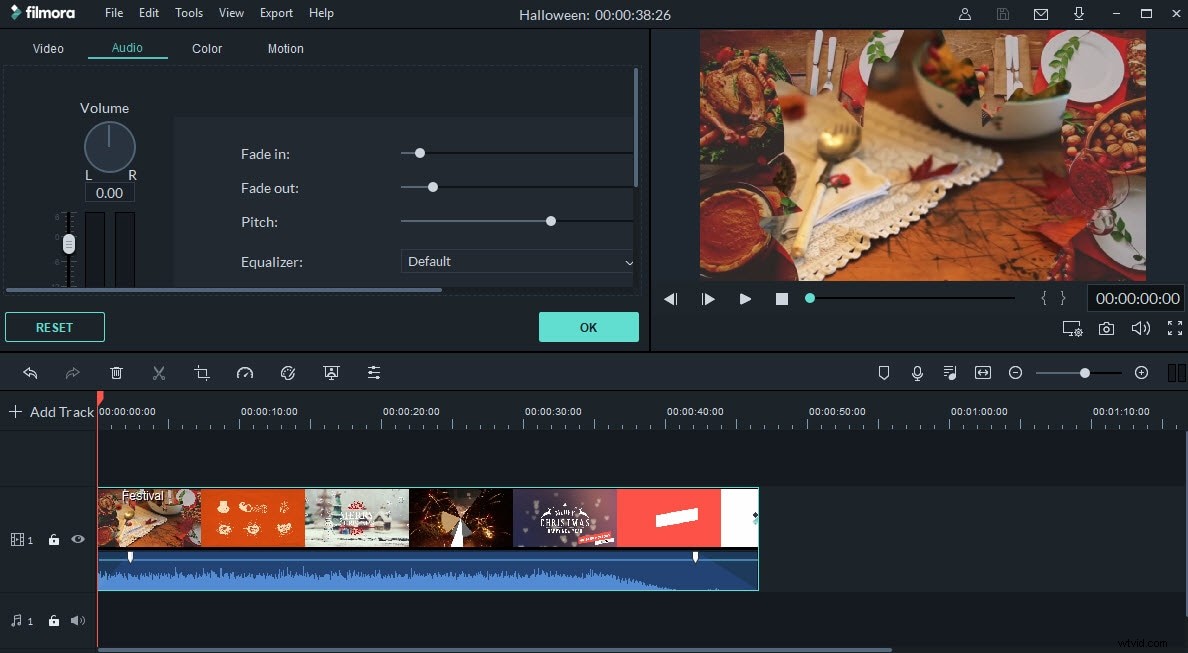
Clicking on the Edit button, located at the end of the software's toolbar will grant you the access to the software's audio panel where you can easily adjust the volume of the clip, select one of Equalizer presets or change the Pitch of the audio file.
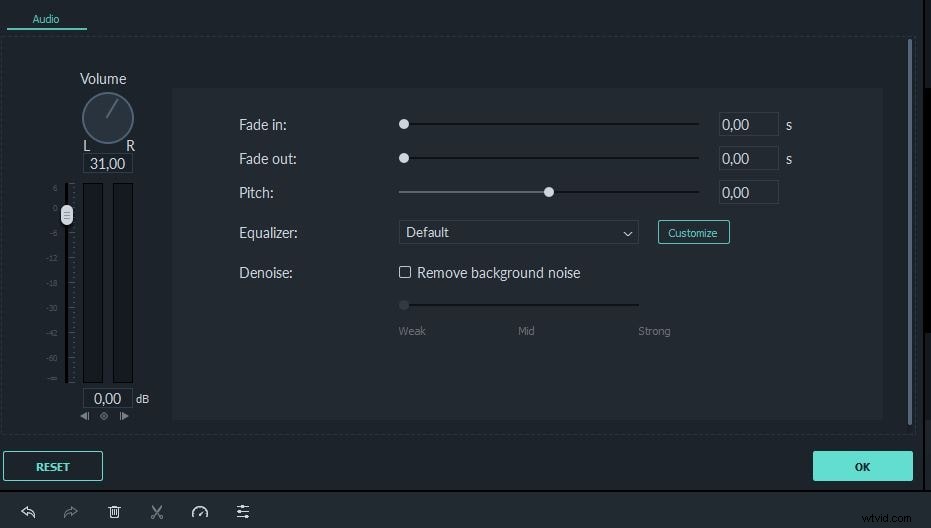
Fade in and Fade out sliders are located at the top of the Audio panel and you can drag the handle on the slider or you can insert new Fade in or Fade out values manually in the boxes next to the sliders. You can click play and decide if you like the effect you created before you click OK to confirm the changes.
Method 2: Directly from Timeline
In case you want to fade an audio quickly you can do so directly from the timeline. Just click on the handle at the beginning or the end of the audio file and then drag it to adjust the duration of the effect. Both of Fade in or Fade out handles can be easily moved directly on the timeline, even if you set their values from the Audio Panel.

Filmora features a lot of sound effects, like the Phone Ring, Explosion or Car Horn that can be combined with the Fade in or Fade out effect to create a better soundtrack for your video. When ready, click on the Export button and proceed to choose the video's resolution, file format or export destination. The software also lets you export MP3 files, which enables you to save all the changes you make while editing an audio file.
Conclusion
Even though Adobe Rush is an app aimed at YouTubers and social media video creators, fading in or out of an audio is still not an option. On the other hand, fading an audio in Filmora is a quick and simple process. Gradually introducing a new music theme or slowly fading the sound as a scene ends can make a social media video sound more professional, and it can help content creators to transition from one scene to the other more smoothly. Do you use Fade in or Fade out effects in your videos often? Leave a comment below and share your experiences with us.