
Here are four simple solutions for fading out audio while working in Premiere Pro.
If you’re just getting into editing or aren’t accustomed to working with audio, transitioning and cutting can be tricky. Distinguishing when to fade out or make a hard cut is up to you, but knowing how to make the transition will benefit all of your future projects. Let’s take a look at some different ways to end a track.
Fade Out
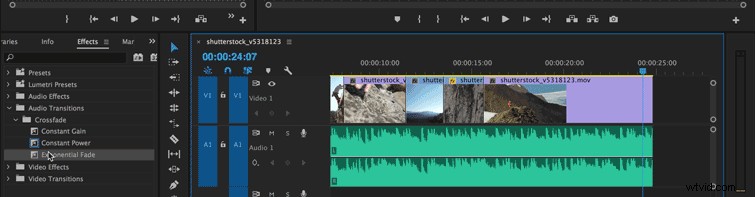
Hard audio cuts are rare. More than likely, if you’re working on corporate video, a documentary, or your own content, you’ll find that, at some point, you’ll need to fade to black or simply dissolve into the next scene. Doing this will require your audio to follow suit and fade out. Fading out your audio is a quick little audio transition that you can apply to the end of your clip. Constant power and exponential fade will allow you to make the transition as gradual as you’d like.
Hard Cut on Beat
One of the recent trends to hit the silver screen involves trailers with audio cut to sync with the music. Take this Kong: Skull Island trailer, for example. Cutting on the beat can ramp up the pace of your edit and thematically close your scene. If you’re dealing with music, cutting on the beat can be simple, even if the song doesn’t quite reach the point you want it to during playback — or if it isn’t as long as you’d hoped. This process is simple with Adobe Audition’s Remixing feature. Cutting to the beat depends on knowing how the software reads audio files in your timeline and how you can manipulate them with your video.
Reverb
Ending a track with reverb requires a few more steps, but is is still straightforward. Find the beat where you want the reverb to begin, cut it, isolate the clip, then nest it. This will open the clip in a new sequence. Then, you’ll add black video to the new sequence, which will allow you to extend the audio clip for as long as you want the reverb to last. Finally, apply the reverb and drag out the echo. (The preceding tutorial also covers the effect in Avid and Final Cut Pro X.)
Keyframing
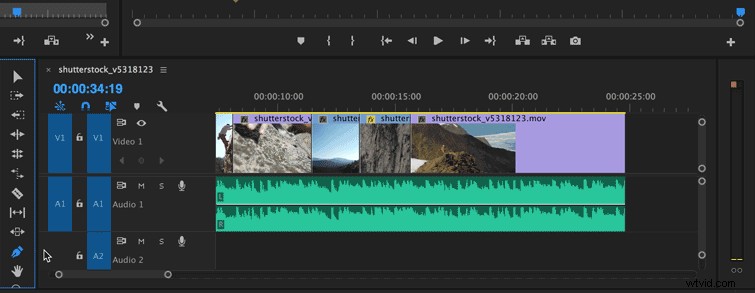
The problem with using default audio transitions is the lack of control over the effects. With keyframing, you can pinpoint the exact time and location of your transition. This customization will make your edit more precise and rewarding for your audience.
Know of any other ways to end audio tracks in Premiere Pro? Share in the comments below.