
In this blog, I’ll give you some fantastic Adobe Premiere Pro audio editing tips. These will help you get started with editing the audio on your video in Premiere Pro. Simple step by step tutorial with screenshots to follow along. Let’s get started!
Synching Audio
First, a simple hack for syncing your audio if you’ve recorded with multiple microphones…
Simply select everything in your audio track. Then click and hold down with your left mouse button, right click and select Synchronize.
Check Audio and select Track Channel 1, click OK and within a matter of seconds (thanks to Adobe magic!) everything will be in sync!
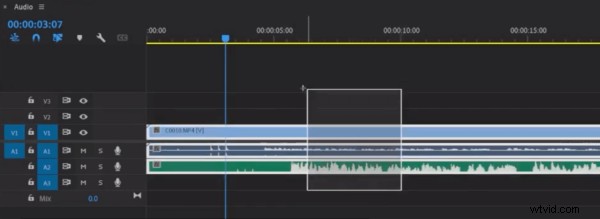
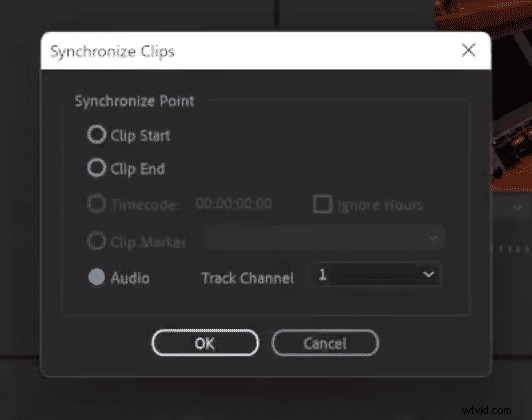
Now, if you’d like to take it one step further, one thing I like to do when editing or working with audio in the sequence of Premiere Pro, is to right click on the timeline at the top of the sequence and click Show Audio Time Units.
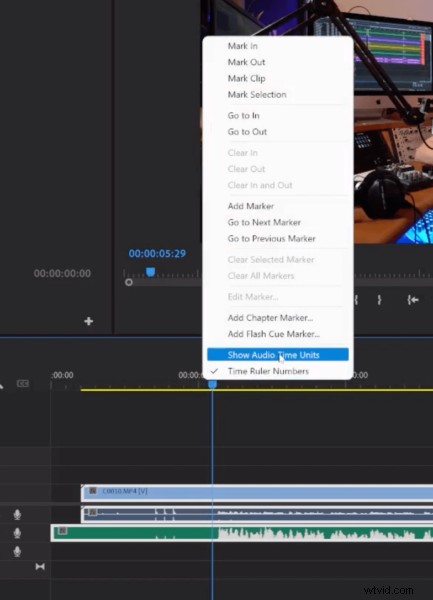
This will display samples instead of frames and allow you to move the samples back and forth to sync them. This is much easier than doing so with frames.
Splicing Audio
Now let’s look at recording a voice onto your timeline and splicing it into the video. To do this, pause your video where you’d like your new voiceover to begin, it’ll count you in, and then you can just record your voiceover.
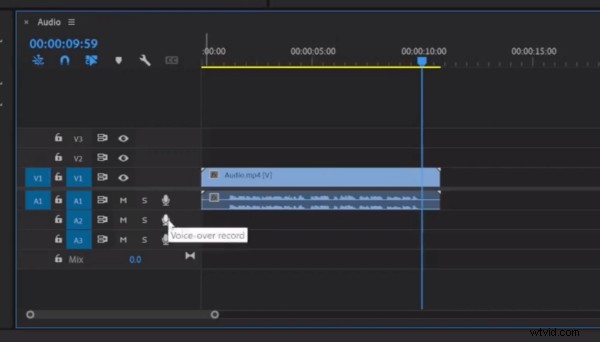
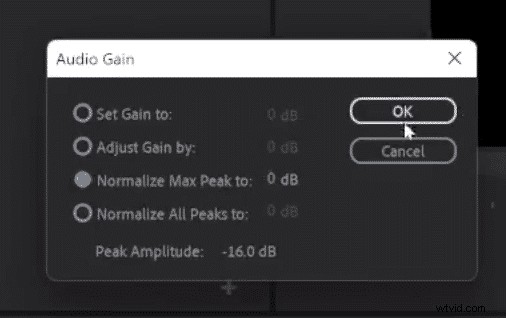
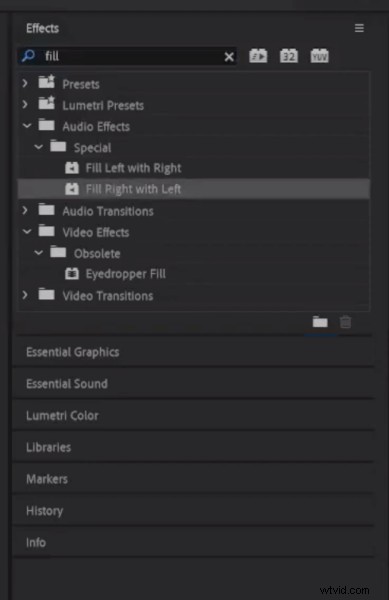
Once you’ve recorded, check the Normalize Max Peak box to normalise the audio so it’s nice and loud. As Premiere Pro records just one channel, you just need to check Fill Right with Left in your effects menu in the top right of your screen to get the full recording.
Cutting Audio
If, for example, you said something incorrectly and you want to scratch it back in, then this is a useful tip too.
Firstly, make sure you make the cut in the middle of a word rather than at the start of a word. Find the place you want to cut, set audio track only, unlink the video and audio, make the cut using your razor tool (C + delete) and splice the sections in from the video.
Cross-fade
Finally, you can also do a smooth cross-fade between the video audio and the newly recorded voiceover. To do so, select Constant Power from your effects menu in the top right and simply drag and drop that into your audio.
And there you go, some super useful tips for editing audio within your videos in Adobe Premiere Pro!
Learn More About Editing Audio In Premiere Pro
- How To Fade Out Audio in Premiere Pro
- Essential Sound Panel in Premiere Pro vs The Audio Mixer
- How To Adjust Volume In Premiere Pro
- How to Make Dialogue Sound Better in Premiere Pro
Download My Premiere Pro Presets
If you’re working with dialogue, different microphones, or you need to do some noise reduction in your videos, check out my Premiere Pro audio presets here!