
Do you have a piece of voice audio in Audacity that perhaps sounds a bit quiet or dull? Here are three easy ways to give it a boost and make your voice sound good in Audacity.
Sound Great in Audacity Step By Step
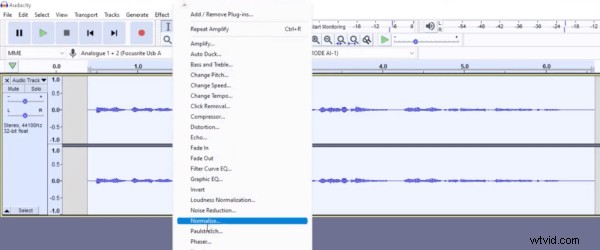
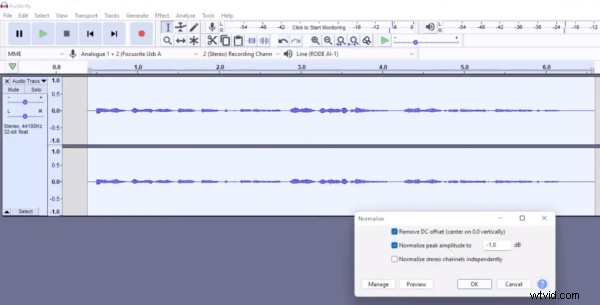
Firstly, you can amplify the audio by double-clicking to select the entire track, then going to Effect > Normalize. Now, normalise the peak amplitude to -1.0 dB. This will notch up the volume across the whole track. You’ll notice there will still be some loud parts and quiet parts – we’ll fix that shortly!
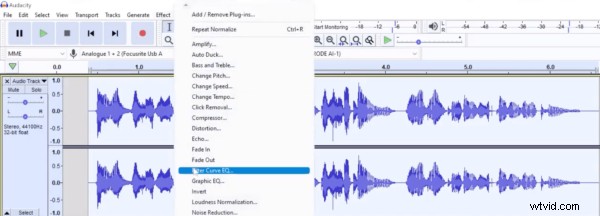
Next, go to Effect > Filter Curve EQ… This is where we can really start to shape the sound of the voice.
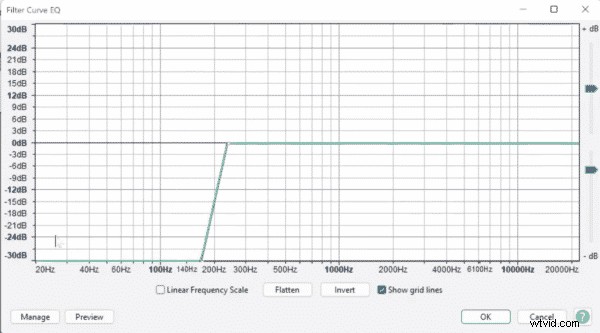
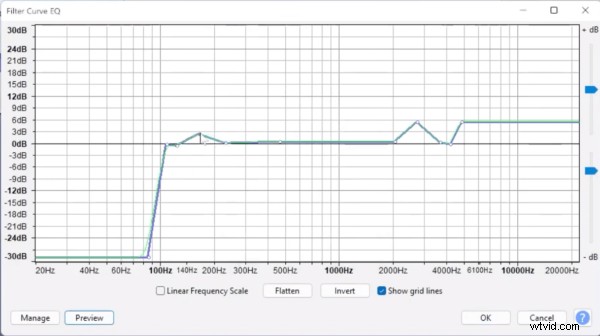
First, add in a high-pass filter to roll-off some of the low-end bass (such as unwanted mic bumps or traffic noise) we don’t need. Click preview to see what it sounds like, and adjust to suit, moving the points to the left if the voice is sounding a little too ‘thin’.
Next, add on some high-end and again adjust to suit. Bring the points down if it sounds too distorted or there’s too much sibilance.
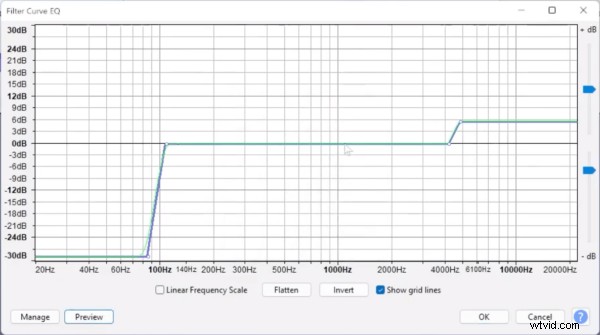
Next, add in some points in the middle to help the voice shine a bit more, as well as boosting the bass a little bit. Then when you’re happy with that, click OK.
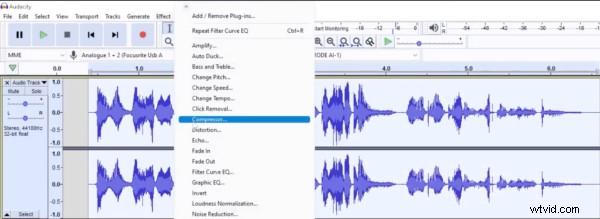
Finally, go to Effect > Compressor…
The settings I used were: Threshold: -20 dB; Noise Floor: -60 dB; Ratio: 3:1; Attack Time: 0.10 secs; Release Time: 1.0 secs; with the box checked for make-up gain for 0 dB after compressing.
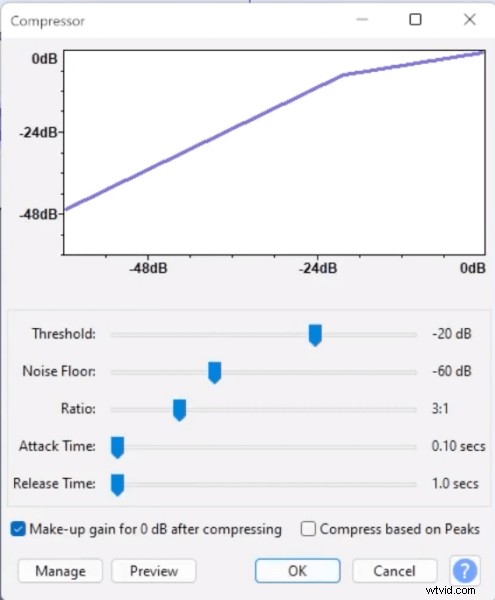
Click ok, and you’ll see the volume levels for your track are more constant.
So, in those three simple steps, we can achieve a professional-sounding voice for radio or podcasts.
Learn More About Editing Audio In Audacity
- How to Use Audacity for Beginners
- Vintage Voice Effect in Audacity (Old Radio Effect)
- How to Trim Audio in Audacity
- How to Completely Remove Vocals from a Song Using Audacity
Check Out My Audacity Course
If you are a podcaster, voiceover artist, audio editor or YouTuber, check out my Audacity course for beginners here, and get hold of my Audacity presets for FREE!