
To achieve a deeper voice in Audacity you’ll be using Audacity’s Graphic EQ and Change Pitch effects. The idea is to remove some of the higher frequencies and boost lower frequencies using EQ to make your audio warmer and then we’ll drop the pitch to get a deep voice.
Use EQ to make your voice deeper
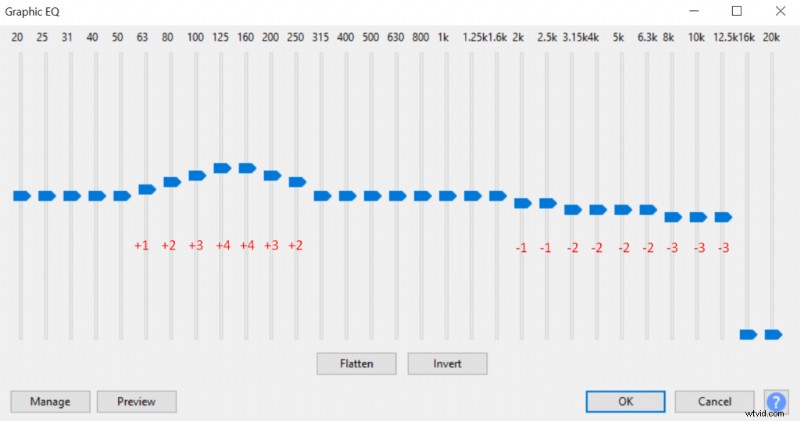
First of all, we’ll be applying Graphic EQ tool in Audacity. You can make your voice deeper using Graphic EQ by following these steps:
- Select your audio track
- Open Graphic EQ (Effect->Graphic EQ)
- Boost 60Hz-250Hz frequencies by up to 4dB
- Subtly cut 2kHz-16kHz frequencies by up to 3dB and remove any frequencies above 16kHz
We’re using an equalizer here to remove some of the higher frequencies which as a result will emphasize lower frequencies and also we’re boosting lower frequencies. It’s quite a crude way of applying equalizer but it should do the job. To be on the safer side when using EQ don’t boost or cut more than 4dB.
Also, if you struggle with clarity leave 2kHz-6kHz and 200Hz-300Hz frequencies as they are.
EQ will add some warmth to your audio and will remove some of the harsher high-end tones. Overall, the change will be relatively subtle. You can learn more about applying EQ to enhance vocals here.
Use pitch changer to make your voice deeper
Once the EQ has been applied we can get to the next step which is changing the pitch. To change the pitch we’ll be using Change pitch effect in Audacity. Using EQ we’ve quite subtly changed the voice, there’s no subtlety with Change pitch effect and it’ll make you sound like a different person, especially if you crank it low.
Here’s how you can deepen your voice with Change pitch effect in Audacity:
- Select your audio track
- Open Graphic EQ (Effect->Change Pitch)
- Set Semitones (half-steps) to -3 (Anywhere in between -4 to -1 should still sound realistic enough)
Try playing around with semitones, setting them lower will make your voice sound even deeper. I wouldn’t recommend going below -4 semitones if you want to maintain a realistic human voice as that’ll sound very unnatural and I would stay in -2 to -3 range. However, if you are going for something sounding supernatural you can go as low as -20.
Also, for the best result, I recommend learning some natural techniques to make your voice deeper and applying them to record a naturally deeper voice. Then combining them with voice deepening effects in the software will give the best results.
Here’s the original audio before applying any effects:
Here’s audio after applying EQ and Change Pitch effects in Audacity: