REC

Recommended: Video Production, Editing & Gear Maintenance Guide

 WTVID >> WTVID >  >> Video Editing >> Adobe Audition

Create a Professional Robotic Voice Effect in Adobe Audition: Step-by-Step Guide

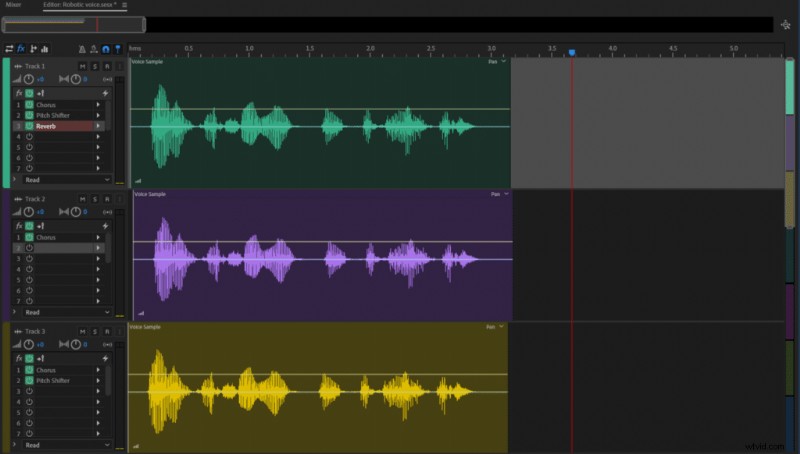
You can create a robotic voice in Adobe Audition by multiplying your audio track into three, adding some disparity in their timelines and applying multiple effects such as Chorus, Pitch Shifter and Reverb. The key here is to make it sound like multiple voices speaking at the same time with slight differences.
Create a Professional Robotic Voice Effect in Adobe Audition: Step-by-Step Guide

To create Robotic voice in Adobe Audition follow these steps:

  1. Open multitrack editor
  2. Insert your track
  3. Multiply the track into three
  4. Move two of the tracks slightly so that there’s a minor disparity between the tracks in a timeline
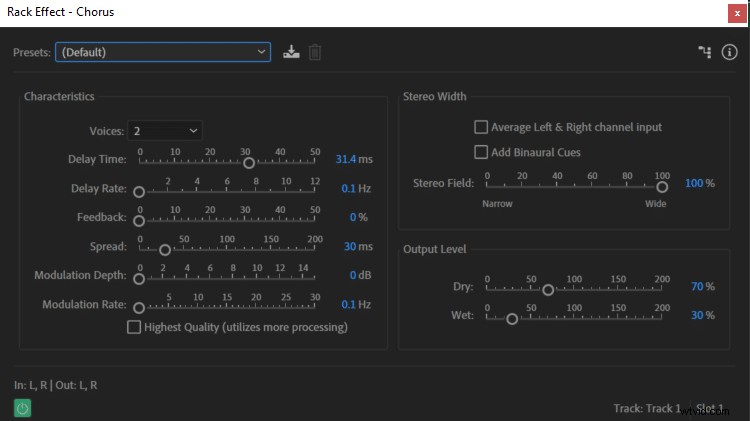
  5. Apply Chorus (Effects->Modulation->Chorus) effect onto each track
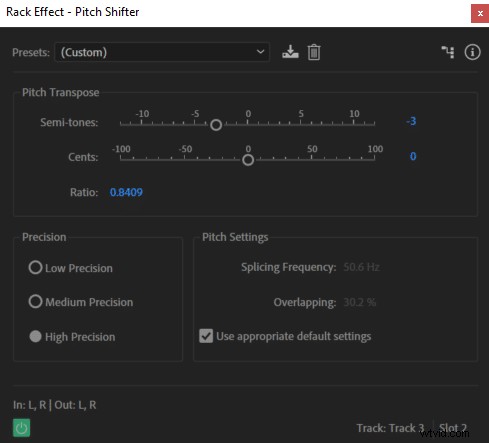
  6. Using Pitch Shifter (Effects->Time and Pitch->Pitch Shifter) effect to boost the first track by up to 5 semitones and reduce the third track by up to 10 semitones
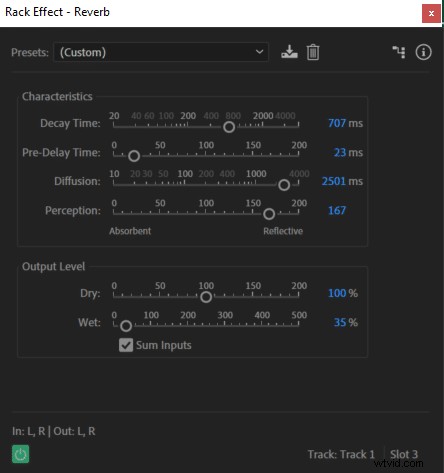
  7. Apply Reverb (Effects->Reverb->Reverb) effect onto the first track
Create a Professional Robotic Voice Effect in Adobe Audition: Step-by-Step Guide Create a Professional Robotic Voice Effect in Adobe Audition: Step-by-Step Guide Create a Professional Robotic Voice Effect in Adobe Audition: Step-by-Step Guide

Original audio:

Audio after applying effects in Adobe Audition to make it sound robotic:

You can copy the settings I’ve used but there are no limits to how to achieve a robotic voice in Audition. You can play around and use harsher or lighter settings to create the perfect robotic voice for yourself.


  1. How to Fix Clipped Audio in Adobe Audition: Quick Step-by-Step Guide

  2. How to Effortlessly Remove Mouth Clicks in Adobe Audition Using Automatic Click Remover

  3. How to Remove Reverb in Adobe Audition: Step-by-Step DeReverb Guide

  4. Effortlessly Remove Breaths from Audio in Adobe Audition: Step-by-Step Guide

  5. How to Use Noise Gate in Adobe Audition: Step-by-Step Guide

Adobe Audition
  1. How to Make Your Voice Sound Professional in Audacity: 3 Easy Steps

  2. How to Create Custom Keyboard Shortcuts in Adobe Audition: Step-by-Step Guide

  3. How to Eliminate Background Noise in Adobe Audition: Step-by-Step Guide

  4. How to Transform Your Voice into a Robotic Sound: Easy Methods Revealed

  5. How to Record Audio in Adobe Audition Multitrack: Step-by-Step Guide

  6. How to Accurately Measure Noise Floor in Adobe Audition: Step-by-Step Guide

  7. How to Raise Your Voice Pitch in Audacity: Step-by-Step EQ and Change Pitch Guide

  8. How to Convert Mono to Stereo in Adobe Audition: Step-by-Step Guide