
You can remove mouth clicks in Adobe Audition using a built-in Automatic Click Remover tool. It is a very powerful tool that will find and eliminate most of the mouth clicks from your audio recording in almost no time.
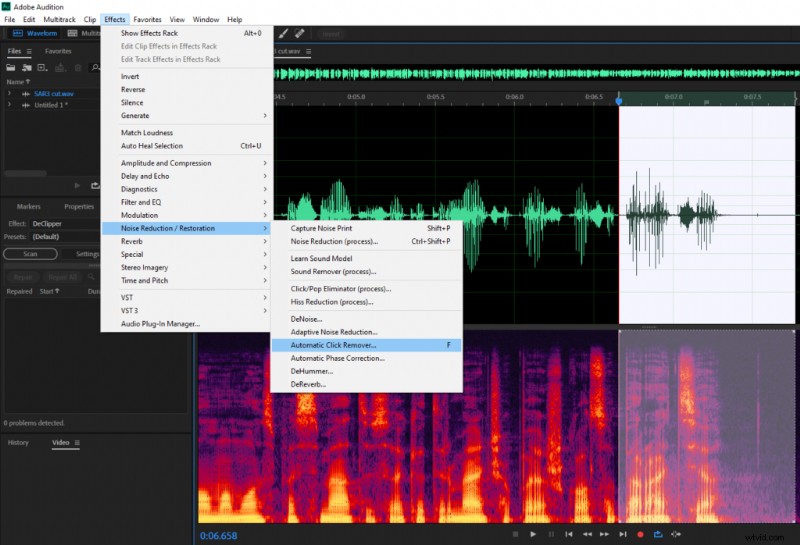
On Adobe Audition you can find Automatic Click Remover by going to Effects > Noise Reduction / Restoration > Automatic Click Remover
Click remover will automatically find mouth clicks in your recording and remove them for you. You can tweak some settings to make it more aggressive, but that comes at the cost of removing some vocal frequencies, which you don’t want to do too much.
Make sure you select audio before opening the click remover tool.
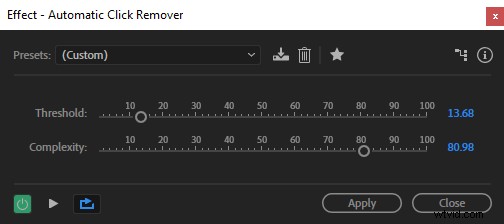
Once you click on the effect, you will see two settings – Threshold and Complexity
I am going to quote what Adobe is saying about each of these parameters
So, a lower threshold and higher complexity will detect and remove more mouth clicks, but at the cost of degrading some of the audio.
How to Get Rid of Mouth Clicks in Audition?
You can use the following setting in Adobe Audition Automatic Click Remover to quickly remove mouth clicks:
- Threshold – 13
- Complexity – 80
These settings are quite aggressive and will remove most of the mouth clicks from your recordings, but it might falsely detect some mouth clicks where there are none. For that reason, I would select only the parts of audio where you hear mouth clicks.
Otherwise, a quicker method is using softer settings on the whole recording.
If you want to quickly remove mouth clicks without worrying it affecting your audio quality negatively I would choose the following settings:
- Threshold – 30
- Complexity – 16
These settings are great when applying the effect to a whole recording. It is useful if you have a long audio recording, want to avoid the hassle and speed is your priority.
You can read about how to avoid mouth clicks here.