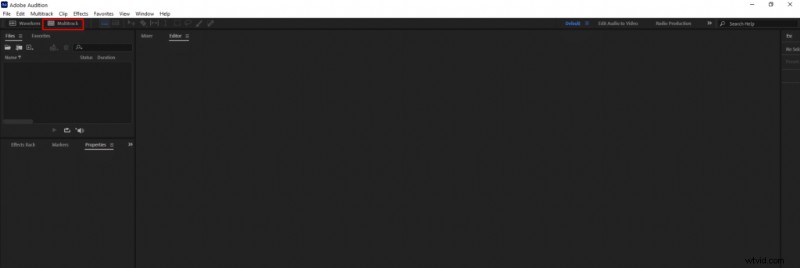
By default, Adobe Audition opens up in Waveform mode. To record in a multitrack editor you will need to click on the “Multitrack” button at the top left corner.
If you immediately press the red record button, you will notice that Adobe Audition doesn’t start recording.
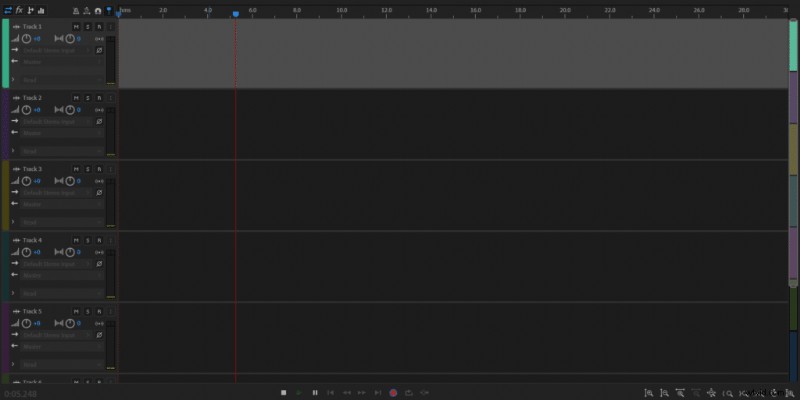
To start recording with a multitrack editor you will have to choose your input by clicking on the default stereo input on each track you want to use when recording. If you’re using a USB microphone you will find its name in the list and you can choose it.
Otherwise, if you’re using multiple microphones connected to an audio interface instead of being named after a microphone’s name, the input will be named after an input line on your audio interface.
For example, I’m using Behringer audio interface with two input lines, therefore I get to choose to use one of the input lines from an audio interface. Each of them has an XLR microphone plugged-in, but Audition doesn’t recognize microphones, instead, it recognizes the audio interface.
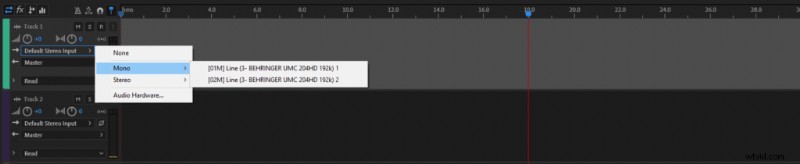
You need to choose a microphone or an input line in your audio interface for each track. This way you can record using different microphones for separate tracks, which is why you probably wanted to use Audition’s multitrack editor in the first place.
When you have your microphones selected for each track, click the R button on each track to enable recording for the track. Once the recording is enabled for your selected tracks you can click the red recording button to start recording using a multitrack editor.
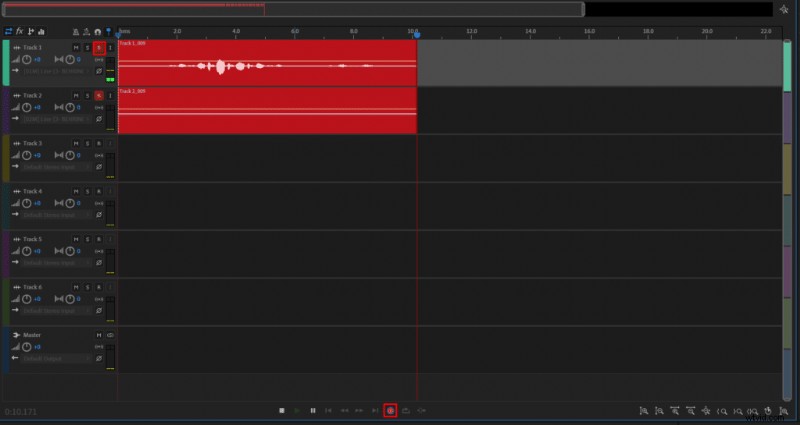
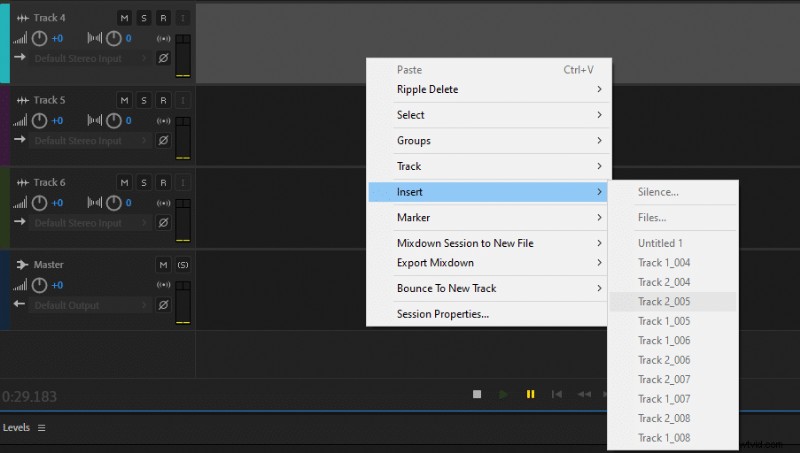
Also, using multitrack you can insert and edit audio files into separate audio tracks by clicking the right mouse button on a chosen track, choosing the insert option and files if you wish to upload files from your computer or you can just select previously during the session recorded tracks if you have any.