
Adobe Audition has a built-in noise gate accessible through Effects -> Amplitude and Compression -> Dynamics. It’s called AutoGate. Noise gate works by silencing audio that is below a certain volume level – threshold. It’s a very useful tool that helps to quickly clean up audio by removing background noise.
When applying noise gate in Adobe Audition make sure you check the box near ‘AutoGate’ and leave the Compressor and Expander unchecked unless you want to apply these tools simultaneously.
Noise gate in Adobe Audition consists of 4 settings:
- Threshold – determines input level below which noise gate closes and audio is silenced. You want to set it slightly higher than your noise floor.
- Attack – determines how long it takes for noise gate to gradually open. It’s a fade-in effect. Setting attack too high might cause noise gate to remove parts of the words at the beginning of sentences. On the other hand, setting it too low might make your audio sound choppy. Generally, you want attack to be set low.
- Release – determines how long it takes for noise gate to gradually close. It’s a fade-out effect. Setting release too low will cause your audio to sound choppy and might cut the end of the sentences, but that will also depend on Hold settings. Setting it too high will make noise gate leave a lot of the background noise.
- Hold – determines how long it takes for noise gate to apply after audio is below the threshold volume. It’s similar to release, except the process is not gradual. Hold will be applied before release. Setting hold too low will cause noise gate to cut the end of your sentences. Setting hold too high might leave a lot of the background noise in your recording.

Below are the Noise Gate settings I generally use in Adobe Audition for voice overs and I slightly adjust them if I notice some choppiness or unwanted background noise residues.
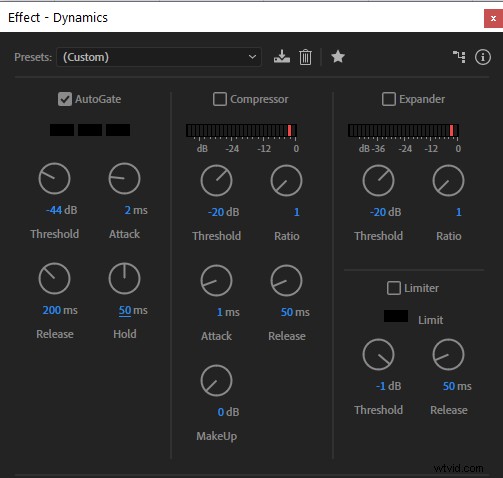
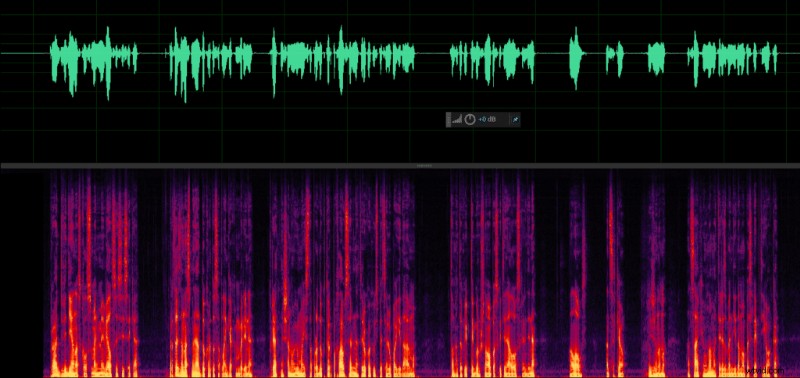
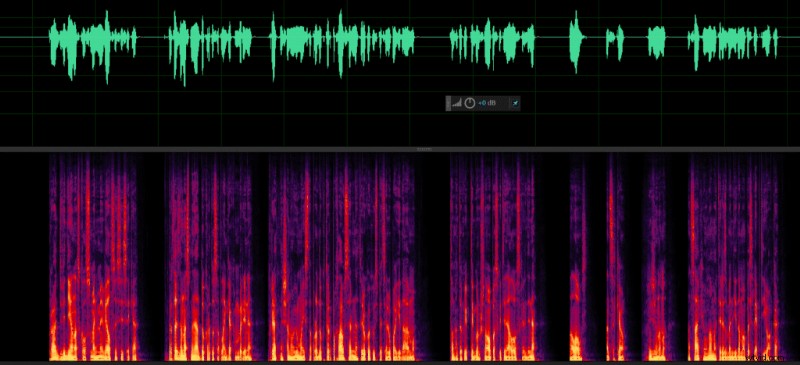
Optimal Attack, Hold and Release settings in Noise gate might be quite similar for everyone’s vocals, however, Threshold will vary a lot depending on the environment you’re in and will differ for everyone.
You can determine your optimal noise gate threshold by measuring the noise floor. To measure noise floor you’ll be required to record your environment in silence. Make a quick recording of your environment and look at recording levels bar while recording or playing it back. The maximum recording/playback level is your noise floor level. Usually it’s below -40dB, but depends on how loud your environment is and your recording settings.

Your threshold in noise gate should be slightly higher than your noise floor to make sure that noise gate will remove all the background noise. In my example, noise floor hovers around -47dB, therefore I am setting my threshold at -44dB.