
In this tutorial, learn some essential techniques for focusing on your edit and streamlining redundant tasks using Premiere Pro.
There are plenty of different ways to do things in Premiere Pro. However, there are some techniques that I use on almost every edit. So, I decided to put together a list of ten Premiere Pro workflow tips that I use all the time.
Let’s take a look.
1. How to Ripple Delete Between Multiple Video Clips
Frequently, I will have many video clips on my timeline, with gaps in-between them. You can right-click between two clips and select Ripple Delete to remove a gap. However, this can be tedious if you have multiple gaps.
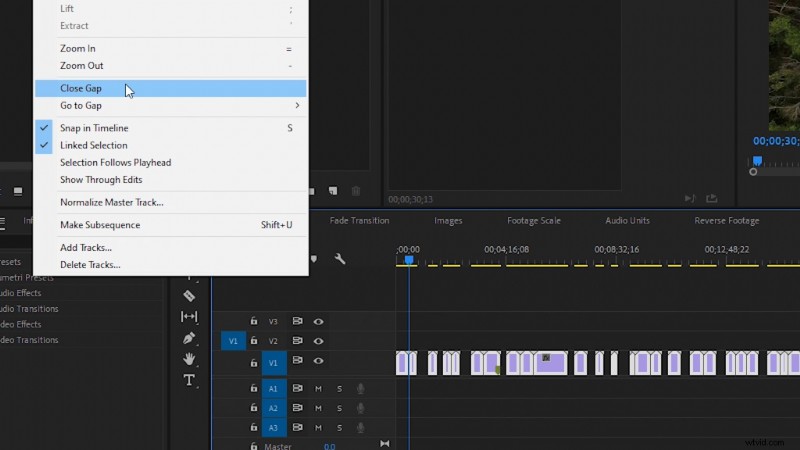
Instead, click and drag your mouse to highlight all the clips. Then navigate to Sequence in the top menu, and then select Close Gap. This will ripple delete gaps for all of your clips, at once.
2. Quickly Add a Cross Dissolve Transition
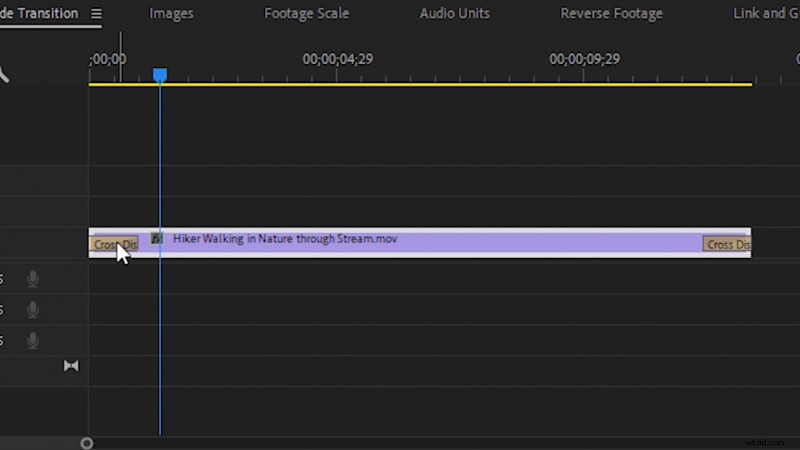
To quickly add a cross dissolve transition to any video clip, select a clip in your sequence and use the shortcut CTRL+D (CMD+D on Mac). This will save you a lot of time not searching for the cross dissolve transition in the effects panel.
3. Set Default Image Length
If you’ve ever worked with images in Premiere Pro, you’ve probably noticed they have a five-second length when added into a sequence. If you’re working with multiple images, it can get repetitive to extend the length for each, if they’re going to be on-screen longer than the default five seconds.
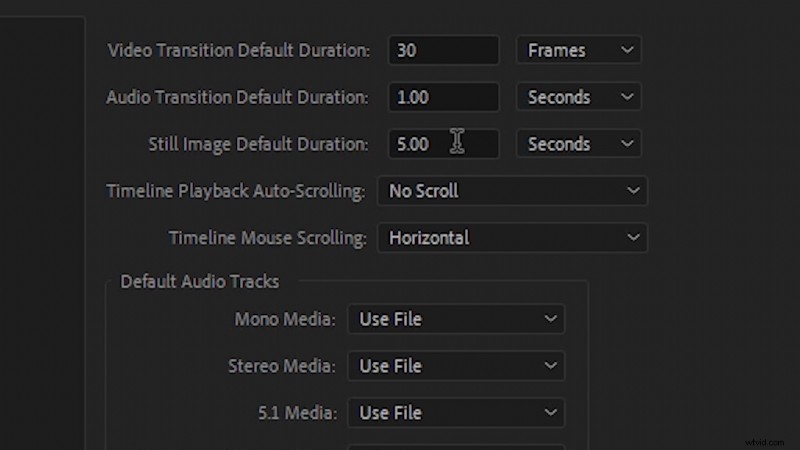
To change the default image length, navigate to Edit and then Preferences, then select Timeline. You’ll see the setting for Still Image Default Duration. Set it to your desired length. Then, you will have to re-import your images back into Premiere in order for them to have the new default length.
4. Footage Auto Scale to Sequence Size
If you work with video clips that are larger than your sequence size, it can get annoying to have to constantly scale down each clip you add in.
Fortunately, we can let Premiere Pro do this for us automatically. Navigate to Edit, then Preferences, and select Media. You will then see the setting Default Media Size. Set it to Set to Frame Size.
Now, your video clips will automatically scale down to fit in your sequence. You can then scale them back up later, if needed.
5. Perfectly Align Audio
Sometimes an audio clip won’t align just right because the default setting in Premiere Pro is to move audio by one video frame length. You can change this, however, if you need to nudge audio over by less than one video frame length. Right-click on the time ruler numbers at the top of the sequence timeline. Then, select Show Audio Time Units.
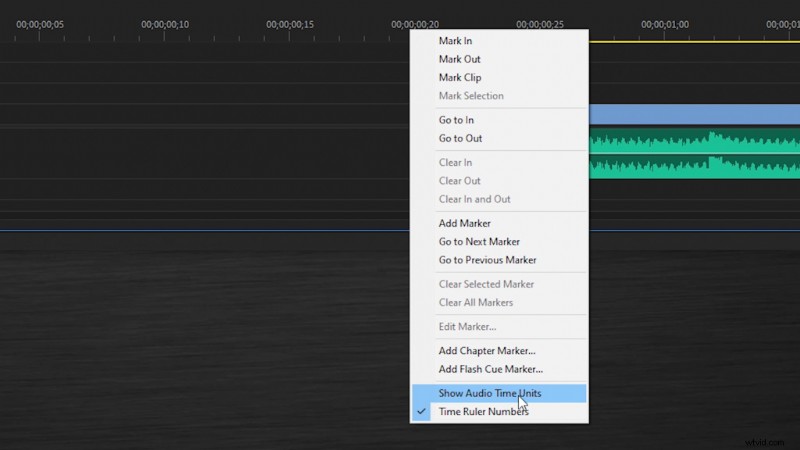
Now, you can move audio tracks in very small increments on your timeline. Then, just check back off Show Audio Time Units when you’ve finished moving your audio.
6. Reverse Playback of a Video Clip
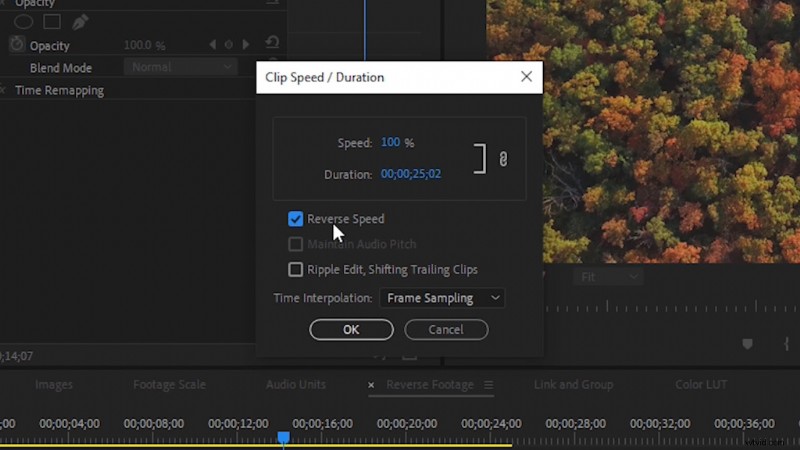
This is something I do all the time on drone footage. Right-click your video clip in your sequence. Then, select Speed/Duration. You will have the option to check on Reverse Speed. Now, your clip will play in reverse on your timeline.
7. Linking and Grouping Clips
To Link and Group clips, click and drag to highlight two or more clips. Then, right-click and select Link Clips or Group Clips.
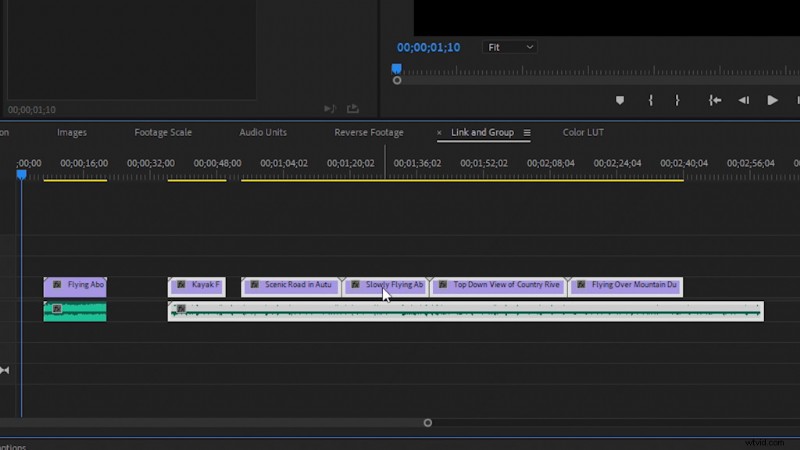
Linked clips act like a standard video clip with audio, meaning if you trim the length, it’ll trim both the video and audio. Grouped clips allow you to select multiple clips with one click and move them around. However, you can also trim clips individually within the group.
8. Export LUTs Using the Color Panel
In order to export LUTs in Premiere Pro, you’ll need to be working in the Color work space. You’ll see the Lumetri Color panel on the right side. Once you’ve dialed in and created your look, right-click on the Menu Bars at the top of the Lumetri Color panel.
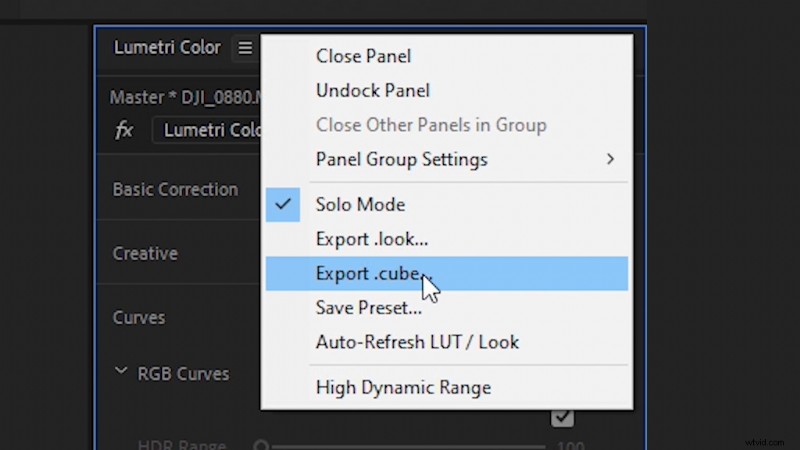
This will open a menu drop-down that allows you to select Export .cube. This will then export a color LUT you can easily reuse.
9. Apply LUTs to Footage in Media Encoder
Media Encoder is a joint program that comes with Premiere Pro. You have probably exported videos through Media Encoder already. However, you can actually apply LUTs to any clip you export. This can help speed up your work, if you need to add a slight color adjustment to multiple clips you’re sending to a client.
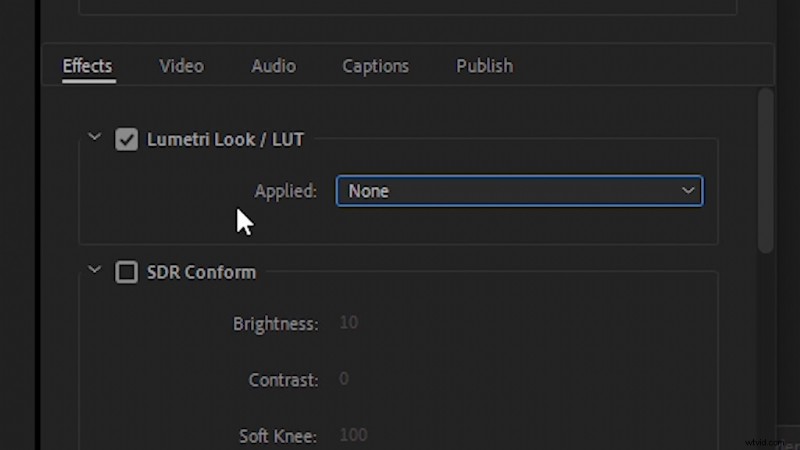
In Media Encoder, select the preset options for any clip you’ve added in. Then, navigate to the Effects settings, and you’ll see the option to apply a LUT to your exported video clip.
10. Stitch Multiple Clips Together in Media Encoder
If you ever have a bunch of clips that you need to send as one single file, you can actually bypass Premiere Pro and do this directly in Media Encoder. Select your clips, then click and drag them above the Media Encoder UI, but don’t release them.
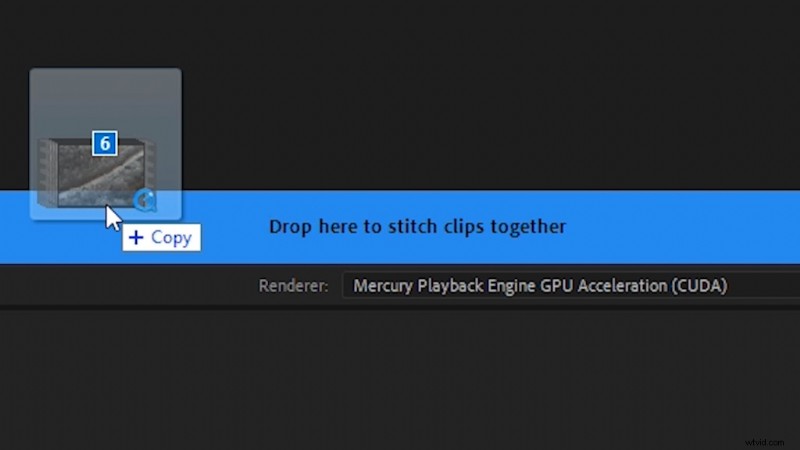
You’ll then see a pop-up that states “Drop here to stitch clips together.” Drop your clips over that pop-up. Now, when your clips export, they’ll all be together as one single file.
Interested in the tracks we used to make this video?
- “Fresh Hip Hop” by Trending Music
- UX Paradise” by Tiny Music
- “Rain Rain Go Away” by Cosmo
- “Lo-Fi Dreams” by Trending Music
- “Ambient” by Sugar Beats
Looking for more on Premiere Pro? Check out these articles.
- 2019’s Top 10 Premiere Pro Video Tutorials
- Edit for Social Media with Premiere Pro’s Auto Reframe
- 15 Things I Wish I Knew As A Beginner with Adobe Premiere
- 16 Must-Know Premiere Pro Keyboard Shortcuts
- 80 Free Transitions for Premiere Pro Video Editors
Cover image by Kaonos.