
In this tutorial, we’ll look at the optimal settings for shooting on your iPhone — as well as color grading and outputting the results for stock footage.
The iPhone 11 is a powerful camera — under the right circumstances, it’s capable of capturing images of high enough quality to sell as stock footage. Add in the convenience of always having this camera on hand, and there’s no excuse not to shoot every chance you get.
Here’s what you need to know about optimizing your settings for color grading and exporting.
iPhone Camera App vs. Third-Party App
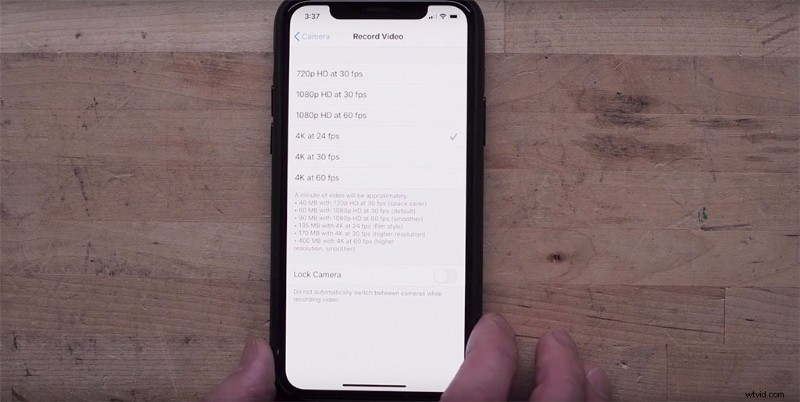
This question comes up often: should you shoot with the iPhone native camera app (24 Mbit/s at 4K 24p), or a third-party app like FiLMiC Pro that can capture video at much higher frame rates (up to 120 Mbit/s)?
My test revealed that while it has a lower data rate and lacks a LOG mode, the excellent built-in image processing (that’s only available to the native camera) more than makes up for it.
Apple has yet to make this tech accessible to third-party apps, so, as a result, the image is inferior.
Enhancing the Shot
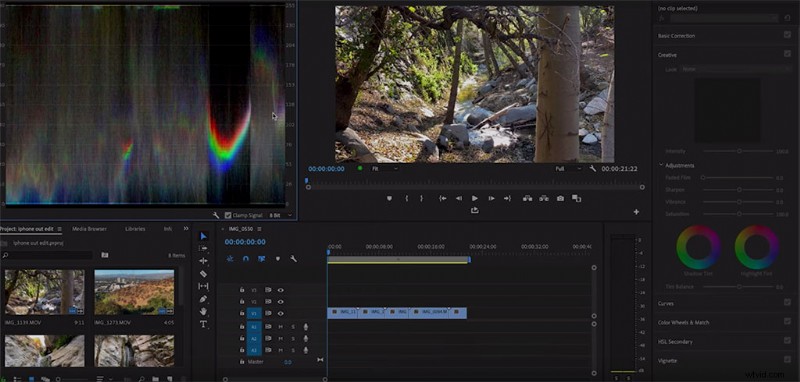
Once you have your footage and have imported it into Premiere (or a similar NLE/grading suite), it makes sense to tweak the brightness and contrast to enhance the shot. You can make a scene seem more wintry and stark by cooling it down and desaturating it. Or, create a summer feel by making it warmer and more vivid. Keep in mind that stock footage sells more often when it appeals to the most possible keywords and applications.
LUTs, especially those built into your grading software, do a great job of creating a quick atmosphere, and you can copy and paste them between clips. Fuji ETERNA 250D is a popular LUT in the creative tab in Premiere, and it gives a cinematic look, while still retaining a ton of detail.
Outputting
Once you have your footage looking how you want, you’ll need to output it. Since the iPhone shoots in a HEVC or H.265 codec, you’ll want to avoid recompressing the footage in H.246 or you’ll introduce compression artifacts. Quicktime ProRes 422 is a good medium between size and compression, and is accepted by most stock footage sites.
Cover image via Hadrian.
Interested in the tracks we used to make this video?
- “Live Your Dream” by Sound Fox Music
- “OXOX” by Reaktor Productions
- “The Flow” by Sound Fox Music
Looking for more on iPhone filmmaking? Check these out.
- Can You Successfully Shoot a Film on the New iPhone 11 Pro?
- 5 Tips for Rigging an iPhone for Filmmaking Projects
- How to Work with 3 Slow Motion Modes on the iPhone