
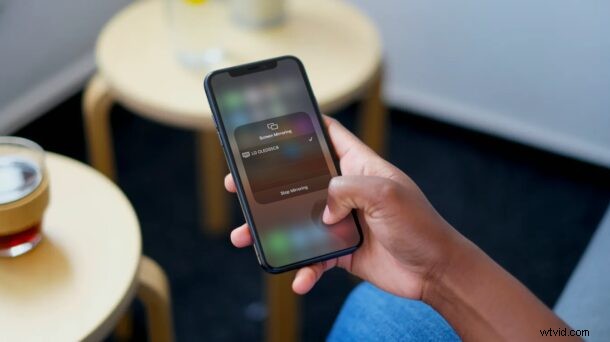
Did you know you can mirror your iPhone or iPad to many modern LG TV’s? Similar to how you mirror the iPhone screen to an Apple TV device, many modern smart TV’s also directly support the ability to mirror a device screen directly to them.
If you’ve been thinking about purchasing an Apple TV to mirror your iPhone’s screen or watch Apple TV+ shows and movies on your TV, then hold your horses, because your TV model may already support these features, and if you’re in the market for a new TV anyway you could pick a smart TV that supports AirPlay mirroring as well.
We’re currently living in the era of smart TVs that give you access to streaming services like Netflix, Hulu, Disney+, etc. out of the box. If you purchased an LG TV in the past few years, chances are, you probably don’t need a separate Apple TV device. This is because Apple has brought the Apple TV app and AirPlay 2 support to LG TVs starting with the 2018 models. That’s right, this means that you don’t have to worry about spending around any separate money on an Apple TV set-top box device anymore.
At this point, you’re probably too excited to try this feature out for yourself. So let’s get you started as we show you how you can mirror your iPhone to an LG TV with ease.
How to Mirror Your iPhone to LG TV
First and foremost, you need to make sure that your LG OLED TV is running on the latest firmware since Apple TV and AirPlay 2 support was added via a software update on older models. You can do this by going to Settings -> General -> About This TV. By default, automatic updates are enabled and it should be updated as long as your TV is connected to the internet and you didn’t change the update setting. Once you’re done, follow the steps below:
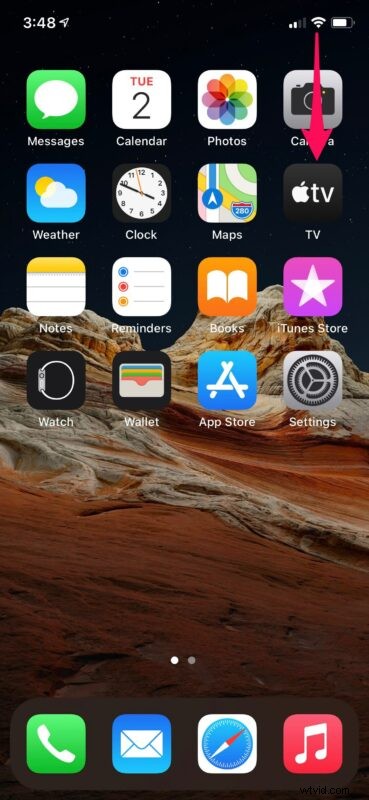
- Access the iOS Control Center on your iPhone. On iPhones with Face ID, this can be done by swiping down from the top-right corner. On iPhones with Touch ID, you can do the same by swiping up from the bottom.
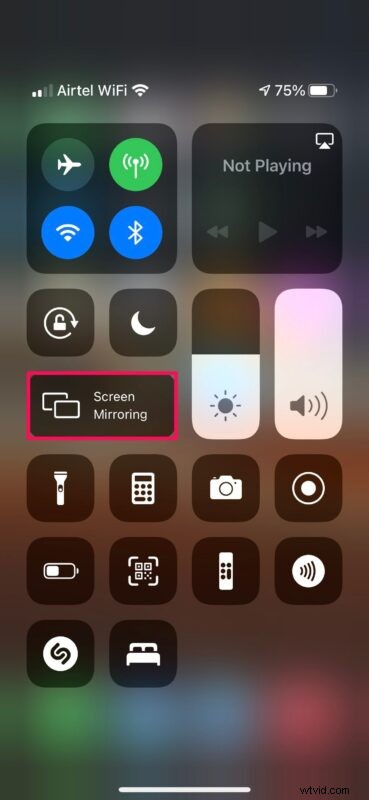
- Now, tap on the “Screen Mirroring” option from the Control Center located next to the brightness slider, as shown below.
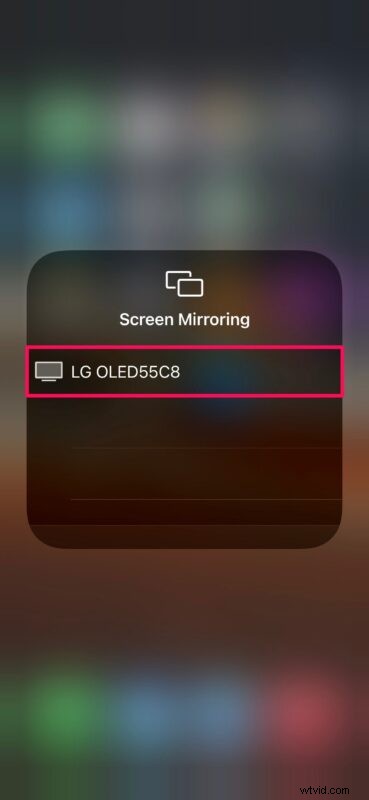
- Your LG OLED TV will show up in the list of AirPlay devices under Screen Mirroring. Tap on it to initiate the AirPlay connection.
- Once connected, your LG OLED TV will mirror your iPhone’s display. To end this session at any time, simply tap on “Stop Mirroring” from the Control Center menu.
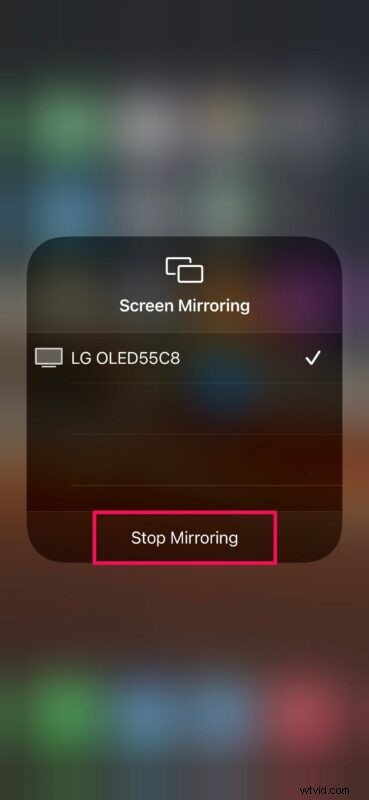
That’s pretty much all you need to do. It’s that easy to mirror your iPhone’s screen on a supported LG TV.
From our experience, there’s some latency between your inputs and what’s displayed on your TV. It’s most noticeable when you’re navigating through the menus. Therefore, it’s not exactly ideal for playing your mobile games on the big screen.
Of course, we were focusing on the LG TVs from 2018 and later in this article. But, note that Apple TV and AirPlay 2 are supported by certain newer models in the LG NanoCell and LG UHD line-up too, as well as many Sony, Samsung, and Vizio smart TV’s. To confirm this yourself, see if you’re able to find your model in this list of supported TVs, and if you’re shopping for a new TV you can look on Amazon for specific TV models with AirPlay support to allow mirroring and other great functionality.
Some models may only have support for Apple TV app, but if you’re lucky, your TV model may support AirPlay 2 as well. Also, it’s worth pointing out that the Apple TV app is available on the PlayStation 4 and PlayStation 5 without AirPlay 2 features.
What do you think of AirPlay integration in smart TVs? Do you use these great features that are available to you? Let us know in the comments.
FTC: This site uses affiliate links, any revenue generated from such links goes directly to supporting the site.