
Now that the iOS 16 upgrade is available, you may be like many users who haven’t yet taken the time to update their device quite yet. If so, you’re certainly not alone, since not everyone is enthralled by installing system software updates or centers their life around doing so. But before you do go updating your iPhone, you might want to take a few steps to get the device ready for the update.
We’ll run through a quick check list of things to do so that you can be sure you’re ready for iOS 16.
1: Can my iPhone run iOS 16? Check iPhone compatibility
The first thing you’ll want to do is make sure that your iPhone can even run iOS 16, since it is a bit more restrictive on devices than prior system software versions.
The list of compatible iPhones with iOS 16 is as follows:
- All iPhone 14 models (they’ll ship with iOS 16 preinstalled)
- All iPhone 13 models, including iPhone 13 Pro and iPhone 13 ProMax
- All iPhone 12 models, including iPhone 12 Pro and iPhone 12 ProMax
- All iPhone 11 models, including iPhone 11 Pro and iPhone 11 ProMax
- iPhone XS and iPhone XS Max
- iPhone XR
- iPhone X
- iPhone 8 and iPhone 8 Plus
- iPhone SE 2nd generation and newer
And to state the obvious, the newer and better the model of iPhone, the better the performance of iOS 16 will be on that device.
2: Clean House & Free up Storage Space
Major iOS updates require free storage space to install, and to perform well. So you’ll want to make sure you have space on your device free to be able to install the iOS 16 update, and so that it doesn’t grind to a halt.
The simplest thing to do to free up storage is to quickly delete iPhone apps that you aren’t using.
Also, removing unwanted movies and pictures (but only after you copy the pictures to Photos on the Mac or back them up first) is an excellent way to free up a lot of storage on a device.
Aim to have at least 6GB free, but more is better.
3: Update Apps
Updating apps before installing iOS 16 is a good idea, since most developers will have updated the apps to maximize compatibility.
Go to the App Store, then go to the Updates tab, and choose to update your apps.
4: Back up the iPhone
This is the most critical step to take before updating to any system software update, whether it’s iOS 16 or even a point release.
Always back up your device before installing a software update. The failure to do so could result in permanent data loss, and given how important stuff like photos, notes, videos, and personal data is on your iPhone, you don’t want that to happen.
The easiest way to backup an iPhone is to iCloud.
You can also backup an iPhone to Mac with Finder, or to a Windows PC with iTunes.
Do not skip the backup process, it’s easy and will prevent you from having a potential nightmare situation where you could lose all of your important stuff.
4: Install iOS 16 Update, and Enjoy!
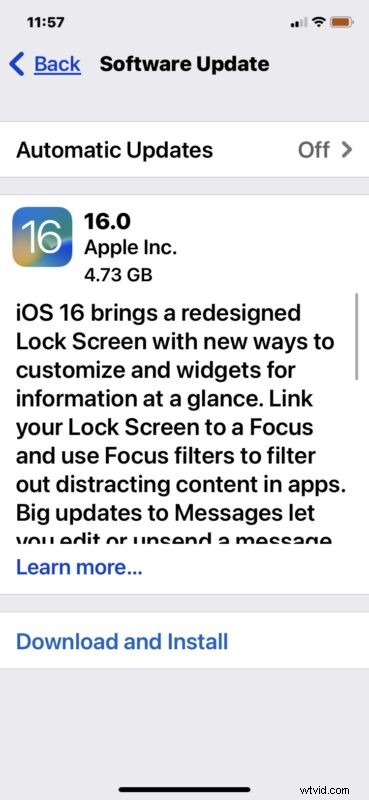
iOS 16 is a free software update for iPhone available now, and you can install it through the Settings app on your iPhone, or through Finder on Mac, or iTunes on a PC.
So, after you have backed up, go ahead and install iOS 16 update, and enjoy the new features on your iPhone, like the customizable lock screen, new Focus mode features,
Be absolutely certain you have backed up your iPhone before installing iOS 16!
5: Wait, I’m not ready to install iOS 16!
If you aren’t ready to install iOS 16 just yet, there’s no major rush. Yes you’ll be missing out on some fun new features like the customizable lock screen, but it’s not the end of the world.
If you’re not interested in the new features but you are concerned about potential security issues, you can choose to install iOS 15.7 update instead, which includes the security fixes from iOS 16, but brings those to iOS 15 instead.
The old adage “if it ain’t broke, don’t fix it” can apply with technology and system software updates, so reticence to install new updates is understandable. Fortunately, iOS 16 performs quite well for most iPhone users, and is not such a big change that you’ll be lost if you do install it. Nonetheless, when (or if) you do go through with the update, is entirely up to you.